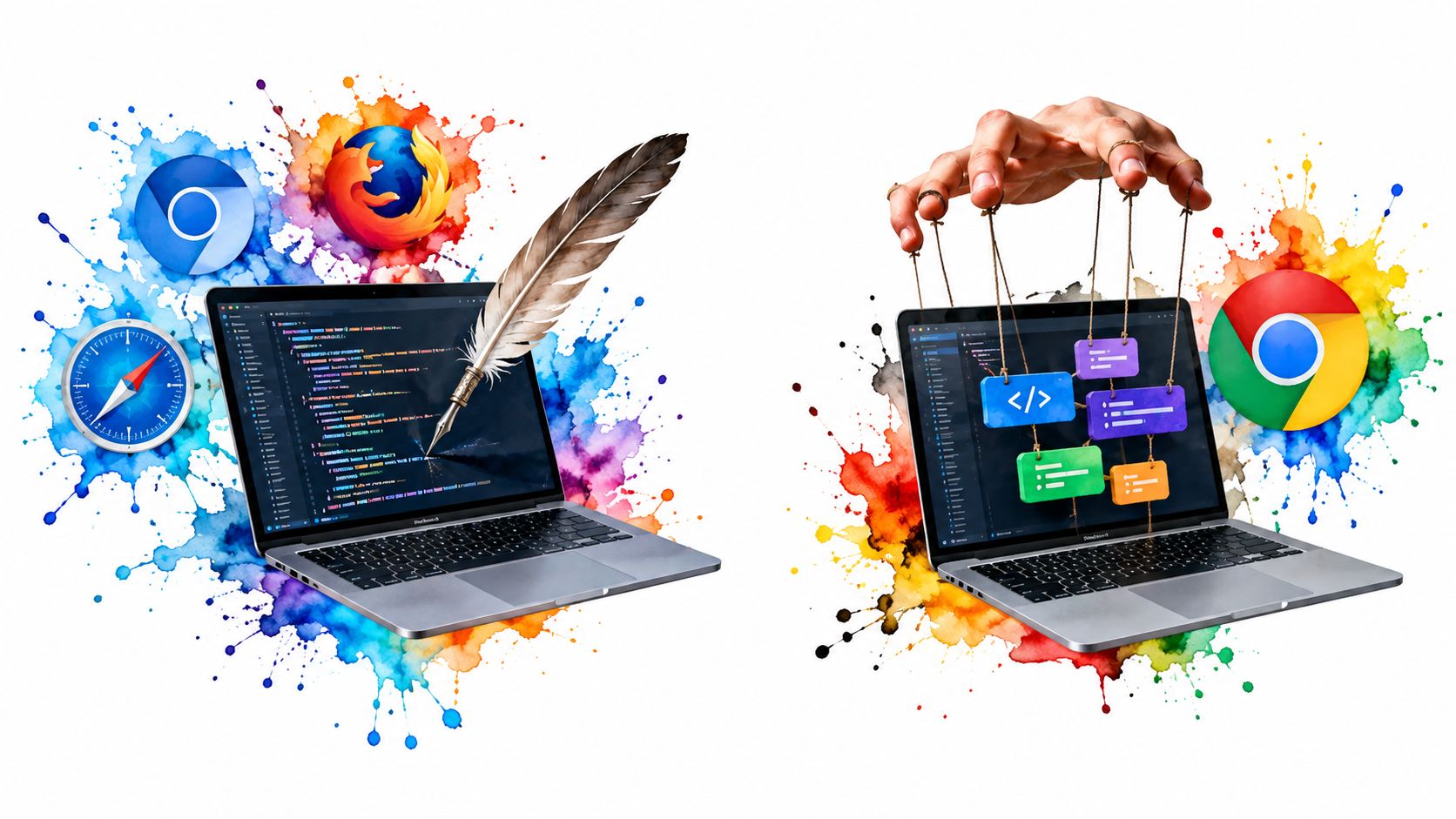
A CI job passes locally, then fails on the runner with a missing display, a different screenshot, or a selector that no longer resolves. The script looks unchanged, but the browser environment isn't. That's the practical reason headless Chrome deserves more attention than a launch flag. The mode you choose, the Chrome version you run, and the way your automation connects to the browser can change both test fidelity and operational reliability.
Headless Chrome is useful because it runs a real Chromium browser without a visible interface. It can render JavaScript-heavy pages, generate PDFs, capture screenshots, submit forms, and expose the same DevTools controls used by browser tooling. But “no window” doesn't mean “no browser,” and it doesn't guarantee identical behavior across Chrome generations.
Table of Contents
- What Headless Chrome Actually Is
- Headed Chrome versus Headless Chrome in Practice
- Legacy Headless Mode and the Unified Headless Shift
- Common Use Cases for Headless Chrome Automation
- Detection Surface and Why Automation Gets Flagged
- Best Practices for Reliable Headless Chrome Automation
What Headless Chrome Actually Is
A production rendering job often starts without complexity. A worker launches Chrome, goes to a page, waits for client-side content, and saves a screenshot or PDF. The failure usually appears later, when a page depends on a browser capability that a simplified renderer doesn't implement, or when the CI environment doesn't provide the display services expected by a headed process.
Headless Chrome is a Chromium execution mode that runs a browser without a visible user interface. It retains the Blink rendering engine, the V8 JavaScript runtime, browser networking, and the Chrome DevTools Protocol, while removing the need for a person to see or interact with a desktop window. Chrome introduced the original mode with the --headless flag in Chrome 59, which supported Mac and Linux. Chrome 60 added Windows support, as documented by the Chromium announcement for native headless mode.
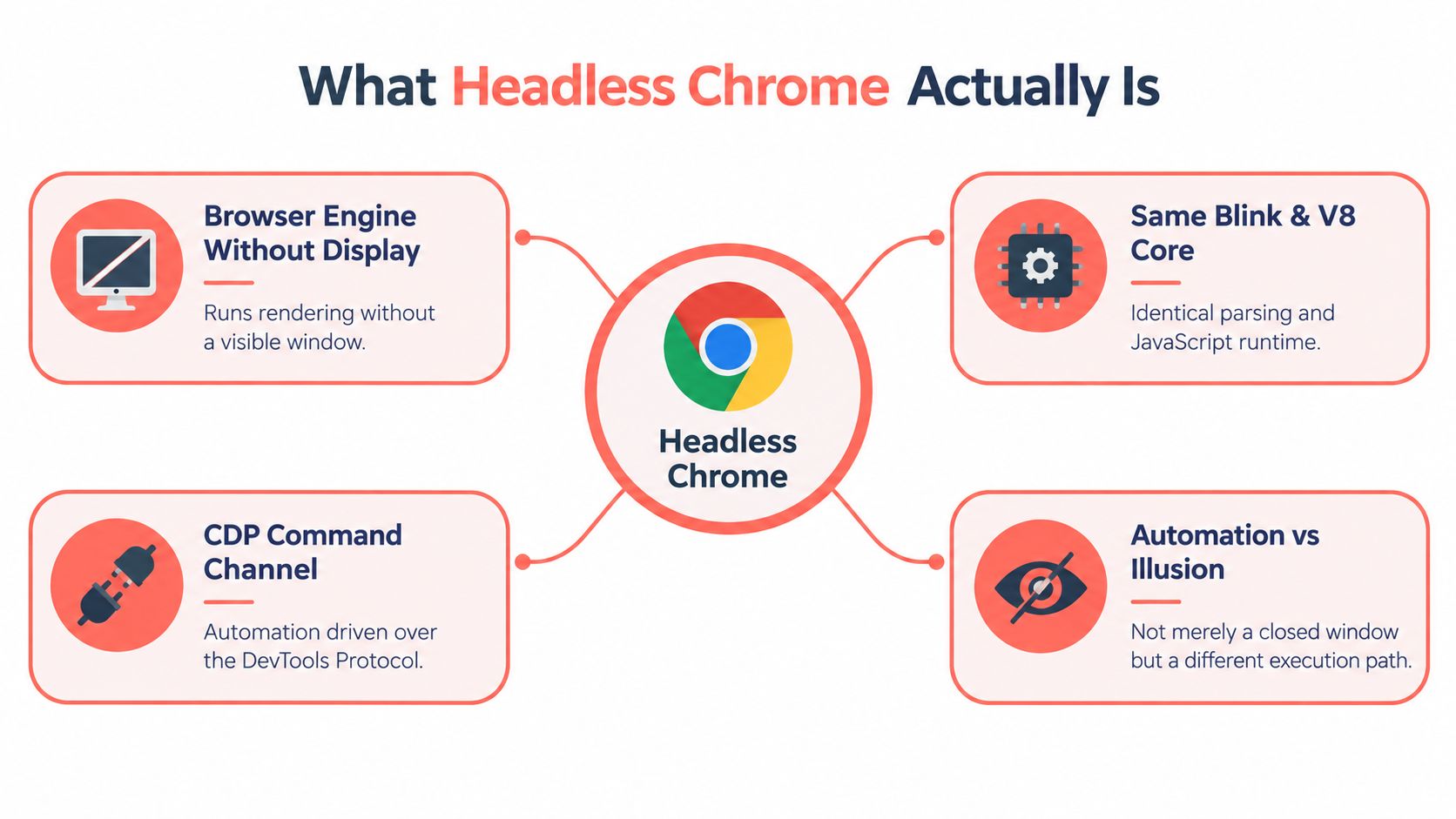
That distinction separates browser automation from an HTTP client. An HTTP client requests documents and resources, but it won't naturally reproduce the full sequence of parsing, script execution, layout, painting, cookies, storage, and user-like interaction that a browser performs. Headless Chrome can load a page, execute its JavaScript, take a screenshot, generate a PDF, and interact with the resulting DOM through CDP.
A browser without a screen
The phrase “headless” describes the presentation layer, not an alternate web platform. Modern headless execution uses Chrome's browser implementation while creating platform windows that aren't displayed. The browser still has pages, frames, contexts, cookies, permissions, network requests, and JavaScript execution.
That mental model helps explain both its strengths and its failure modes. If a test passes in headless mode, it has exercised a browser workflow, but it hasn't necessarily reproduced every condition of a person using a visible desktop. Input timing, extension setup, GPU paths, permissions, and platform integration still require deliberate validation.
Practical rule: Treat headless Chrome as a browser running unattended, not as a faster version of a scripted HTTP request.
Teams working on dynamic storefronts often need this distinction. A useful overview of the broader architectural idea is Tagada's headless commerce platform guide, although commerce architecture and browser execution are separate concerns. For a concise primer focused specifically on browser terminology, see what a headless browser is.
CDP is the command channel
Chrome commonly starts with remote debugging enabled, then exposes a WebSocket endpoint that tools such as Puppeteer, Playwright, and Selenium can use. Through CDP, an automation client can move through pages, inspect targets, evaluate scripts, capture screenshots, collect network information, and control browser state.
That interface is powerful enough to create a security boundary. Anyone who can reach an unprotected debugging endpoint may gain extensive control over tabs, navigation, cookies, and page execution. A production worker should therefore restrict the debugging interface or request an ephemeral endpoint rather than treating CDP as a public service.
Headed Chrome versus Headless Chrome in Practice
Headed and headless Chrome share much of the same browser foundation, but they serve different operational jobs. A developer debugging a failed interaction benefits from seeing the page, opening DevTools, and watching the cursor or navigation state. A CI worker needs the opposite: no desktop session, no visible window, and no dependency on a person being logged in.
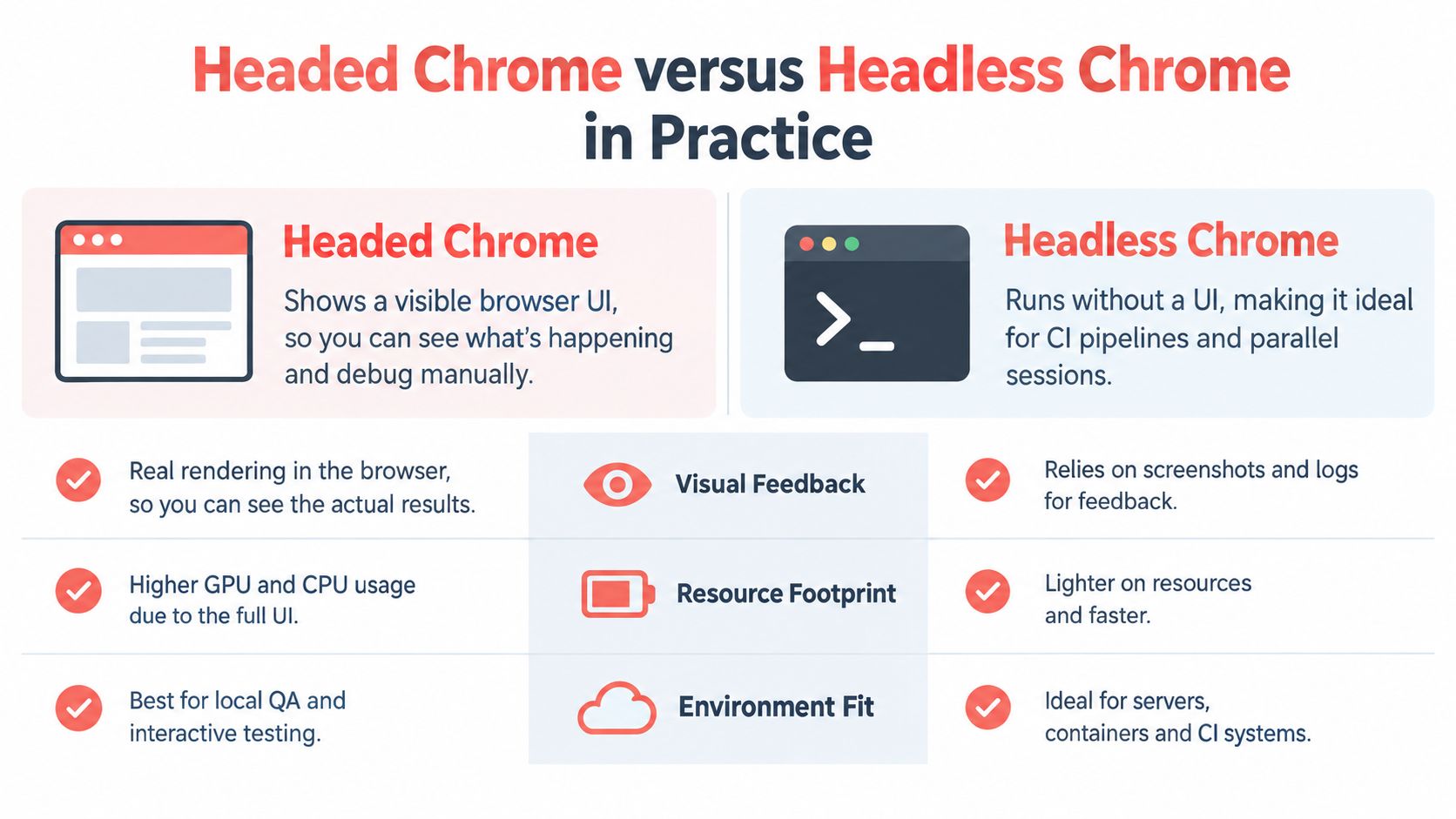
| Operating concern | Headed Chrome | Headless Chrome |
|---|---|---|
| Visual feedback | You can watch the real browser and inspect failures interactively. | You rely on screenshots, traces, video, logs, and CDP inspection. |
| Environment | Needs a display environment and often a user session. | Fits servers, containers, workers, and CI runners without a visible desktop. |
| Debugging style | Manual inspection is immediate. | Diagnostics must be captured deliberately. |
| Scaling model | Each visible session adds desktop and display concerns. | Unattended workers can run browser jobs without rendering a desktop UI. |
| Validation target | Useful when desktop integration itself is under test. | Useful when browser workflows must run repeatedly and unattended. |
The resource difference doesn't reduce to “headless is always faster.” Headed Chrome has to maintain a visible interface and display integration, while headless mode avoids drawing a visible desktop window. The actual workload still depends on page complexity, JavaScript, media, fonts, network behavior, screenshots, and the number of concurrent sessions.
Where headed mode still matters
A headed run remains valuable when the defect may involve visible interaction. Test drag-and-drop behavior, focus changes, native dialogs, extension UI, permission prompts, compositor behavior, and visual regressions with a headed browser before assuming headless is at fault.
Headed mode can also expose problems that logs conceal. A page may appear blank because an overlay blocks input, a fixed element may cover the intended target, or a consent dialog may have changed the interaction path. A screenshot from headless Chrome can reveal some of this, but interactive inspection is often faster during diagnosis.
Where headless mode earns its place
Headless Chrome fits server-side rendering, screenshot and PDF generation, continuous integration, crawling, accessibility checks, and browser-based data collection. It removes the need to provision a visible desktop for every worker and makes the browser easier to invoke from a process supervisor or job queue.
The best teams don't choose one mode forever. They run the bulk of repeatable checks headlessly, then reproduce failures in headed mode when visual inspection or desktop integration matters. That gives CI the operational simplicity it needs without treating headless execution as the only valid test environment.
Watch the video on YouTubeLegacy Headless Mode and the Unified Headless Shift
The most important Chrome distinction isn't headed versus headless. It's legacy headless versus unified headless.
The original implementation, introduced with Chrome 59, wasn't ordinary Chrome with its window hidden. It used a separate browser implementation built around Chromium's //content layer and left out substantial parts of the desktop browser's //chrome code. That design reduced environmental dependencies and made unattended execution practical, but it also created behavioral differences between headless and headed Chrome.
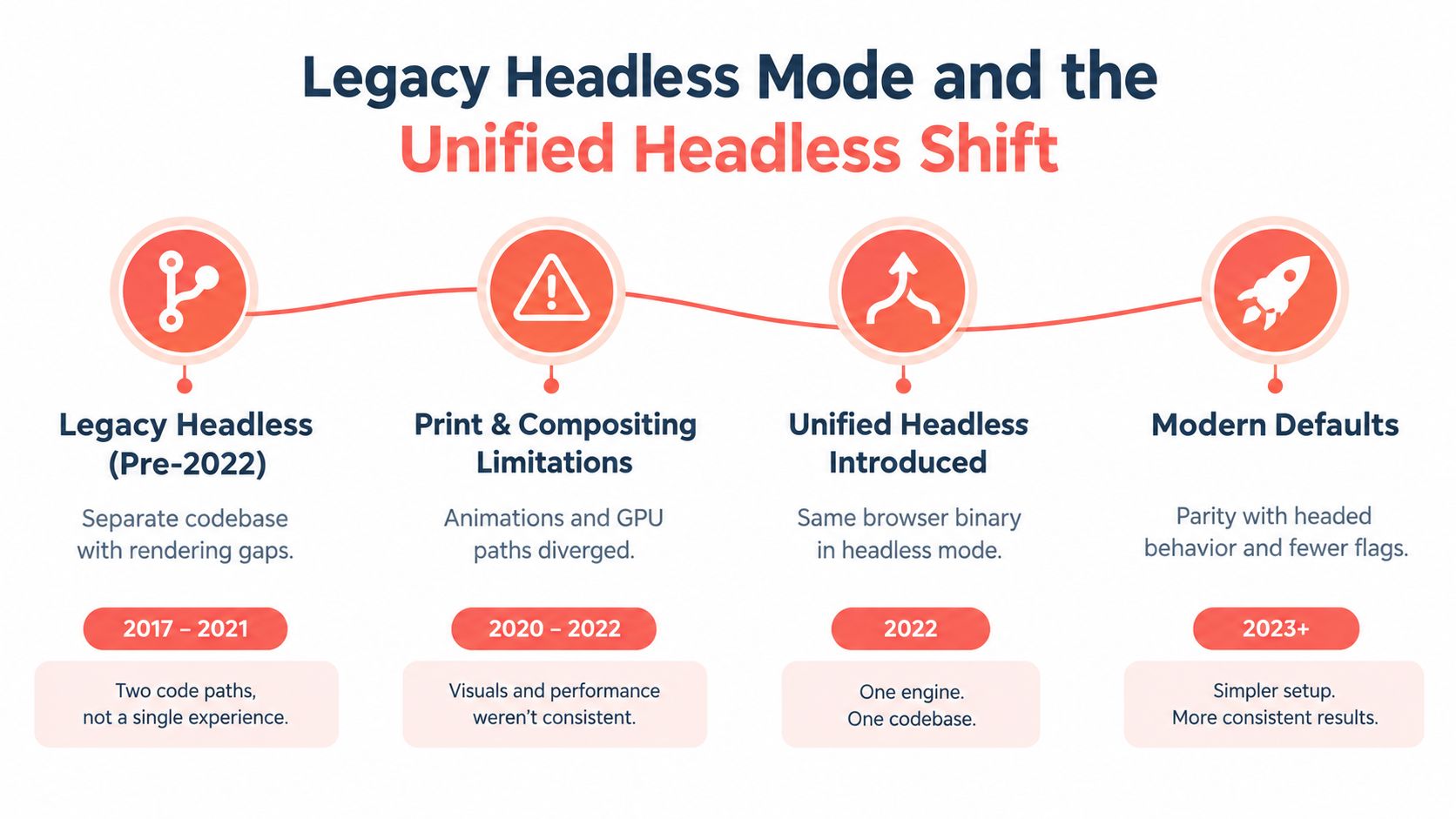
The Chrome team began work on unification in 2021. Chrome 112, released in 2023, made the new implementation available through --headless=new. In this mode, Chrome runs the browser itself and creates platform windows that remain invisible. The architectural transition took roughly six years from the first headless release to the start of the unification work, followed by about two years before the new mode became available, as described in Chrome's headless documentation.
Why the old split caused trouble
A separate implementation can be efficient, but every omitted browser feature becomes a possible source of divergence. A test may pass in one mode and fail in another because the two paths handle extensions, platform windows, rendering behavior, browser features, or future Chrome changes differently.
That doesn't mean legacy headless was useless. Its smaller dependency surface made it attractive for narrow rendering tasks and environments where desktop integration wasn't needed. The problem came when teams treated it as a faithful substitute for the Chrome their users ran.
The mode is part of your test fixture. Changing it can change the behavior under test.
Unified headless reduces that gap by using the same browser implementation as headed Chrome. Since Chrome 112, --headless uses the browser itself while suppressing visible windows, which improves fidelity for end-to-end workflows, extension testing, and pages that rely on ordinary browser behavior. The modern headless mode documentation explains this relationship directly.
Choosing the right artifact
The old implementation didn't vanish conceptually. Chrome documentation distinguishes modern unified headless from the older headless shell. Beginning with Chrome for Testing and Chrome 120, the legacy shell became a separately distributed artifact.
That creates a practical choice:
- Use unified headless when your priority is behavioral parity with normal Chrome, browser features, extensions, and end-to-end confidence.
- Use the headless shell when a narrow rendering task benefits from fewer dependencies and a smaller execution surface.
- Avoid accidental mixing by recording the exact binary, launch flags, and version in CI diagnostics.
A migration should include screenshots, PDFs, extension workflows, authentication paths, and any detection-sensitive integration. Don't assume that replacing a flag changes nothing. The browser implementation is part of the result.
Common Use Cases for Headless Chrome Automation
Headless Chrome earns its place when a workflow needs an actual browser but doesn't need a human watching it. A frontend team can render a route, wait for client-side data, and compare the resulting screenshot. A publishing worker can open a page and produce a PDF. A data pipeline can extract content that only appears after JavaScript executes.
The use case determines the right level of control. A single screenshot may need only a small wrapper around Chrome. A multi-step authenticated workflow needs contexts, cookies, retries, trace capture, and careful cleanup.
Headless Chrome use cases at a glance
| Use Case | Primary Goal | Key Requirement | Typical Tooling |
|---|---|---|---|
| End-to-end testing | Validate real user journeys in CI | Stable selectors, isolated state, failure artifacts | Playwright, Puppeteer, Selenium |
| Server-side rendering | Produce rendered HTML or page output | Deterministic viewport, fonts, timing, and browser version | CDP, Puppeteer, Playwright |
| Screenshots and PDFs | Create visual or printable assets | Print styles, asset loading, page readiness | Chrome CLI, Puppeteer, Playwright |
| Dynamic content extraction | Read data assembled by JavaScript | Network control, waits, pagination, structured extraction | Playwright, Puppeteer |
| Accessibility auditing | Inspect rendered interfaces | Stable navigation and complete content loading | Playwright with accessibility tooling |
| Security research | Observe browser behavior in controlled environments | Isolation, logging, permission controls, reproducibility | CDP, Playwright, custom harnesses |
| AI browser agents | Execute browser actions through a controlled session | Clear tool boundaries, state management, diagnostics | CDP, Playwright, agent runtimes |
The operational pattern is consistent. Reproducibility matters more than theatrical realism for QA. Pin the browser, define the viewport and locale, control permissions, and save enough evidence to understand a failure after the worker exits.
Scraping deserves an extra boundary. Headless Chrome can render pages for legitimate research, accessibility work, monitoring, and data workflows, but automation should respect site terms, access controls, privacy expectations, and applicable law. A browser that can execute a workflow doesn't automatically grant permission to execute it.
Detection Surface and Why Automation Gets Flagged
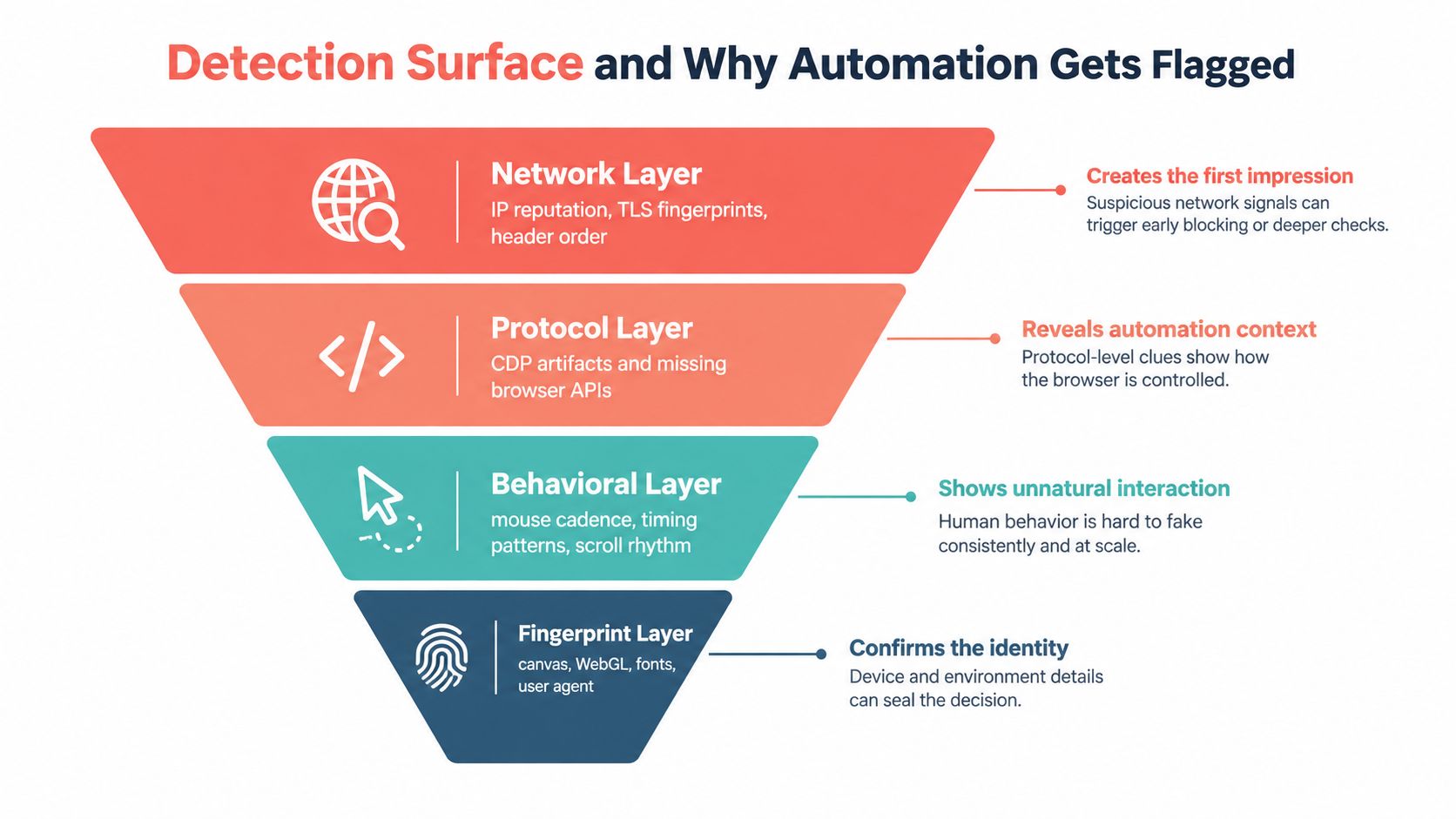
Changing one JavaScript property won't turn an automated browser into a real user environment. Detection operates across several layers, and the layers can contradict one another.
Older headless Chrome exposed obvious markers such as HeadlessChrome in user-agent and client-hint values. Modern unified headless narrows that obvious distinction, but it doesn't make every automated session indistinguishable. The technical discussion of Playwright, Puppeteer, and Selenium detection highlights why a single “stealth” switch is an incomplete strategy.
The network layer
A server can evaluate the request environment before JavaScript runs. Relevant signals include IP reputation, TLS characteristics, HTTP/2 behavior, header ordering, user-agent values, and client hints such as sec-ch-ua. An inconsistent combination can matter more than any single field. A claimed Chrome identity that doesn't align with the protocol behavior creates a credibility problem.
Locale is another coherence check. Missing or unexpected Accept-Language values can distinguish a sparse automation environment from an ordinary browser profile, especially when the page also observes a conflicting JavaScript locale or timezone.
The browser and JavaScript layer
Client-side code can inspect browser APIs and values associated with automation. navigator.webdriver is one commonly discussed signal, but it isn't the complete picture. Plugins, permissions, viewport behavior, language settings, graphics capabilities, fonts, canvas output, WebGL, and cross-realm consistency can all contribute to a browser-side assessment.
A value changed in one page context may still disagree with the same value in a worker or iframe. That disagreement is often more revealing than the original value.
The protocol and behavior layers
CDP itself is an important part of the automation surface. DevTools Protocol side effects and inconsistencies between ordinary browser behavior and CDP-driven execution can provide additional evidence. Timing, navigation cadence, input patterns, scrolling, and repeated action sequences can also look unlike human interaction.
This doesn't mean legitimate automation must imitate a person. For testing, deterministic timing and fixed identities are usually advantages. Trying to simulate constantly changing real-user environments can make failures harder to reproduce and can obscure whether a defect belongs to the application or the test harness.
Reliable testing favors a coherent, pinned environment. Stealth theater often favors changing variables you can no longer explain.
A useful signal taxonomy prevents overconfidence:
- HTTP signals: headers, client hints, language negotiation, TLS, and HTTP/2 behavior.
- JavaScript signals: browser APIs, permissions, plugins, graphics, fonts, and worker or iframe consistency.
- Rendering signals: viewport, layout, canvas, WebGL, fonts, and media behavior.
- Protocol signals: CDP side effects, target handling, and automation-specific execution patterns.
- Behavior signals: timing, navigation order, pointer input, scrolling, and retry rhythm.
No layer should be treated as a universal detector, and no single mitigation should be treated as a universal fix. For a complementary explanation of the same problem through a structured lens, see how automation gets caught layer by layer.
Best Practices for Reliable Headless Chrome Automation
Reliability starts with controlling variables. A browser update can change rendering, JavaScript behavior, security rules, or protocol details even when your automation code hasn't changed. Pin the Chrome or Chromium version in CI, record the binary version in every job, and update it deliberately with screenshots and workflow coverage.
Build a controlled browser fixture
Use unified headless when the test needs ordinary Chrome behavior. Keep the standalone headless shell for focused rendering jobs where its reduced dependency surface is truly useful. Don't let a package manager implicitly decide which artifact a worker receives.
Define the environment explicitly:
- Browser identity: Pin the browser binary and automation library versions together.
- Display geometry: Set viewport, device scale, color preferences, and print settings explicitly.
- Locale state: Keep language headers, JavaScript locale, timezone, and proxy geography coherent.
- Session isolation: Use separate browser contexts or profiles for independent users and test cases.
- Failure evidence: Save screenshots, console output, network logs, traces, and the exact launch configuration.
Playwright and Puppeteer provide the practical SDK layer for most engineering teams. Direct CDP attachment remains useful when you need low-level targets, network instrumentation, browser-wide commands, or connection to a separately managed Chrome process. The Clearcote Labs Playwright documentation is relevant when a team needs a browser-compatible integration path rather than rewriting its automation layer.
Secure the control plane
Chrome's remote debugging endpoint is not a harmless status page. Launch it on a restricted interface or use an ephemeral port, then pass the resulting WebSocket endpoint only to the worker that needs it. Chrome documentation demonstrates both fixed-port and ephemeral-port operation in its headless browser guidance.
Apply the same discipline to browser lifecycle management. Close contexts after each job, close pages that a workflow no longer needs, terminate the browser on worker shutdown, and detect orphaned processes. A queue should enforce timeouts and retries without allowing a failed page to consume a worker indefinitely.
Prefer coherence over fake realism
A reproducible QA identity is valuable. Keep the same browser version, viewport, locale, timezone, and proxy policy for a test profile unless the test explicitly varies them. If your purpose is security research or authorized data collection, document the environment and separate detection experiments from ordinary functional tests.
Monitoring should also be treated as code. Fivenines' explanation of how monitors are defined as code offers useful context for versioning checks, alerts, and operational expectations alongside the automation itself.
Finally, test both modes when the product depends on visible browser behavior. Run the scalable suite in unified headless, reproduce failures in headed Chrome, and compare artifacts rather than guessing. That workflow catches real browser regressions while keeping CI independent of a desktop session.
Clearcote Labs helps teams run controlled Chromium automation with Playwright and Puppeteer, including headless deployments where repeatable browser identities and coherent environment signals matter. Visit Clearcote Labs to evaluate its browser, SDK, Docker, and CDP options for your testing, research, or browser-agent workflow.