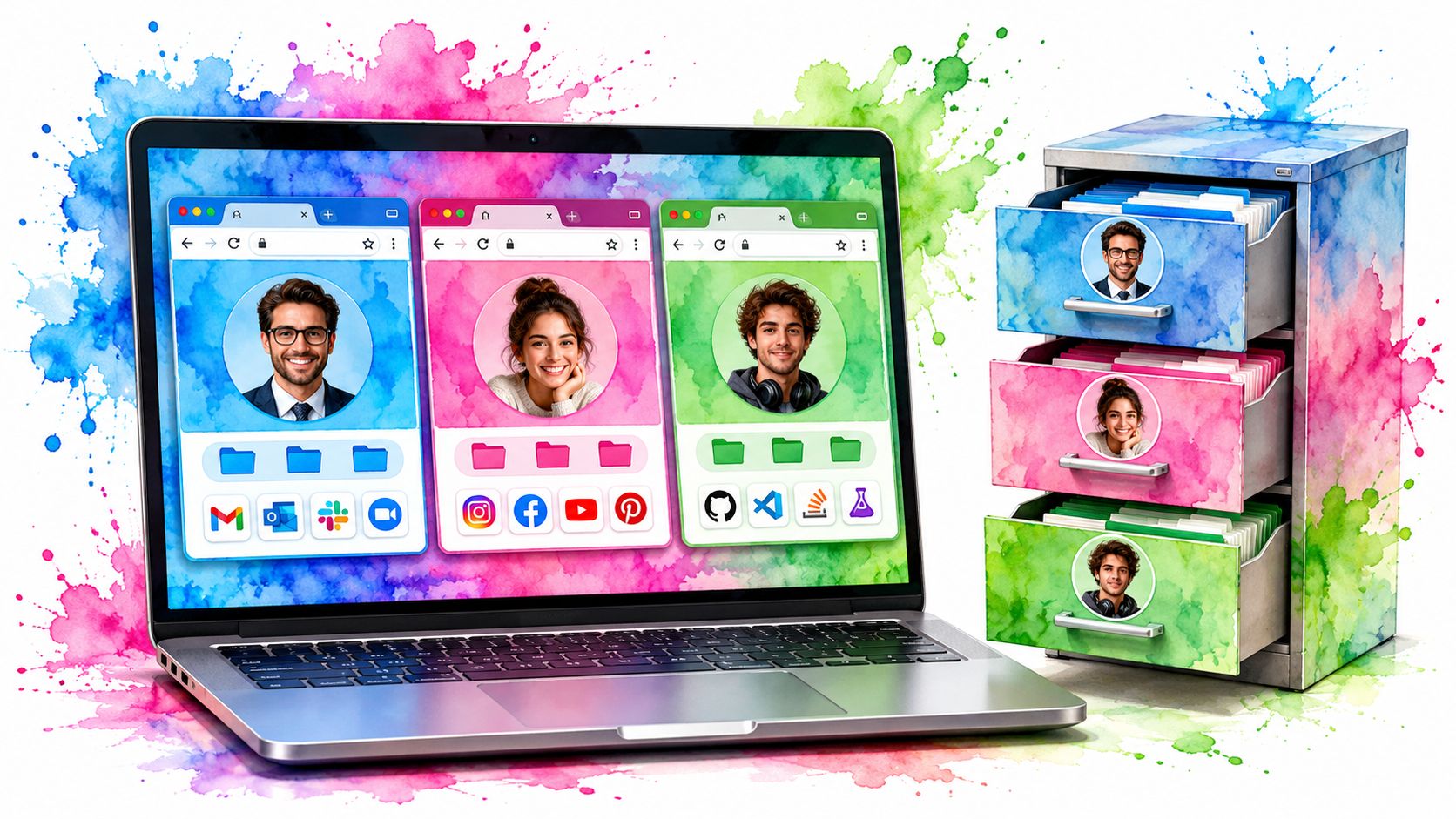
You're on the family laptop at 9:40 on a Tuesday, and three identities are fighting over one browser. The work inbox is open in one tab, a personal Gmail in another, and somewhere in the history is a client's staging site you logged into last week with the password you also use for banking. Chrome didn't misbehave. It kept one cookie jar, one password store and one history list for everything you do, then let you pile every identity into the same container.
A Chrome profile fixes that by giving each identity its own container. It also stops short of what is commonly assumed. A separate profile separates storage and accounts, not your device fingerprint, not your files on disk, and not your access from anyone else who can log into the same computer.
This is a walk through what a Chrome profile manager controls, where the files live, how to run the routine cleanly, and where the separation ends.
Table of Contents
- What a Chrome Profile Manager Actually Controls
- Your Options for Managing Chrome Profiles Compared
- How Chrome Stores Each Profile on Disk
- How to Create, Switch and Remove Chrome Profiles
- What Profiles Isolate and What They Leave Exposed
- Real Profile Setups for Work, Clients and Testing
- Pick the Profile Setup Your Work Needs
What a Chrome Profile Manager Actually Controls
Take the laptop scenario apart. One Chrome window, three logins competing for the same session: a work Google account, a personal one, and a client's admin panel you check twice a week. Every switch leaks something, because the browser is doing exactly what it was built to do, which is remember everything.
A Chrome profile is a separate browser-data environment. Google's own support page explains that a profile can separately store bookmarks, browsing history, passwords, and other settings, so several people or use cases can share one computer without merging their browsing data (Google Chrome Help). That's the whole promise, and it's a real one.
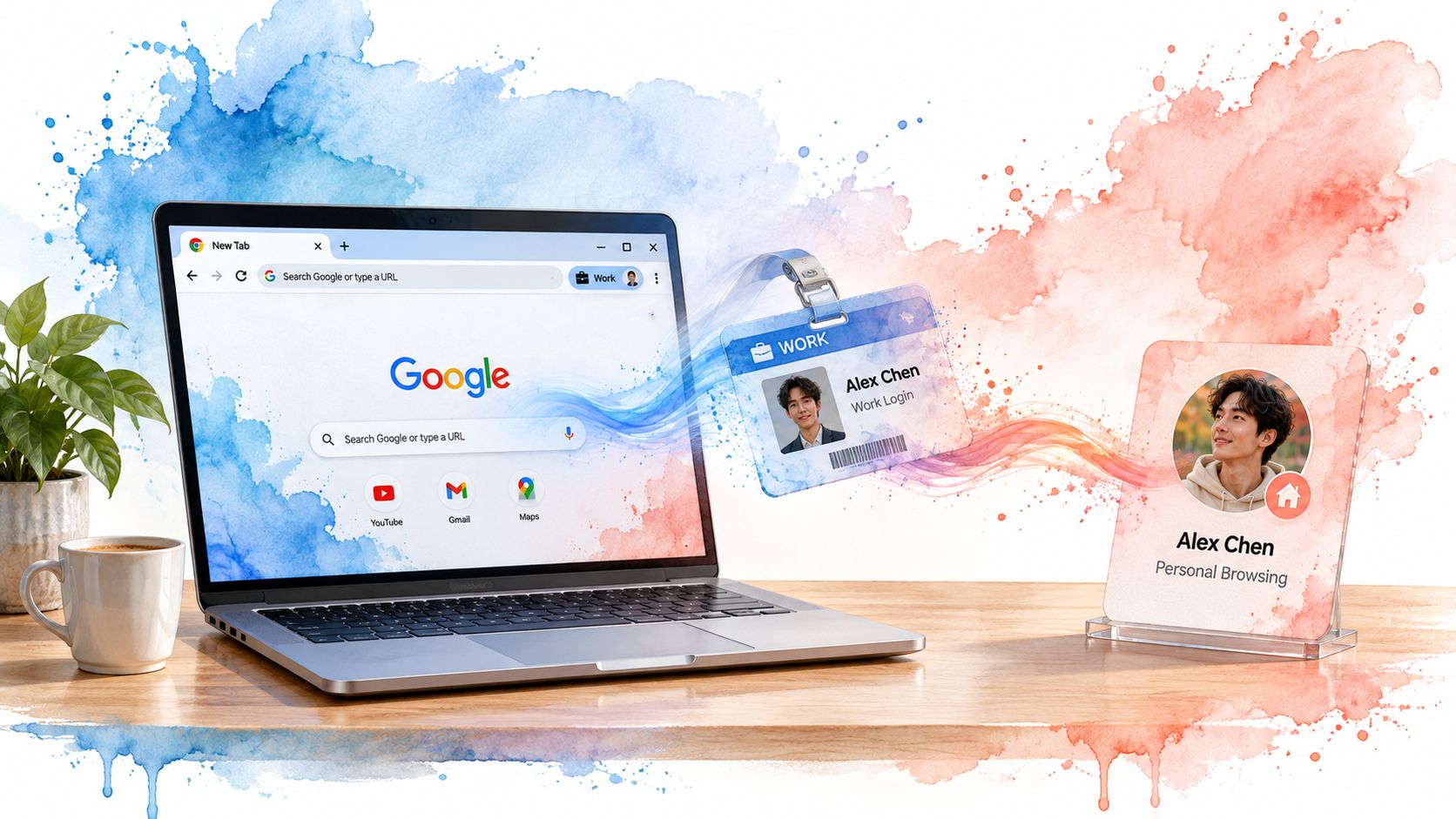
Here's the analogy that makes the rest of this article easier. Picture a filing cabinet. Each profile is its own cabinet with its own drawers, and nothing moves between cabinets unless you carry it there by hand. What the cabinets share is the office: the same room, the same door, the same lock on that door. The office is your computer and your operating-system account.
Profiles and Google Accounts Are Not the Same Thing
A profile can exist with no sign-in at all. Signing in with a Google Account only links that profile to synced data such as tabs and history across your devices. Plenty of people run a work profile that is signed in and a testing profile that never touches a Google account, and both are perfectly normal profiles.
The distinction matters because a profile manager is not a tab switcher or an account switcher. A manager creates, names, launches and deletes distinct on-disk state containers. It's working on persistent files, not on temporary session labels, which is why the same tool that organises your work logins can also destroy them.
Chromium's architecture makes this concrete. Each profile is a subdirectory inside a broader user-data directory, the default one is named Default, and the actual path is printed on the chrome://version page. Chromium also accepts a --user-data-dir argument that lets you point a launch at any directory you choose, which is how developers get repeatable, isolated browser sessions.
That last detail is the one people skip past. Deleting a profile isn't closing a tab. Google warns that removing a profile erases its bookmarks, history, passwords, and other settings from the computer.
Before you read on, do one thing. Open the profile avatar at the top right of your browser, count the profiles in the list, and note which bookmarks, logins and history each one holds. You may find two profiles you forgot about and one you can't identify at all.
Your Options for Managing Chrome Profiles Compared
There are five realistic ways to keep browser identities apart, and they differ in what they separate and how much work they demand. Match your goal to the row before reading the detail.
| Option | What it separates | Best fit | Setup effort |
|---|---|---|---|
| Built-in profile switcher | Bookmarks, history, passwords and settings | Work and personal use on one machine | Low, a few clicks |
| Google Account sync | Tabs and history synced to one identity across devices | Same person on several devices | Low, sign-in only |
Launch with --user-data-dir |
A full data directory per launch | Developers and repeatable tests | Medium, command line |
| Separate OS user accounts | Chrome data plus operating-system files and access | Shared computers needing real separation | Medium, OS-level setup |
| Clearcote Profile Manager app | Named persistent identities launched as normal browser windows | Users without code who want managed identities | Low, install the app and create an identity |
The built-in switcher is the one you already have. It keeps bookmarks, history, passwords and settings apart for one person's identities, and it costs nothing but a few clicks. It's the right first move for work versus personal.
Google Account sync solves a different problem entirely. It follows one identity across devices, so it's convenient for a single person and useless for separating two people. If you sign two identities into the same profile, sync will happily merge what you were trying to keep apart.
The --user-data-dir launch gives every run a fully separate data directory. This is the developer's tool: a clean directory per test means no cached state carries over, and the isolation is repeatable because the path is explicit.
Separate operating-system user accounts are the only option on this list that separates access, not just Chrome data. The browser files sit inside a user's home directory, so another OS user can't read them without permission, and the whole desktop session is walled off.
A profile manager application wraps the same underlying idea in a desktop interface: you create a named identity, give it its own storage, and launch it as a normal browser window. It suits people who want managed identities without typing flags.
The right option depends on whether you're after organisation, convenience or confidentiality. Those three goals pull in different directions, and the next sections test what each setup protects.
How Chrome Stores Each Profile on Disk
You renamed a profile "Work" in the menu, then opened the data folder and found only Default and Profile 1. The friendly name never becomes the folder name. That mismatch is the usual reason a backup grabs the wrong identity.
Chrome keeps profile data in two layers.
The outer layer is the user-data directory. It holds installation-level local state plus the profile data: history, bookmarks, cookies. The inner layer is the profile itself, one subfolder per identity. The first is named Default. Each additional profile appears as Profile 1, Profile 2, and so on, even after you rename it in the menu.
The user-data directory works like a house. Each profile is a room with its own belongings. The rooms are easy to tell apart. They still sit inside one building, behind one front door.
That front door is the operating-system account. Profiles all run under the same operating-system account, so anyone who can read that account's files can open every profile folder, and a Chrome sign-in password does not add a separate lock on those files. Separate folders buy organisation: history, cookies and logins stop mixing. They do not change the device fingerprint a site sees, and they do not wall the files off from someone already using that OS login.
You can confirm the actual paths yourself. Open chrome://version and read the Profile Path line. It gives you the exact folder for the profile you're currently in, which is the fastest way to stop guessing which folder belongs to which identity.
Three Checks You Can Run on Your Own Machine
- Find the User Data folder. It sits under your user profile in the operating system's application data area. Once you have it open, the folder names line up with the profile menu.
- Match folders to profiles. Launch each profile in turn, check
chrome://version, and write down the folder name next to the label you see in the menu. Ten minutes of bookkeeping saves an hour of confusion later. - Note where history and logins live. Each profile folder holds its own history database, cookies, and saved logins. That's the persistence a manager is really operating on.
Clearing cached files inside a profile is housekeeping and leaves your logins and history intact. If you want the exact steps for reclaiming disk space without touching your saved data, the EmailScout walkthrough on wipe cached files in Chrome covers it. Deleting a profile removes that folder's history, cookies and saved logins. The two operations are not interchangeable.
Confirm which folder holds your work profile before you copy or delete anything. That path is the difference between a safe cleanup and wiping the wrong identity.
How to Create, Switch and Remove Chrome Profiles
The routine is short. The reasons behind each step are what keep you out of trouble.
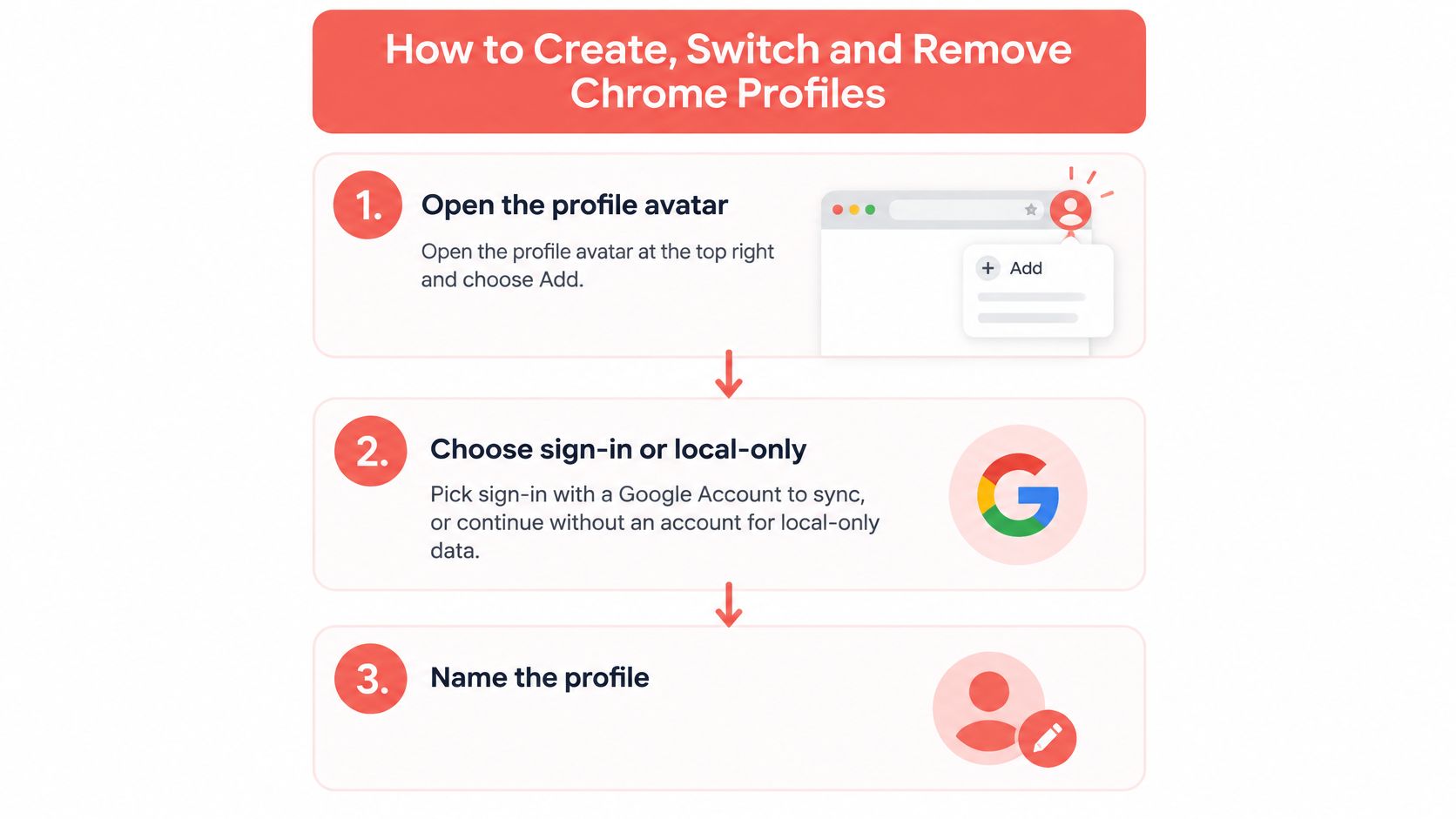
- Open the profile avatar at the top right and choose Add. This creates a new data container rather than a new window onto the old one, which is the difference between separation and a fresh tab.
- Choose sign-in or local-only. Sign in with a Google Account if you want tabs and history synced; continue without one if you want data that stays on this machine. Decide now, because switching later changes what leaves the device.
- Name the profile and give it a colour. A colour is not decoration. When six windows are open, the window chrome is the only cue that tells you which identity you're about to type a password into.
- Switch from the avatar menu. Each profile opens its own window with its own history, logins and extensions, so the switch is a switch of everything at once.
- For a fully separate directory, quit every Chrome window first, then launch with
--user-data-dirpointing at an empty folder. One folder per identity. The classic slip is launching while an old instance is still running, which reopens the previous profile and makes you think the flag failed. - Back up by copying the profile folder only after Chrome has fully closed. A live profile has open database files, and copying them mid-write can give you an archive that won't open cleanly.
- Remove a profile only when you're certain. Removal erases its bookmarks, history, passwords and settings from the computer, and there is no recycle bin for it.
What Each Action Does to Your Data
| Action | What happens to the data | Reversible |
|---|---|---|
| Create a profile | New folder with empty history, bookmarks and passwords | Yes, delete it later |
| Switch profile | Opens a separate window with its own data | Yes |
| Sign in to a Google Account | Tabs, history and settings sync to that account | Yes, by signing out |
| Remove a profile | Erases its bookmarks, history, passwords and settings from the computer | No |
| Copy a profile folder while Chrome runs | Can produce inconsistent databases | Risky, copy after clean shutdown |
Practical rule: before deleting any profile, open
chrome://versionand confirm the folder path, then export anything you'd miss. The menu label and the folder name are not always the same, and the confirmation dialog won't list what you're about to lose.
What Profiles Isolate and What They Leave Exposed
A new profile feels like a new person. It isn't. It's a new set of files and a new set of sign-ins, and that's a narrower thing than you might picture when you create one.

Split the word "isolation" into three layers, because conflating them is where the confusion starts. A profile works like a separate drawer in the same desk. The contents stay apart, but the desk, the room and the front door are shared.
Account Isolation, Storage Isolation and Fingerprint Isolation
Account isolation means sign-ins don't bleed. You're logged into a client's admin panel in one profile and not in another, and that works exactly as advertised.
Storage isolation means cookies, extensions and history live in separate folders on disk. This also works, within the limits of one operating-system account. Each profile keeps its own Cookies database, its own extension settings and its own history file, so nothing written in one drawer shows up in another.
Fingerprint isolation means a website sees a different device. Profiles stop at this point. Sites can build a fingerprint without cookies at all, combining device and browser attributes into a signature. In 2024 approximately 60% of 8,400 U.S. study participants had a unique overall browser fingerprint (arXiv fingerprinting study). Two profiles on the same machine still report the same GPU, the same fonts, the same screen, the same network path.
The reason is structural. The rendering engine, the graphics stack and the network layer sit below the profile. Swapping a User-Agent string or bolting on extra extensions only changes the label on the outside, while every signal underneath still tells the same hardware story, and an inconsistent story is easier to spot than a consistent one.
What a Separate Profile Genuinely Protects
| Threat or layer | Separate Chrome profile protects? | Note |
|---|---|---|
| Sign-ins and sync | Yes | Account isolation |
| Cookies, extensions and history on disk | Yes, within Chrome | Storage isolation on one OS identity |
| Other local users of the same OS account | No | Profiles share one operating-system identity |
| Malware running as your user | No | It can read the profile files |
| Forensic recovery of deleted data | No | Deleted profile data can remain recoverable from disk |
| Websites reading engine, hardware and network signals | No | Fingerprint isolation needs more than a profile |
The middle rows are the ones people get wrong. A profile doesn't create a boundary against anyone who can log in as you, because every profile folder sits inside that one account's home directory, readable by anything running with your permissions. And it doesn't make deleted data unrecoverable. Files removed from a profile folder can persist on the storage device until they're overwritten, which matters if the machine leaves your control.
The Test to Apply to Your Own Setup
Ask one question of every profile you keep: what am I trying to keep apart, and does this container do it?
Work through the three common answers. If the answer is "work logins versus personal logins", the built-in switcher is enough, because account isolation is the one layer profiles deliver. If it's "me versus another person on this computer", you need separate operating-system accounts and encrypted storage, since the profile folders sit inside one account that the other person can open. If it's "this site should see a different device", a profile buys you nothing at that layer. You need consistent engine-level settings rather than cosmetic changes, and a clear explanation of what browser fingerprinting is will show you how many separate signals a site can combine before cookies even enter the picture.
A separate profile is organisation. It becomes a privacy boundary only when the operating-system account and the fingerprint are separated too.
Real Profile Setups for Work, Clients and Testing
Four setups come up again and again. Each solves a real problem and leaves a specific gap open.
The freelancer with five clients. One laptop, one Chrome install, and a profile per client. Each client's logins, bookmarks and staging URLs stay in their own container, so a client's staging site never shows up in another client's address bar autocomplete, and a shared screen never exposes a competitor's dashboard. The gap that remains: all five profiles sit inside one operating-system account, so anyone with that login can open every folder.
The shared family desktop. Each person gets a profile with their own passwords and bookmarks, which stops the accidental cross-login and keeps browsing history from mixing. The gap is the same one, one level up. Anyone who knows the operating-system password can open any profile folder on the machine, so this is tidiness, not confidentiality.
The QA engineer testing an extension. Load a locally built extension into a clean profile, run the test, delete the profile so no cached state carries into the next run. This is the workflow Chromium's data-directory design was made for. What it doesn't change is the engine underneath: every run reports the same hardware and the same rendering behaviour, so tests that depend on looking like a different device need more than a fresh folder.
The scraping team running many accounts. One data directory per account, launched with the --user-data-dir argument, so cookies from one account never reach another. Automation teams build this way at real scale; the global web-automation-tool market was estimated at USD 1.125 billion in 2024, with a projected compound annual growth rate of 12.5% (market research report). The remaining exposure is the machine itself. Every instance shares the same hardware, the same network path and the same engine signals, which sites can read.
The same pattern shows up outside browser testing. Teams running many ad accounts hit identical limits, where the account structure has to be planned before the first login rather than fixed afterwards; the Rapid Ads guide to account architecture covers that planning side. On the social side, the same separation logic applies to running several identities at once, which is what this walkthrough of managing multiple accounts addresses.
Every one of these setups buys organisational separation. None of them buys a new device, and none of them buys protection from someone else with access to the machine.
If you'd rather manage those identities through an interface than through flags and folder names, our Profile Manager app creates and launches named, persistent identities as normal browser windows.
Pick the Profile Setup Your Work Needs
Match the situation to the setup, one line each.
- Tidying work and personal browsing on your own machine: use the built-in profiles, and turn on sync only if one person uses several devices.
- Reproducible tests: one data directory per run, deleted afterwards, with the path recorded so the next run is identical.
- A shared computer with people you don't fully trust: separate operating-system accounts plus encrypted storage, because profiles alone don't stop local access.
- Looking like different people to websites: extra profiles won't get you there, so consistent engine-level settings and an internally coherent browser identity matter far more than a new window colour.
- Company-managed devices: enforce at the account level, where administrators can apply user-level rules across personal and corporate devices.
The Rule That Settles Most Arguments
Add a profile when you need separate data. Add an operating-system account when you need separate access. Test the fingerprint separately when you need a separate appearance, and treat that as its own project rather than a side effect of the first two.
That ordering matters because the three problems have different fixes and different costs. People reach for another profile when the actual gap is local access, then wonder why the separation feels thin.
One concrete next step: open chrome://version in each profile you rely on and write down its folder path. You now know exactly what is being separated, where it lives, and what it doesn't cover.
If your work also involves checking how a site behaves across screen sizes and devices, the discipline is the same one described in this guide to cross-device testing: define what you're separating before you build the setup.
Clearcote Labs builds Clearcote, an open-source, de-Googled Chromium fork with fingerprint and identity controls set inside the engine rather than injected by page scripts, alongside a Profile Manager desktop app that creates, organises and launches persistent identities as normal browser windows. If the separation you need goes past bookmarks and cookies into engine, hardware and network signals, that's the layer we work on. Visit Clearcote Labs to try the free build, run the fingerprint test with its coherence checks, and see how the Profile Manager fits your setup.