Changing the User-Agent string is often presented as a quick way to make a Puppeteer script look like an ordinary browser. That advice misses the important part: a label can change while the thing carrying it stays the same. A website can compare the browser's claim with details exposed by the page and the way its requests are made.
For Puppeteer, user agent spoofing is a consistency problem, not a one-line header edit. The identity has to make sense across request headers, Client Hints, JavaScript-visible values and network behavior. Once you understand those layers, you can inspect what a site sees, choose headless or headed Chrome deliberately, and validate a setup before relying on it.
Table of Contents
- Why Changing the User Agent Is Rarely Enough
- How Puppeteer Drives Headless and Headed Chrome
- How Sites Spot a Mismatched Browser Identity
- Keeping Headers, Client Hints and Runtime Values Aligned
- Reliable Automation Patterns With Worked Examples
- Comparing Stealth Options for Puppeteer Workflows
- Testing Your Setup and Choosing a Next Step
Why Changing the User Agent Is Rarely Enough
A User-Agent string is like a label on a package. Replacing “Chrome” with “Firefox” changes the label, but it doesn't replace what's inside the box. If the browser still behaves like Chrome, the label and the contents don't agree.
That distinction matters more now because Chrome has reduced the detail exposed in its User-Agent. The staged changes began with version information in Chrome 101, extended to desktop platform details in Chrome 107, and included Android details in Chrome 110. Chrome 113 completed the broad rollout for ordinary page loads. The result is that a site can't reliably assume the legacy string reveals an exact operating system or device model. Chromium's User-Agent reduction notes describe that shift and its staged rollout.
A manual override can therefore create two problems at once. It may change only part of the browser's identity, and it may try to communicate details that the modern browser no longer provides in the same way. Changing the visible string doesn't automatically update JavaScript properties, Client Hints or the network stack.
Think in layers, not strings
A page may see a request header, then ask the browser questions through JavaScript, and receive additional structured information through Client Hints. Each layer is another part of the identity. If one says “Firefox” while another still looks like Chrome, the mismatch can be more conspicuous than leaving the default identity alone.
This guide builds a practical model for evaluating those signals in Puppeteer. The point isn't to make a browser “invisible.” It's to understand which values belong together, spot contradictions before a run, and make automation reproducible enough to debug.
Practical rule: Don't ask only, “What User-Agent did I set?” Ask, “What does the whole session say about the browser?”
How Puppeteer Drives Headless and Headed Chrome
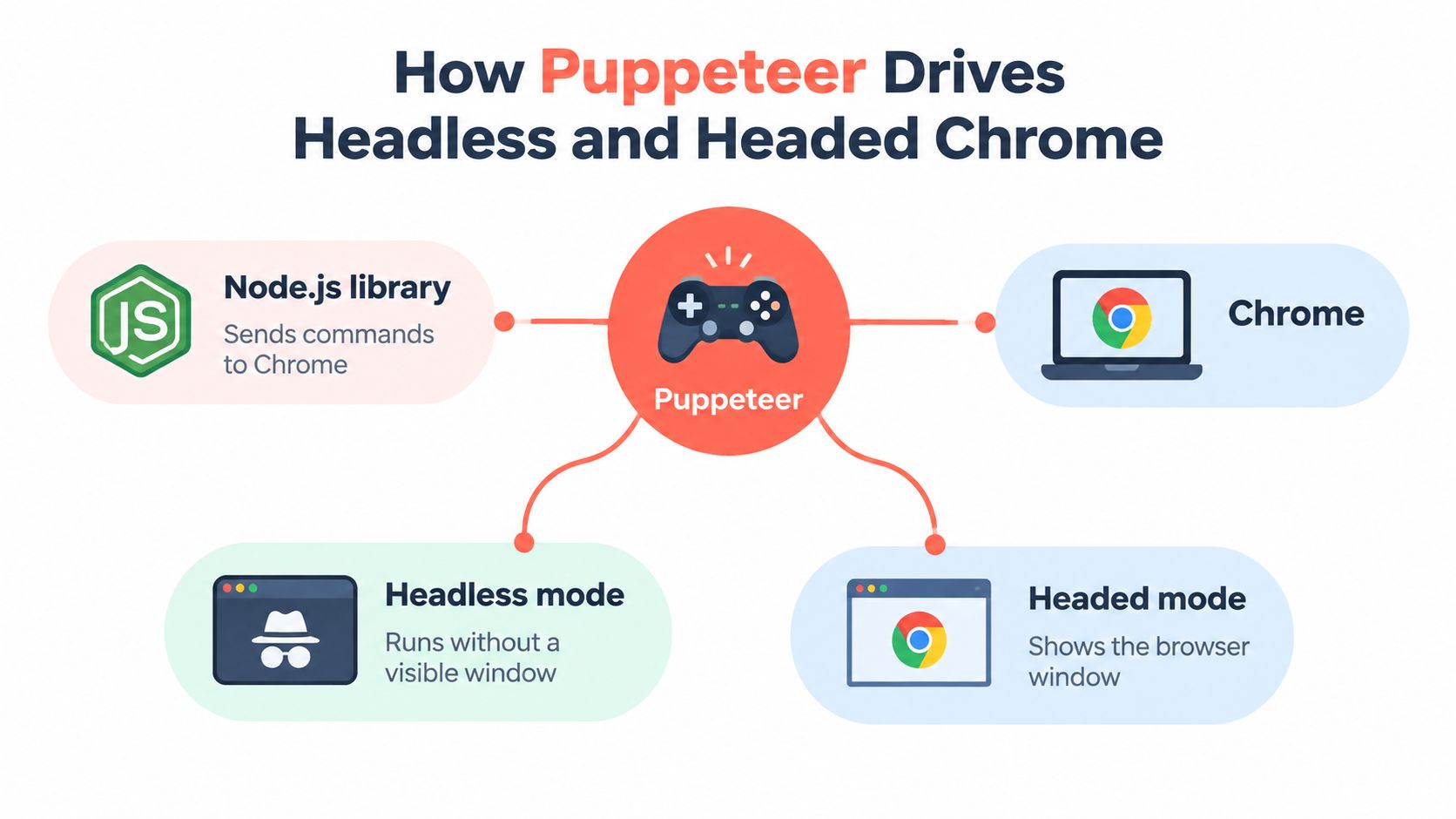
Puppeteer is a Node.js library that controls Chrome. Think of it as a handheld controller and Chrome as the device. Your script sends commands to Chrome through the DevTools Protocol, asking it to open pages, click buttons, enter text or capture screenshots.
Chrome does the actual browsing. Puppeteer doesn't draw the page itself or replace the browser engine. It tells Chrome what to do and can read back the results.
The same engine, two ways to run it
In headed mode, Chrome opens a visible browser window. You can watch the page load and interact with it directly. In headless mode, Chrome runs without displaying a window. It still loads pages and runs browser code; it doesn't draw a visible window for you to watch.
Headless mode is useful on servers, in scheduled jobs and in continuous integration because those environments often don't have a person sitting at a desktop. It also makes unattended automation straightforward. The tradeoff is that rendering details can differ between environments or configurations. Fonts, GPU behavior and other system-level features can affect what a page renders and how the browser reports its environment.
Headless doesn't mean “a different browser.” It means Chrome is running without its usual visible window. If you want a more detailed introduction to this distinction, see how headless browsers work.
A Puppeteer script still runs within a Chrome browser profile, with its own settings and browser identity signals. Headed or headless describes how you run the browser, not whether it has an identity. That gives us the basic vocabulary to ask what a site can observe when the browser's claimed identity doesn't match its behavior.
How Sites Spot a Mismatched Browser Identity
Changing a User-Agent is like changing the name on a passport without changing the face. A site can read the name from the request, but it can also ask the browser for other details and compare the answers.
JavaScript can expose browser and platform properties that don't change just because a script edits a request header. A 2013 study by Mulazzani and colleagues tested 189 browser and JavaScript-engine behaviors and found that JavaScript engine fingerprinting could identify and verify a browser even when its declared User-Agent had been changed. The study is discussed in the Berkeley review of web privacy research.
A separate 2013 study, Cookieless Monster, surveyed more than 800,000 users and crawled Alexa's top 10,000 websites. It reported that users with browser- or User-Agent-spoofing extensions could become more unique when the extensions changed some identifying properties but left others inconsistent. A Firefox-looking User-Agent paired with Chrome-specific behavior, for example, can create a clearer mismatch than an unmodified browser.

The request itself can give the game away
A website doesn't need to rely only on page scripts. It can also assess whether the request looks like one a browser would make. A Chrome User-Agent sent by a non-browser HTTP client may arrive with an incompatible set of headers, an unusual ordering, missing browser-only fields or platform values that don't fit the claim.
The same consistency question can extend to network behavior. Browser implementations can differ in how they establish secure connections, so changing a header or using a proxy doesn't change the network fingerprint by itself. A full-browser automation setup using Chrome's genuine network stack is different from a basic HTTP client that merely claims to be Chrome. Neither observation makes one signal a perfect verdict, but together they show why the header alone can't settle the question.
Fingerprinting also includes browser features such as canvas behavior. For a related explanation of how pages can use those features, see canvas fingerprinting.
Watch the video on YouTubeCommon assumptions that leave a Puppeteer script exposed include:
- “The header is the identity.” JavaScript and other request metadata can disagree with it.
- “A realistic string is enough.” A believable label can still conflict with the browser's implementation.
- “A proxy fixes the browser profile.” A proxy changes the route, not necessarily the browser's runtime or network behavior.
- “One successful page load proves consistency.” Other pages, workers or frames may expose different values.
Keeping Headers, Client Hints and Runtime Values Aligned
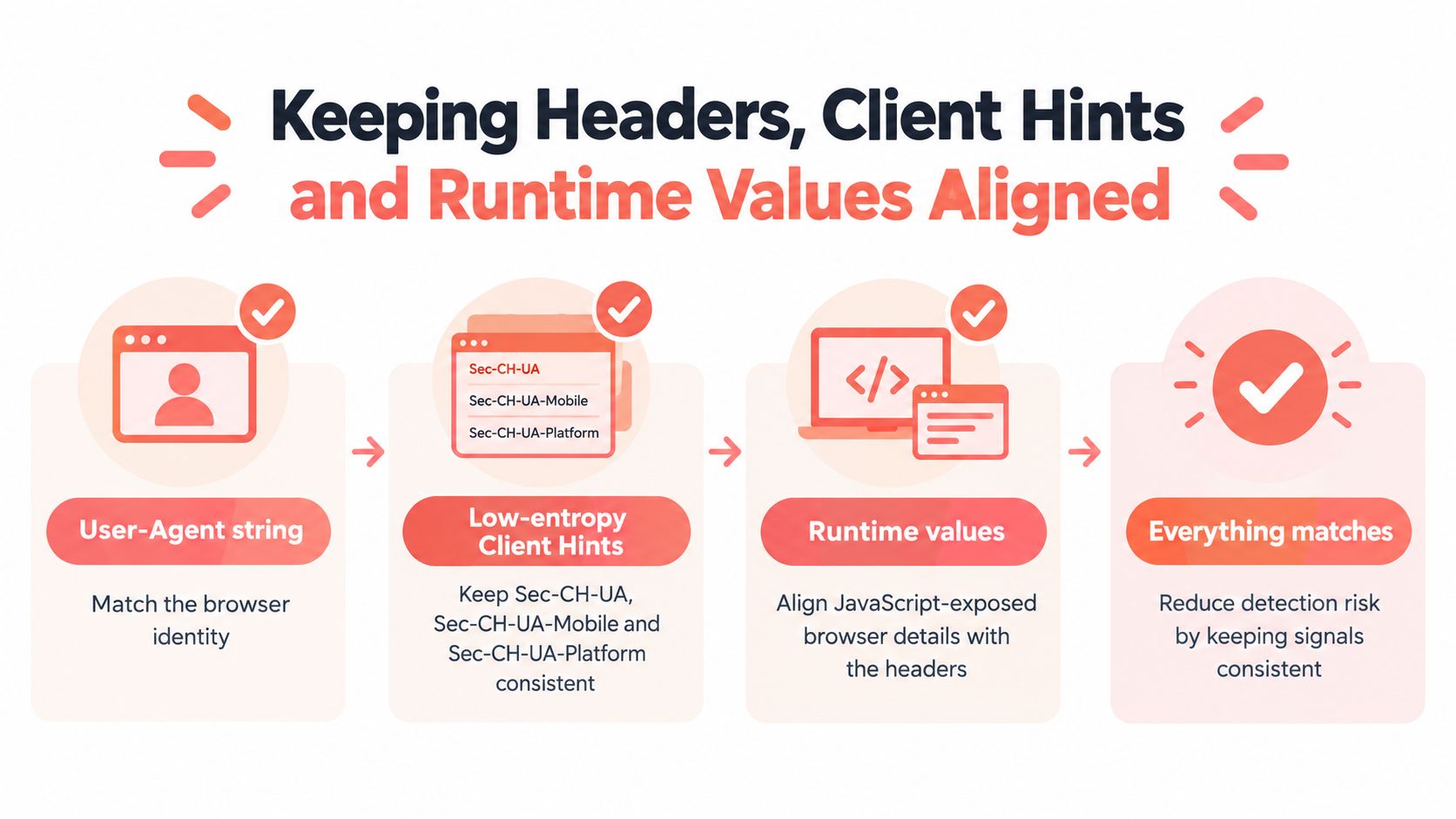
Once you know what a site can observe, the next task is to check whether the pieces agree. Chromium can send low-entropy Client Hints such as Sec-CH-UA, Sec-CH-UA-Mobile and Sec-CH-UA-Platform. A server can request higher-entropy values through Accept-CH, including details such as architecture and bitness.
These values are not decorative alternatives to the User-Agent string. They give the site another view of the browser identity. Changing one field while leaving the others untouched can produce contradictions with navigator.platform, screen characteristics or other request metadata. Mozilla's guidance explains why User-Agent sniffing is unreliable and recommends structured Client Hints or feature detection where appropriate. See Mozilla's guide to browser detection using the User-Agent.
A practical pre-run checklist
Before you launch Puppeteer, define the browser identity you want to test. Then check the values that describe that identity as a set:
- Version: Does the User-Agent version agree with the Chrome engine that's running? Don't claim a browser release that your executable doesn't match.
- Platform: Do
Sec-CH-UA-Platform,navigator.platformand any platform details in the User-Agent tell a compatible story? - Locale and timezone: Do the browser's language and time settings make sense for the test environment and its network profile?
- Network profile: Does the request come from the browser's own network stack, or from a separate client with a different request pattern?
- Scope: Do the values agree on the main page, in workers and inside iframes? A correct top-level value doesn't guarantee the same result in every context.
Treat this like checking that the labels on several connected boxes match. You're not trying to make each field look impressive in isolation. You're checking whether the whole profile describes one plausible browser.
That's also why browser detection based on one string is unreliable for site owners. Structured hints and feature detection can offer a more meaningful basis for serving content than guessing from a legacy label. For someone automating a browser, the practical lesson is the same: consistency matters more than a single attractive value.
Reliable Automation Patterns With Worked Examples
A data engineering team runs the same collection job each night. After a Chrome update, a script that changed only its User-Agent starts failing on some pages. The string still claims one browser version, but the engine running the job has moved on. Pinning the Chrome version gives the team a stable baseline: the browser and the identity it presents can be checked together before the collection run.
A QA team has a different problem. Its tests need to repeat the same device profile across runs so that a rendering change can be traced to the application rather than a shifting browser setup. Instead of assembling a fresh set of settings each time, the team saves a configuration for each test persona and reloads it consistently.
Make the run repeatable
In both cases, the important improvement is not a more elaborate disguise. It's a configuration the team can explain and reproduce. When a test fails, engineers need to know whether the application changed, the browser changed or the test profile changed.
Build a few habits into the workflow:
- Pin the browser version when you need comparable runs, and update it deliberately rather than letting the environment change without notice.
- Keep locale and timezone coherent with the intended test environment and proxy region.
- Log the request identity and compare headers across runs, so unexpected changes have a traceable cause.
- Use one stable persona per account or test profile instead of assigning random identity values on each launch.
- Record the mode and environment so the team can distinguish headed and headless runs and account for rendering differences.
A nightly scraper and a QA suite don't have the same goals, but they benefit from the same discipline. A coherent, repeatable profile is easier to troubleshoot than a collection of independent overrides. If the configuration changes, make that change visible in the test record. Otherwise, a run that looks flaky may be using a different browser identity than the last one.
Comparing Stealth Options for Puppeteer Workflows
Stealth approaches differ in where they set identity, how much maintenance they require and how consistently a profile can be repeated. JavaScript-level libraries such as puppeteer-extra-plugin-stealth and playwright-stealth adjust values from page scripts. That can help with particular runtime properties, but it doesn't automatically make the browser's other layers agree.
Other tools take different approaches. Camoufox, CloakBrowser, Fortress and Patchright are browser-oriented options. undetected-chromedriver and nodriver target browser automation workflows. selenium-stealth and profile managers such as Multilogin, GoLogin and Kameleo provide other ways to configure or manage browser identity. The relevant question isn't just what a tool is called, but where its changes take effect and how you'll verify them.
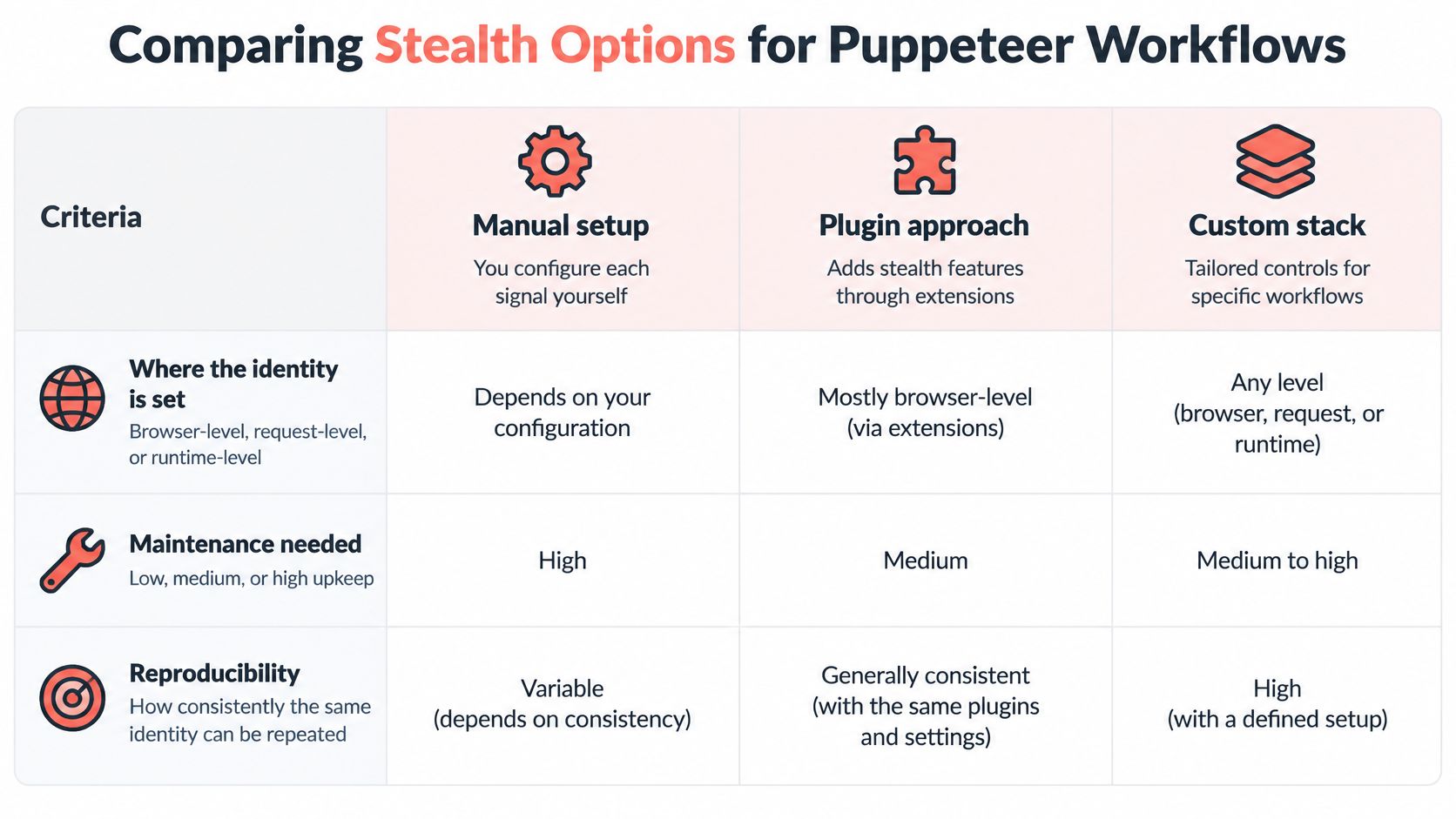
Clearcote is an open-source Chromium fork that controls fingerprint signals such as canvas, WebGL, audio, fonts, locale and hardware in the browser engine itself. Its approach is intended to make those signals part of one consistent identity, and it can run as a drop-in for Puppeteer. That's different from patching only JavaScript-visible values after the page starts.
| Approach | Where identity is set | Maintenance and repeatability |
|---|---|---|
| Manual setup | Request or runtime configuration, depending on what you change | Direct control, but you must keep related signals aligned yourself |
| Plugin approach | Commonly page-script or runtime level | Convenient for selected patches, with the need to check for gaps |
| Browser-level approach | Within the browser or its profile | Can provide broader control, but still requires version and configuration testing |
No option is undetectable. Validate the results with independent checks such as CreepJS, BrowserScan and Pixelscan, rather than assuming that a tool's name or approach guarantees a particular outcome.
Testing Your Setup and Choosing a Next Step
A useful validation run answers a simple question: do the browser's signals describe the same identity? Clearcote provides a free tool that shows current Chrome User-Agent strings and Sec-CH-UA headers, which helps you check whether the version you present matches the browser you intend to run. It also provides a fingerprint test designed to find browser signals that contradict one another.
Run the checks in order. First confirm whether Puppeteer launches headed or headless Chrome. Then inspect the request headers and Client Hints, followed by JavaScript-visible values across pages, workers and iframes. Finally, repeat the run with the same configuration and compare the results.
For additional independent checks, use browser fingerprinting tools such as CreepJS, BrowserScan and Pixelscan. Treat their results as diagnostic evidence, not as a promise that a browser can't be identified. No configuration guarantees that.
Start with your current Puppeteer script. Run a free check, record the values it reports, and identify any contradictions before changing the setup. Then decide whether those mismatches matter to your testing or automation goal.
Clearcote Labs offers browser identity controls in an open-source Chromium fork, along with free checks for User-Agent and Client Hints consistency. Visit Clearcote Labs to run a check against your current Puppeteer setup and decide what to adjust.