MCP is an open standard that connects AI applications to external tools and data through one common interface.
You've got an agent that can explain a failing checkout test, but it can't open the checkout, inspect the page, or check the database behind it. Connecting those systems is the next step. The important question isn't just whether the connection works. It's what the agent will be allowed to do once it does.
Table of Contents
- What the Model Context Protocol Is and Why It Exists
- How Hosts, Clients and Servers Fit Together
- Tools, Resources and Prompts a Server Exposes
- Choosing Between stdio and Streamable HTTP
- Deployment Decisions and Token Security
- How an Agent Drives a Fixed-Identity Browser
- Connecting an Agent to a Browser Step by Step
- Confirm Your Setup Before You Automate
What the Model Context Protocol Is and Why It Exists
Say you're building a development assistant that needs repository files, support tickets, and a browser. Without a shared interface, you might write separate integrations for each system, then rewrite parts of them when you switch AI applications.
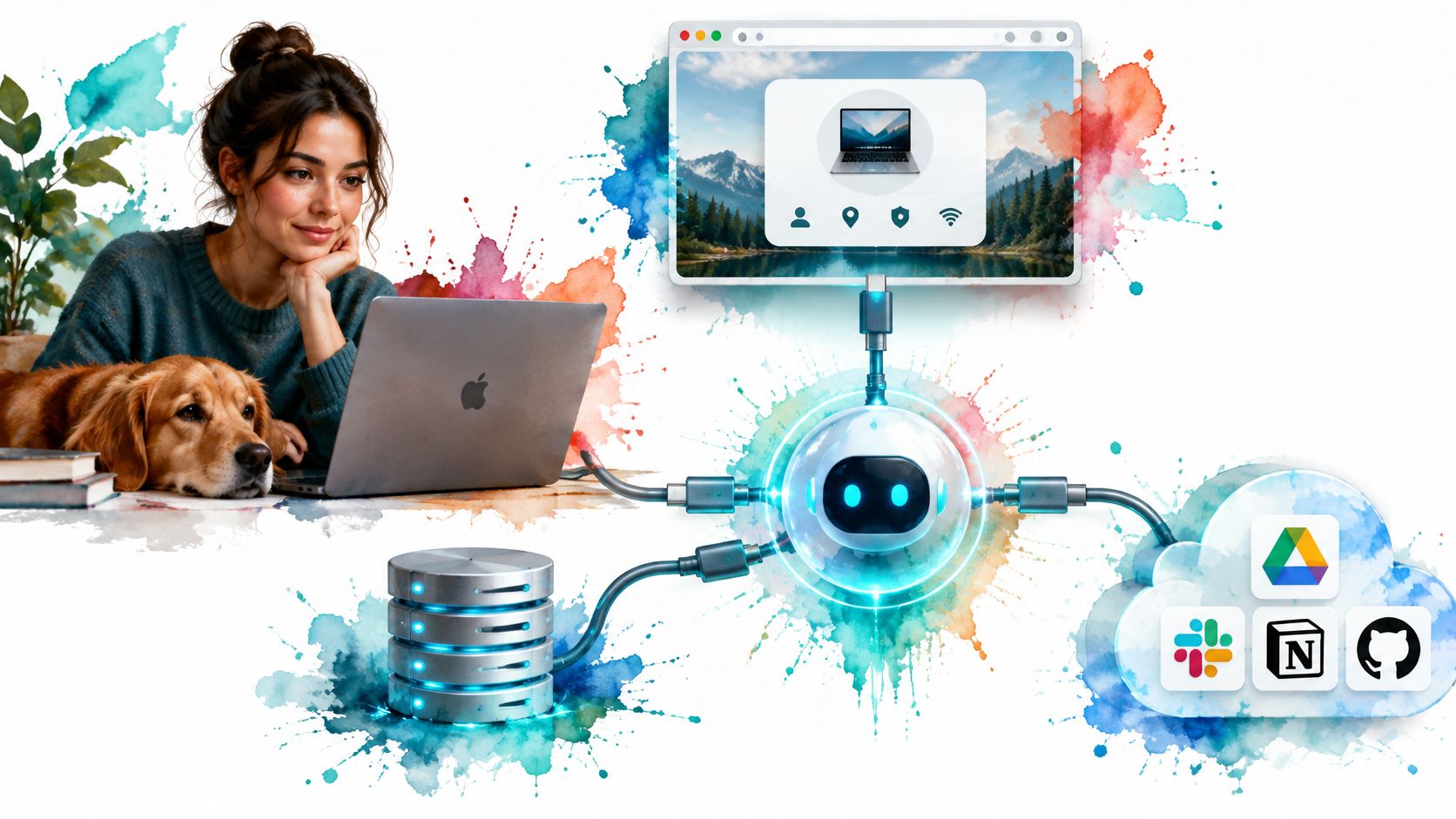
The USB-C analogy is useful: a common port reduces the need for a different cable for every pairing. MCP aims to do something similar for AI integrations. It standardizes how an application discovers and accesses outside capabilities, rather than standardizing the capabilities themselves.
The MCP launch announcement introduced the protocol on November 25, 2024, with three deliverables: the specification and software development kits, local server support in Claude Desktop, and an open-source repository of reference servers. That combination gave developers both an interface to implement and examples to work from.
Practical rule: Treat MCP as a connection standard, not a permission slip.
A server exposes data or capabilities. A client connects an AI application to that server. Independent developers can implement either side, which makes MCP a protocol layer rather than a feature confined to a particular application.
That doesn't mean every client supports every server feature, or that a successful connection makes the server trustworthy. Compatible protocol versions, supported capabilities, authentication, and host policy still matter. GitHub popularity, meanwhile, signals developer interest rather than production deployment.
For your repository assistant, portability means you can reuse the repository server with another compatible host instead of rebuilding the integration. Safety means separately deciding whether that server can read the whole repository, access secrets, or modify files.
The useful test is simple: can a compatible MCP client discover and use the server's intended capabilities, and have you limited those capabilities to what the task needs?
How Hosts, Clients and Servers Fit Together
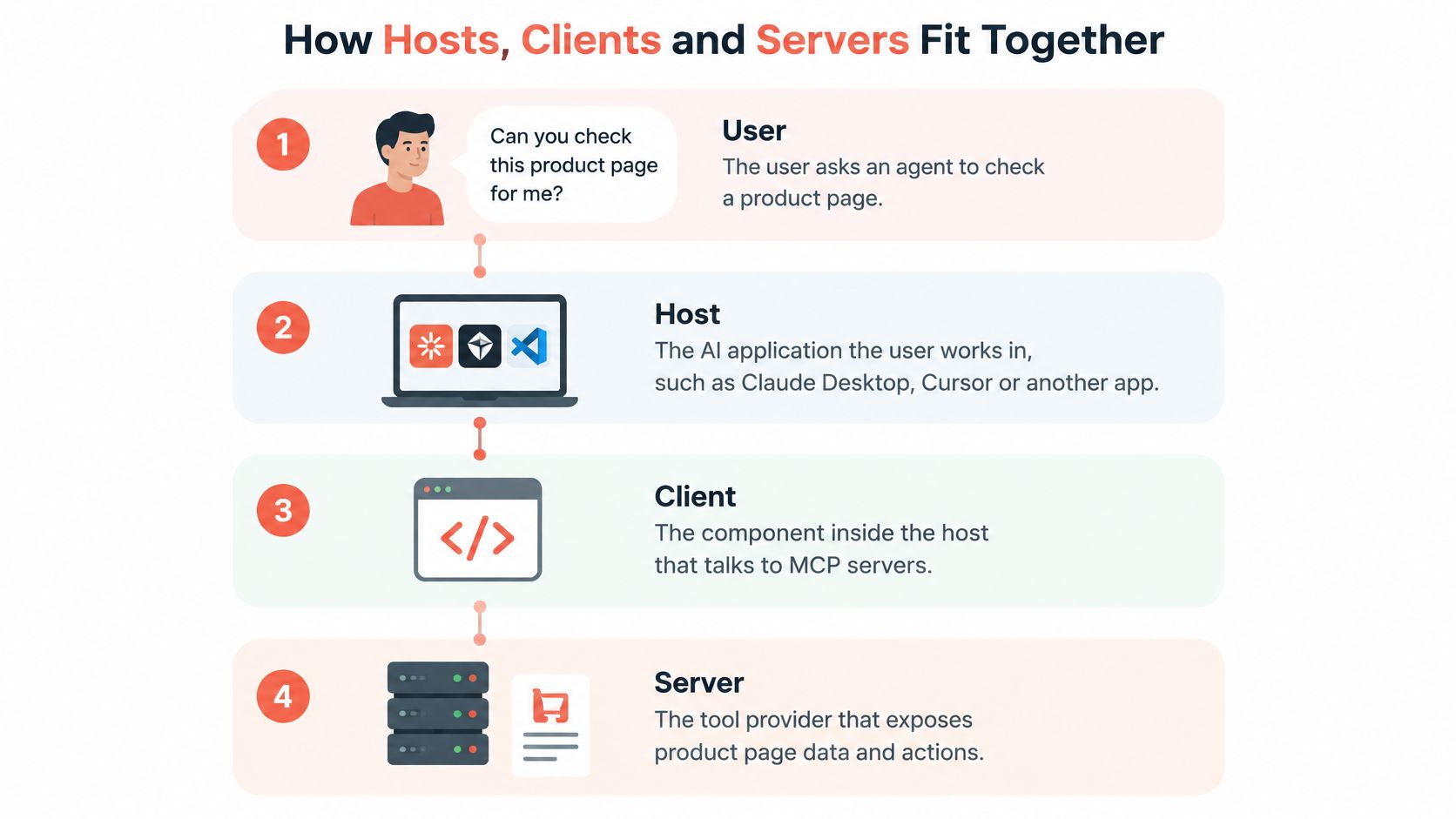
You ask an agent to check whether a product page shows the correct price. The chat window, model, browser connector, and browser process aren't the same component, even if the interface makes them feel like a single application.
This distinction helps when debugging. A model choosing the wrong action is different from a client failing to connect or a browser server returning an error.
MCP roles and what each one does
| Role | What It Does | Example |
|---|---|---|
| Host | The AI application the user works in and where the model runs its loop | Claude Desktop, Cursor, Cline |
| Client | Lives inside the host, maintains the server connection, and handles capability discovery | A dedicated client for each attached server |
| Server | Exposes tools, resources, and prompts over the protocol | A browser server, database server, or file server |
| Transport | Carries JSON-RPC messages between client and server | stdio or Streamable HTTP |
A typical request follows this path:
- The host's model decides that answering your question requires inspecting the page, subject to the host's policies.
- The client sends a JSON-RPC tool request to the browser server.
- The server performs the browser action and returns structured output, such as page text or a screenshot.
- The client delivers the result to the host, and the model uses it to answer.
The host can maintain separate client connections to a browser server and a database server. The model can then compare a displayed price with a stored price without either server needing to implement the other's job.
The same architecture applies outside browser work. Agentcentral's explanation of MCP access to Amazon Ads data provides a business-data example of connecting an assistant to an external system.
Remember the division of responsibility: the host decides, the client connects, the server acts. The host should also enforce approvals rather than assuming the model will always ask.
Tools, Resources and Prompts a Server Exposes
A browser server doesn't just offer a generic connection to a browser. It describes specific things the host can discover and use.
MCP distinguishes tools, resources, and prompts. They serve different purposes, and confusing them makes it harder to reason about permissions.
| Primitive | Who Usually Triggers It | Browser Example |
|---|---|---|
| Tool | The model proposes a call; the host applies policy and approval requirements | Navigate to a page, click an element, take a screenshot |
| Resource | The application selects or attaches context | Read page content or session metadata |
| Prompt | The user selects a reusable template | Start a checkout-accessibility audit |
These browser examples illustrate possible capabilities, not guaranteed tool names. Each server defines its own catalog.
Context isn't the same as authority
A resource supplies context without being an action interface. A tool can change something: submit a form, delete a cookie, or complete a purchase. A prompt provides reusable instructions, but it doesn't grant permission to execute those instructions.
Read-only access still deserves scrutiny. Page content can contain personal information, account details, or hostile instructions aimed at the model. Treat retrieved text as task data, not as authority to override your application's rules.
Hosts differ in their approval behavior. Don't assume that installing a server automatically creates a confirmation dialog before every consequential action.
Descriptions shape tool selection
The model reads tool names, descriptions, and argument schemas when choosing what to call. A narrow tool described as reading the visible product price is easier to reason about than a broad tool described as doing browser work.
Prefer a small, clearly described catalog over overlapping tools with vague boundaries. Define expected inputs, outputs, and side effects, and return useful errors when a page isn't ready.
Review the full tool catalog before enabling a server. A harmless-looking server name tells you little about the authority behind its tools.
Capability discovery tells the host what the server supports. Your policy determines which of those capabilities the agent may use.
Choosing Between stdio and Streamable HTTP
For a desktop agent controlling a browser on your machine, choose stdio unless you have a reason to expose a network service. For a centrally hosted browser pool shared by a team, choose Streamable HTTP.
The MCP transport specification describes two standard transport bindings: stdio and Streamable HTTP. Their main difference is where the process runs and how messages reach it.
stdio versus Streamable HTTP
| Attribute | stdio | Streamable HTTP |
|---|---|---|
| Where the server runs | Launched as a subprocess by the client | A local, remote, or hosted endpoint |
| Message path | Newline-delimited JSON-RPC over stdin and stdout | HTTP POST to an MCP endpoint, with JSON or SSE responses |
| Network exposure | No listening network service required | Yes, must be secured |
| Authentication | Process launch and local OS permissions establish access; downstream services may need credentials | Bearer tokens, API keys, custom headers, or OAuth-based mechanisms |
| Typical fit | Desktop agent driving the user's browser | Hosted browser pool shared by a team |
| Required safeguards | Trusted launch command and restricted process permissions | Origin validation, TLS, secure session identifiers where used, loopback binding for local services |
With stdio, the client launches a subprocess and exchanges messages through standard input and output. Keep diagnostic logs on standard error so they don't corrupt protocol messages.
With Streamable HTTP, the client posts messages to the server. The server can return a JSON response or stream results using Server-Sent Events. This supports hosted deployments, but it also creates a service you must operate and defend.
The local HTTP trap
A service running on your laptop is still a network service. Bind local endpoints to loopback rather than every interface, validate incoming Origin headers against an explicit allowlist, and authenticate access.
Stdio avoids that listening endpoint, but it doesn't sandbox the server. A subprocess may still read files or launch programs with the permissions you give it.
The practical trade-off is operational: stdio keeps a local integration simpler; HTTP makes central hosting and sharing possible, with additional security responsibilities.
Deployment Decisions and Token Security
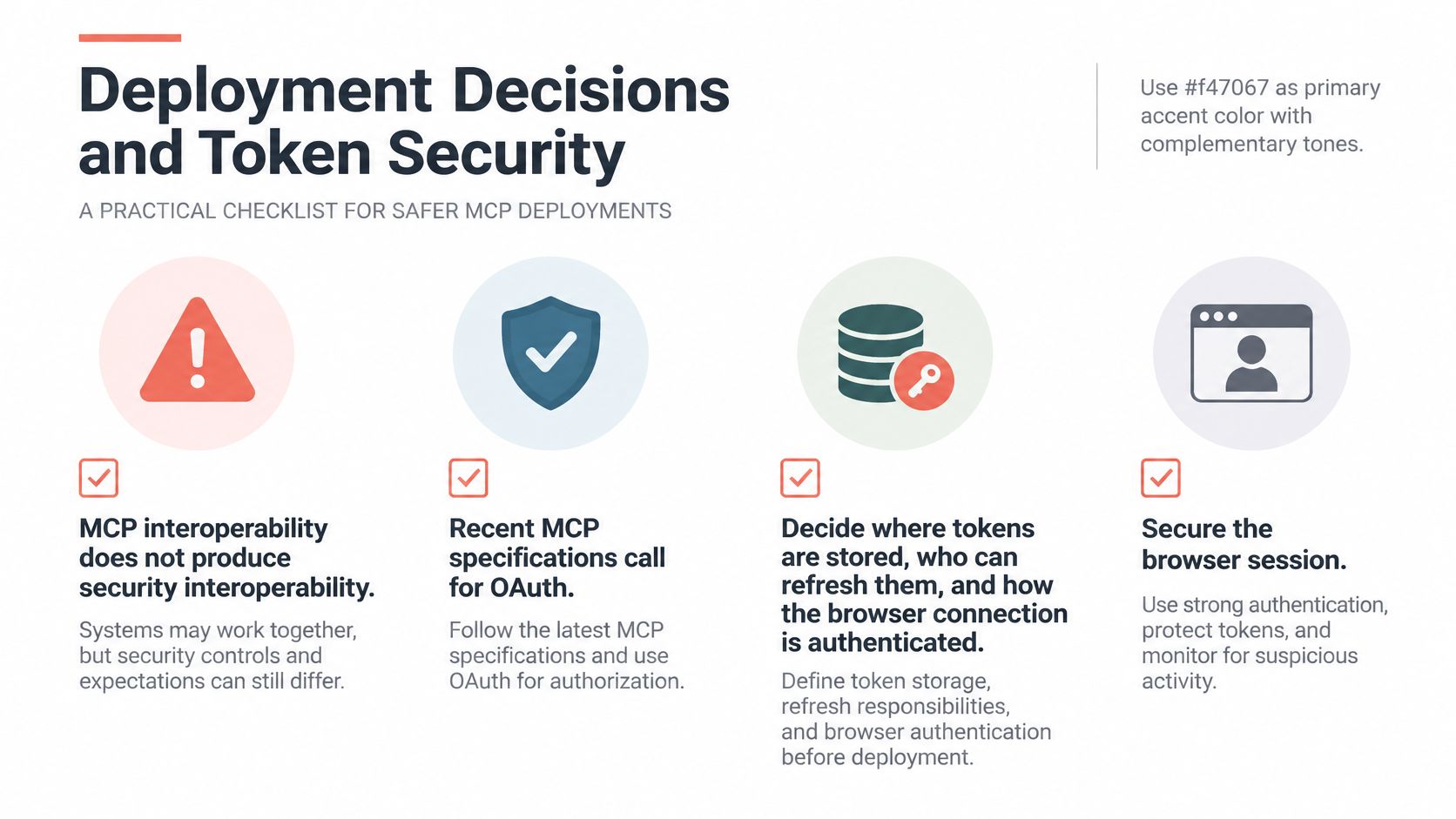
MCP interoperability doesn't automatically produce security interoperability. A server can understand the protocol perfectly while accepting the wrong token or exposing another user's browser session.
Choose the deployment model before handing the agent real credentials.
Deployment scenarios and required controls
| Scenario | Transport | Required Controls |
|---|---|---|
| Single-user desktop tool | stdio | Trusted launch command, least-privilege tool list, approval for write actions |
| Shared remote service | Streamable HTTP | TLS, bearer or OAuth tokens, audience binding, Origin allowlist |
| Multi-tenant SaaS | Streamable HTTP | Per-tenant authorization, isolated browser sessions, audit logs per tenant |
| Delegated access | Streamable HTTP | Short-lived tokens scoped to the named user, token rotation, approval for write actions |
| Untrusted third-party server | Either | Treat authorization URLs as untrusted, restrict exposed capabilities to read-only, keep credentials out of reach |
Read-only restrictions don't make a malicious server safe. If it receives sensitive context or runs with broad local permissions, it can still cause harm. Reject a server entirely when you can't establish a suitable trust boundary.
Bind credentials to the intended resource
The MCP authorization specification describes OAuth 2.1-style authorization, Protected Resource Metadata, HTTPS, PKCE-related protections, and token audience binding. Servers must verify that a presented token was issued for them.
Say your agent connects to an analytics server and an administrative server. The administrative server must reject a token intended for analytics, even if the token is otherwise valid. Accepting it can turn a lower-privilege connection into a cross-service escalation.
Resource metadata helps clients discover authorization information. PKCE protects the authorization-code exchange. Neither replaces checking the token's intended audience and granted permissions.
Make security controls operational
- Limit credential lifetime. Use short-lived access tokens, secure storage, and a defined refresh and rotation process.
- Narrow authority. Grant each server only the scopes and tools needed for its job.
- Record accountable actions. Log tool calls with the responsible user, tenant, target, and outcome, while redacting secrets.
- Gate consequential writes. Require approval before purchases, deletions, account changes, or external submissions.
- Validate authorization destinations. Treat server-provided authorization URLs as untrusted input; unsafe handling can expose clients to script injection or code execution.
For hosted browser planning, our browser-as-a-service deployment guide provides additional context.
Browser sessions hold cookies, storage, and authenticated access. Isolate them by user or tenant, and keep their credentials out of chat transcripts.
How an Agent Drives a Fixed-Identity Browser
A QA engineer asks an agent to test a regional checkout repeatedly. If each run presents a different device profile, language, timezone, or exit location, the engineer can't easily tell whether a changed result comes from application code or the testing environment.
A fixed identity reduces those uncontrolled differences. It doesn't make every response deterministic, but it gives the engineer a stable basis for comparison.
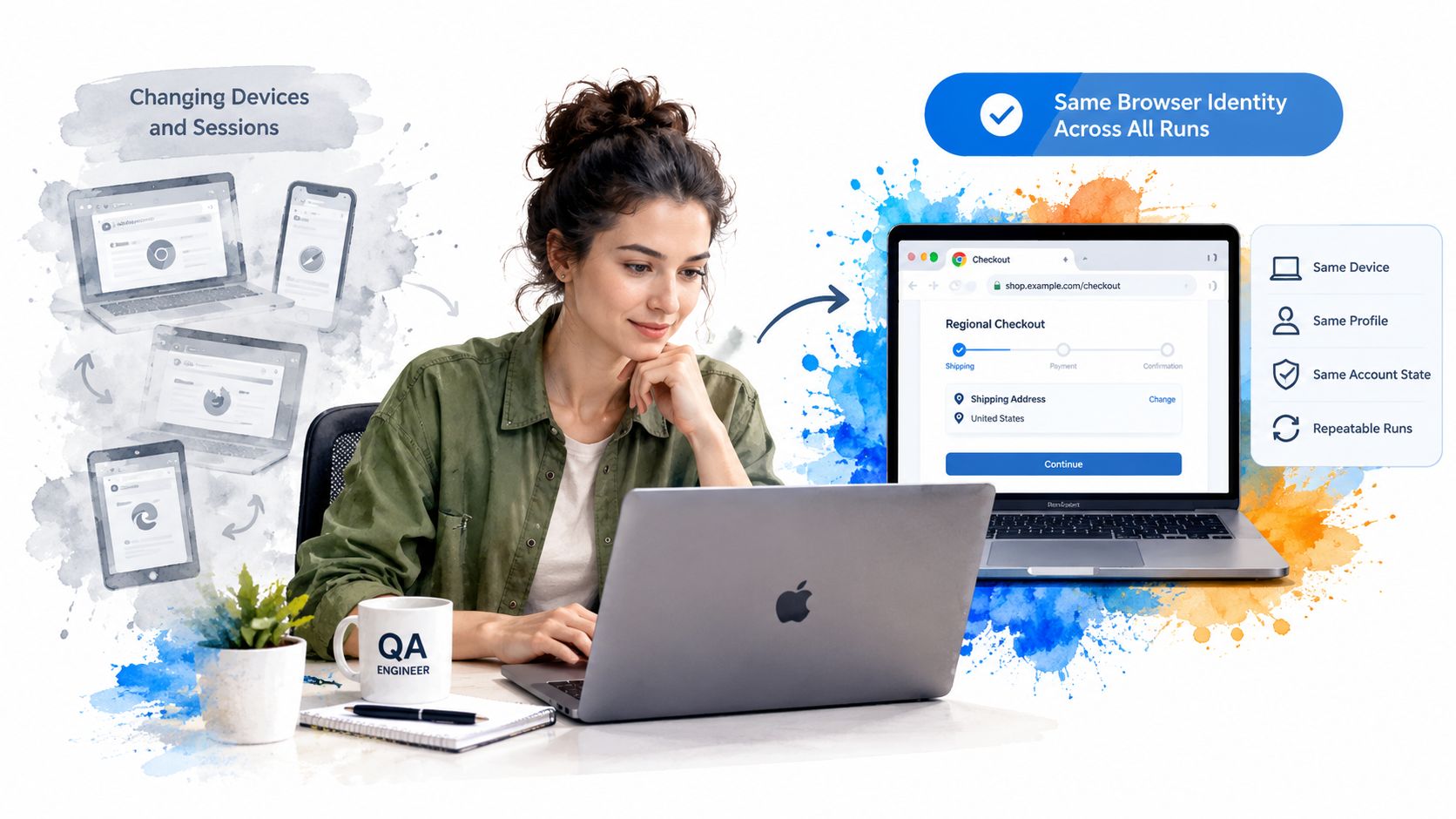
Our Clearcote MCP server lets Claude Desktop, Cursor, or Cline drive a shared real browser through 20 tools. The browser is a Chromium fork with identity controls implemented in the engine, so fingerprint signals can remain coherent across the session.
Set the persona before the task
We configure the persona through CLEARCOTE_* environment variables rather than asking the model to choose identity settings during each action. Relevant settings include CLEARCOTE_FINGERPRINT, CLEARCOTE_PLATFORM, CLEARCOTE_TIMEZONE, CLEARCOTE_ACCEPT_LANGUAGE, and CLEARCOTE_PROXY.
That separation keeps infrastructure choices outside the model's ordinary tool selection. The agent can concentrate on testing the checkout instead of improvising a device configuration.
Browser agent use cases and what to check
| Use Case | Why a Fixed Identity Helps | What to Check |
|---|---|---|
| Regional QA of pricing and content | Keeps locale and timezone consistent across runs | Compare results under the planned persona |
| Repeat research on a logged-in account | Presents the same device across sessions | Persona matches the account's usual device |
| Scheduled page monitoring | Reduces identity-related false changes | Proxy location matches the target region |
| Cross-device test coverage | Uses a deliberately selected captured profile for each run | Profile tagged by GPU vendor matches the test goal |
| Public data available through an official API | Not needed; a direct API call is simpler | Use the official API first |
Stable identity isn't session isolation
For regional QA, reuse the intended persona across comparable runs. For cross-device coverage, choose a different planned profile for each test case and record which profile produced each result.
Don't confuse a stable device with permission to share authenticated state. Separate accounts and tenants still need separate browser sessions, even when their device configurations look similar.
Our AI browser agent guide discusses the browser-execution side of this workflow. Keep the task bounded: identify the target page, expected observation, permitted interactions, and stopping condition.
Plan the persona before launching rather than asking the agent to change it mid-run. If the required information is available through an authorized API, use that instead of reproducing a browser workflow.
Connecting an Agent to a Browser Step by Step
Start on a test site with a disposable account. Your first objective is to verify the connection and its boundaries, not to complete a production workflow.
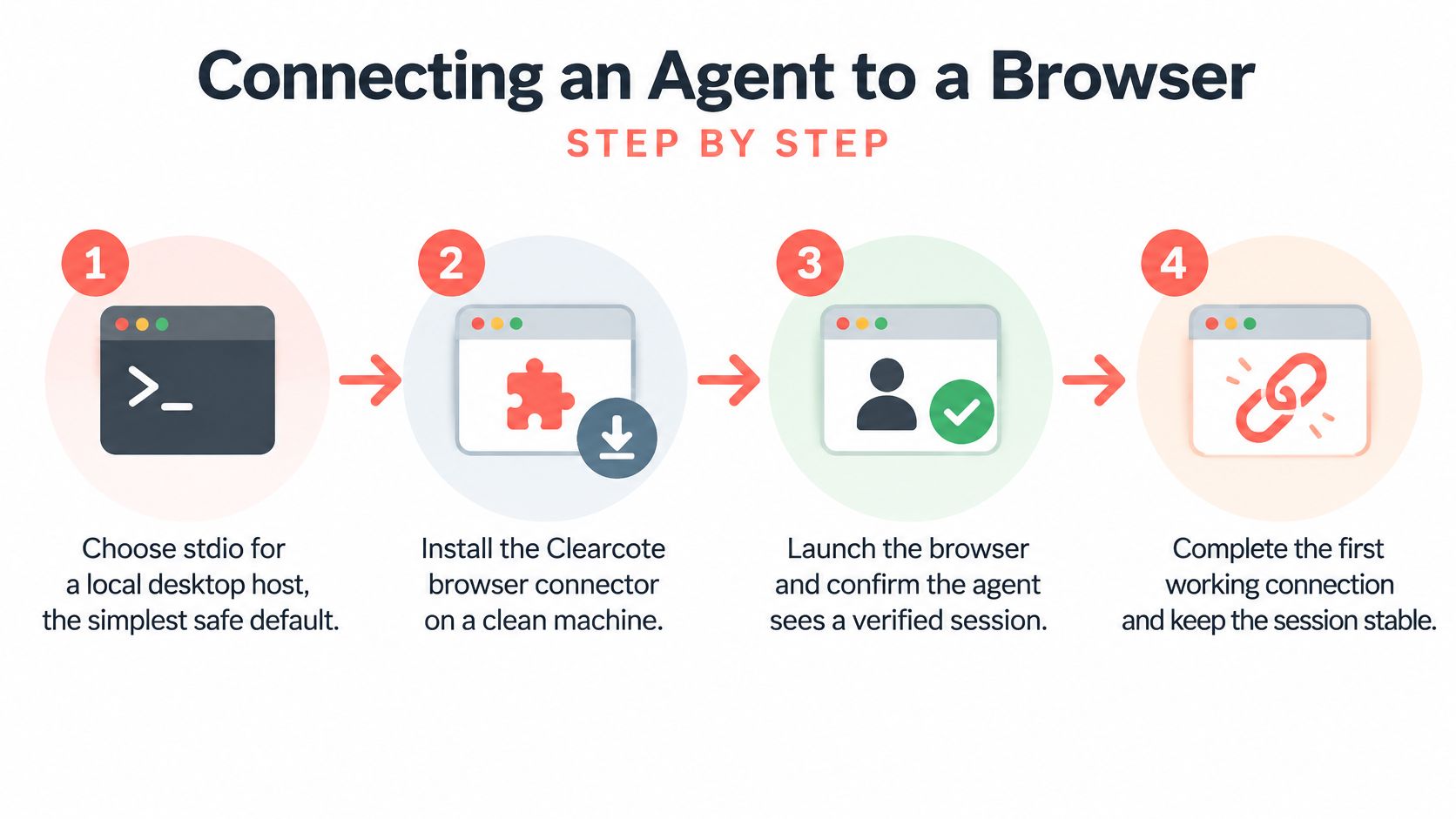
Choose local stdio. Use a desktop host that supports launching an MCP subprocess. This avoids adding a hosted endpoint before you've verified basic behavior.
Install and check the browser. A coding agent can follow our setup instructions to install the SDK, check the browser, and run an initial script. Supply credentials through the local environment or secure storage, not through the chat.
Register the server. Copy the documented launch command and arguments into your host's MCP configuration, then add the persona environment settings. Check the host's configuration format because file locations and secret handling differ.
Align location deliberately. Set
CLEARCOTE_PROXYwhen the exit location matters, and configure geo matching through the documented settings when timezone and language should follow that exit. Don't combine a regional proxy with contradictory manual overrides.Restart and inspect discovery. Confirm that the expected browser tools appear and review their descriptions. Missing tools indicate a connection or startup problem, not something to solve with a more elaborate prompt.
Run a bounded verification task. Ask the agent to open an approved test page and take a screenshot, then inspect the persona with a fingerprint test. This checks execution and configuration before you introduce sensitive accounts.
Configuration shape
The following is a JSON-shaped illustration, not a runnable launch configuration. Replace the command placeholder and add the documented arguments before use.
{
  "mcpServers": {
    "browser": {
      "command": "<documented-launch-command>",
      "env": {
        "CLEARCOTE_PLATFORM": "windows",
        "CLEARCOTE_TIMEZONE": "Europe/London",
        "CLEARCOTE_ACCEPT_LANGUAGE": "en-GB"
      }
    }
  }
}
Keep CLEARCOTE_LICENSE_KEY in a securely supplied process environment. JSON configuration doesn't automatically expand shell variables, and GUI applications may not inherit your terminal's environment.
Troubleshooting: Run the documented launch command in a terminal first, validate the JSON, check the
mcpServersspelling, and inspect startup errors before restarting the host.
Our MCP browser automation guide provides context for developing the verified connection into a repeatable workflow.
Confirm Your Setup Before You Automate
A successful screenshot proves that the browser can run an action. It doesn't prove that your persona is coherent, your permissions are appropriate, or your workflow is authorized.
We state plainly that no tool is undetectable and recommend validating configurations with CreepJS, BrowserScan, and Pixelscan. These checks help identify inconsistencies; they aren't guarantees about how another site will classify a session.
Our intended uses are privacy, testing, research, and lawful automation. Your use remains subject to local law and site terms, including restrictions on accessing systems without authorization or circumventing security controls.
Run the ready-check
- Verify execution. A local stdio session completes a bounded task on a test site without unexplained errors.
- Verify the persona. Fingerprint-check results match the device, locale, timezone, and location you planned.
- Review permissions individually. Inspect each exposed tool, its accessible data, and its possible side effects.
- Write the approval policy. Name the actions that require human confirmation before execution, and verify that the host enforces it.
Don't proceed to real automation until these checks pass. Reassess the catalog whenever you add a server, because that changes what the agent can reach.
Move to Streamable HTTP only when central hosting or sharing is needed, and only after implementing the deployment controls. A working local prototype is a useful starting point, not a production security review.
Clearcote Labs offers an engine-level identity-controlled browser and an MCP connection for agents that need reproducible browser sessions. Visit Clearcote Labs to explore the setup documentation and build a bounded test workflow before giving an agent access to real accounts.