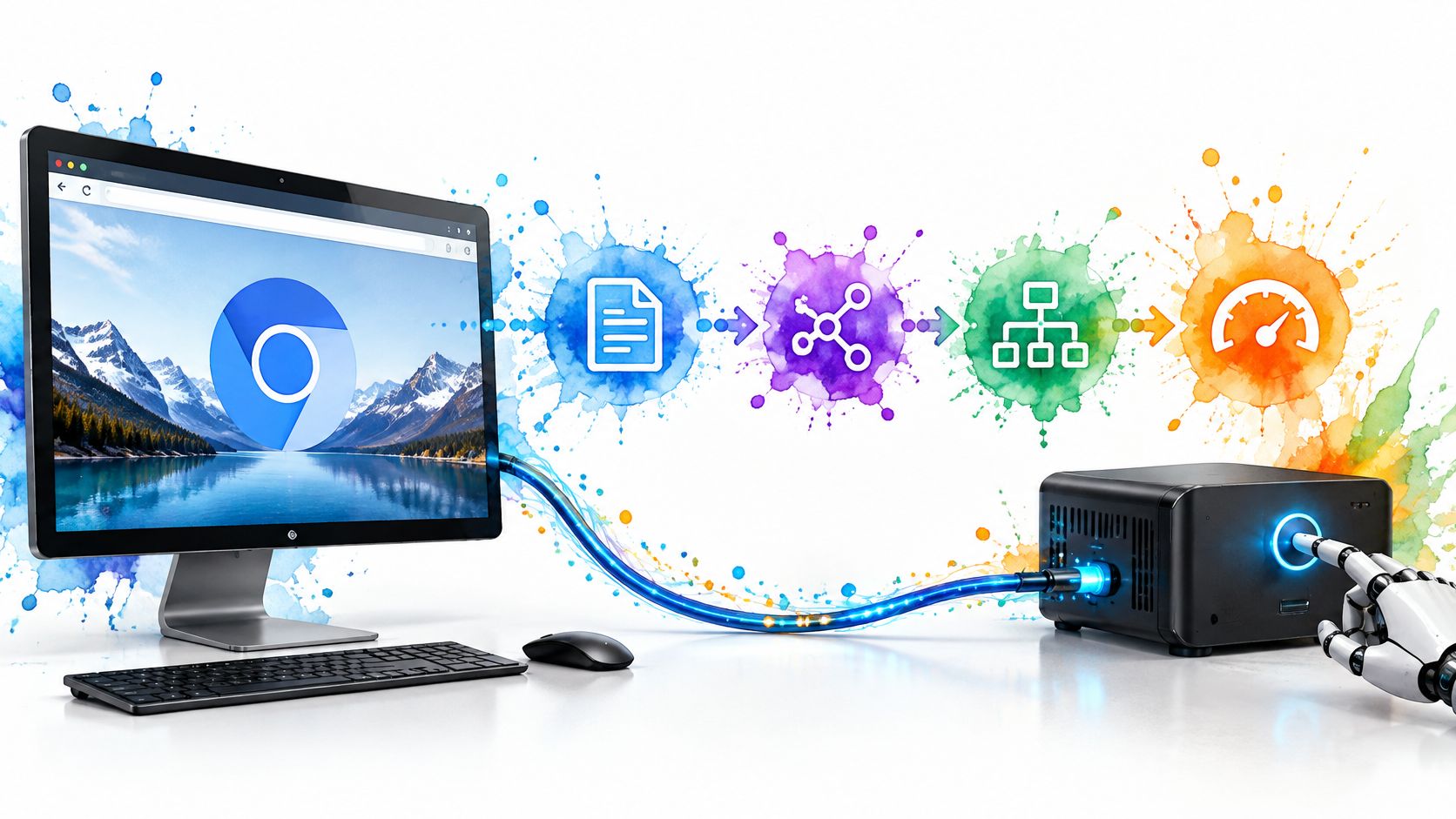
Your automation script opens a page, clicks a button, and tries to read the resulting network response. The click succeeds, but the response never appears in your logs. Somewhere between your code and Chromium, instructions and browser updates need a shared channel. That channel is the Chrome DevTools Protocol, or CDP.
Think of CDP as the wiring behind a browser's dashboard. Chrome DevTools is one client using that wiring; automation libraries and custom scripts can use it too. Once you recognize the messages passing through, it's easier to see why a command that worked on one browser build might fail on another.
Table of Contents
- What the Chrome DevTools Protocol Actually Does
- The Domains, Targets and Sessions Behind Every Call
- How Commands and Events Move Through the Browser
- How Playwright, Puppeteer and Clearcote Attach to CDP
- Build a Minimal Client on a Pinned Browser
- Keeping Clients Working Across Chrome Versions
- Security Boundaries for a Remote Debugging Endpoint
- Common Misconceptions About CDP Automation
What the Chrome DevTools Protocol Actually Does
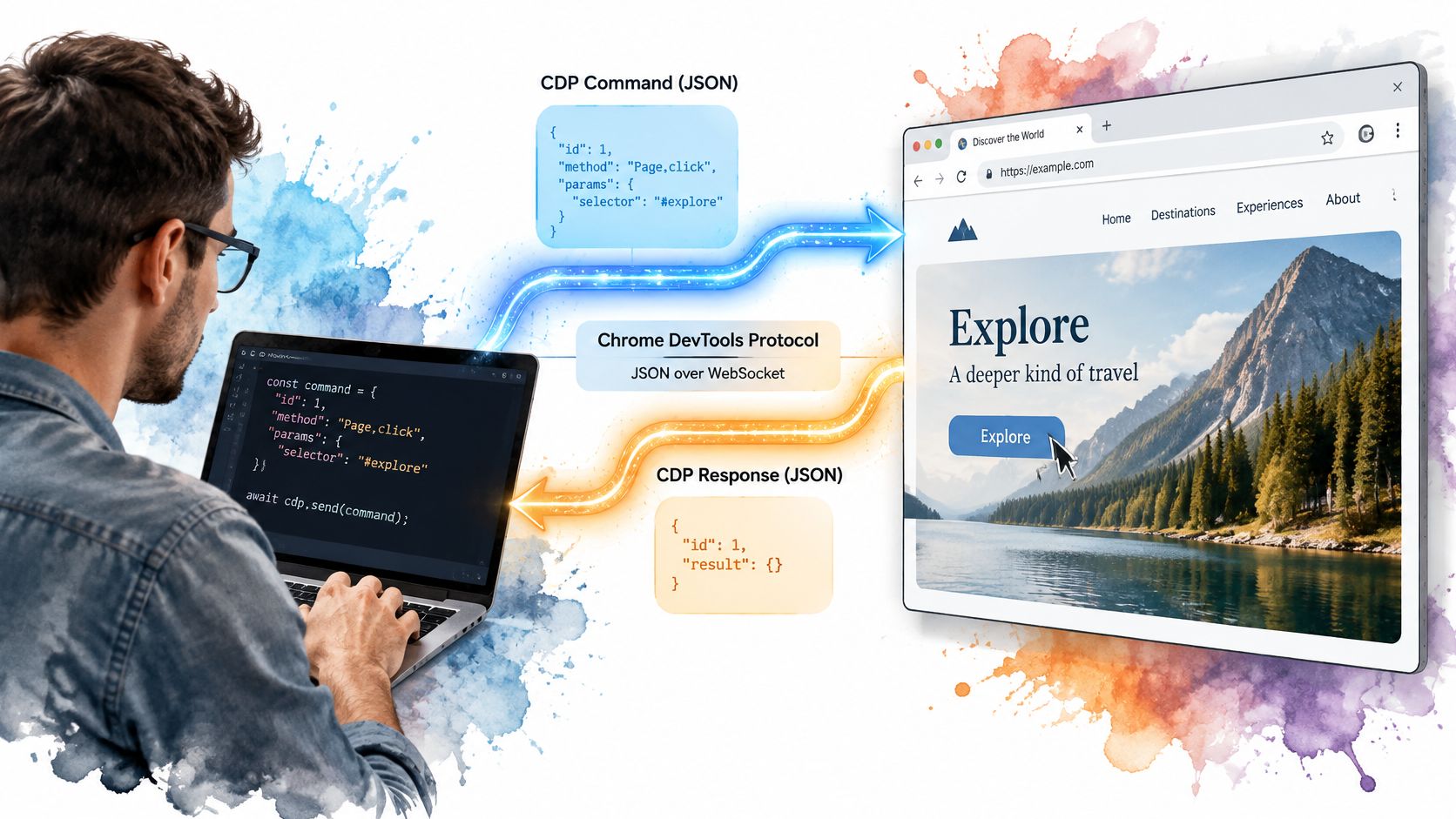
Say a script opens a product page, clicks “Add to cart,” and checks whether the browser sent the expected request. The script doesn't reach into the browser as if it were calling a local function. It sends structured messages to Chromium, which performs the requested work and sends back responses or event notifications. CDP is a JSON-based protocol for trusted debugging and automation clients to communicate with Chromium targets, including pages and workers, over a browser control connection.
The dashboard analogy helps here. DevTools' Network panel is one instrument display, showing requests and responses; a script listening to the Network domain reads similar browser telemetry through protocol messages. The DOM, Debugger, Network, and Performance domains are like separate panels, each grouping related commands and events. That shared foundation is why debugging, profiling, inspection, and automation tools can look different while talking to the same browser backend.
The protocol's definitions aren't an informal list of commands. Chromium and V8 maintain canonical descriptions in browser_protocol.pdl and js_protocol.pdl. Those definitions generate C++ bindings used by Chrome DevTools and Chrome Headless, while a mirrored public repository produces JSON schemas and TypeScript definitions for npm distribution. The Chrome DevTools Protocol documentation distinguishes a more compatibility-focused stable snapshot from tip-of-tree definitions that track active Chromium development. The stable snapshot is tagged at Chrome 64, while tip-of-tree features can change without backward-compatibility guarantees.
That distinction affects your client before you send its first command. If your automation needs a newer browser capability, you may need a current protocol definition; if the integration must keep working through upgrades, target supported features and pin compatible browser builds. In logs, a JSON message with a method such as Page.load or Network.enable is a clue that you're looking at CDP traffic.
If a workflow also collects rendered page content, make sure the method and its use fit your obligations. This overview of screen scraping compliance risks can help you think through the compliance questions separately from the mechanics of browser control.
The Domains, Targets and Sessions Behind Every Call
CDP becomes easier to understand when you separate three ideas: domains, targets, and sessions. Think of a domain as a department in a service desk: Network handles request telemetry, while DOM handles document structure. A target is the particular thing you're inspecting, such as a page, worker, or browser. A session is the client's working connection to that target.
A target's type matters because it determines which protocol domains it supports. Several clients can also attach sessions to the same target at the same time, so DevTools and an automation script can inspect one page concurrently. The browser may route a command through several implementation layers, including its embedder, content browser, Blink, and V8 code, before returning a result. The Chromium protocol implementation guidance describes this layered design and the role of target-specific sessions.
Use this table as a lookup, not as a promise that every target supports every command. The examples show common methods and events a client might work with.
| Domain | What It Covers | Example Command | Example Event |
|---|---|---|---|
| DOM | Document nodes, selectors and attributes | DOM.getDocument |
DOM.setChildNodes |
| Network | Requests, responses and timing | Network.enable |
Network.requestWillBeSent |
| Runtime | Script evaluation and execution contexts | Runtime.evaluate |
Runtime.consoleAPICalled |
| Page | Navigation, load lifecycle and screenshots | Page.navigate |
Page.loadEventFired |
| Debugger | Breakpoints and stepping | Debugger.enable |
Debugger.paused |
| Performance | Runtime performance metrics | Performance.getMetrics |
Performance.metrics |
| Target | Target discovery and session attachment | Target.getTargets |
Target.attachedToTarget |
Why target choice changes the workflow
A page can contain multiple local frames grouped under one page target, while workers and worklets are represented as separate targets. A script that attaches to the page may therefore miss events or commands associated with a worker unless it discovers and attaches to that worker too. Cross-process frames can also require extra target-aware handling.
The operational rule is straightforward: select the right target, open a session to it, then enable only the domains whose events you need. That order keeps commands aimed at the intended browser entity and helps avoid treating the entire browser as one flat endpoint.
How Commands and Events Move Through the Browser
A CDP command is like a letter with a reference number. The client sends the request, and the browser returns an answer bearing the same number so the client can match the reply to the right command. An event is different: it's a notification from the browser that something happened, such as a request starting or a page lifecycle event firing.
A command message includes an id, a method such as Page.goTo, and optional params. Its response echoes the id and contains a result or error. An event has a method and parameters but no command ID, so your client needs to handle events asynchronously rather than expecting them only as replies.
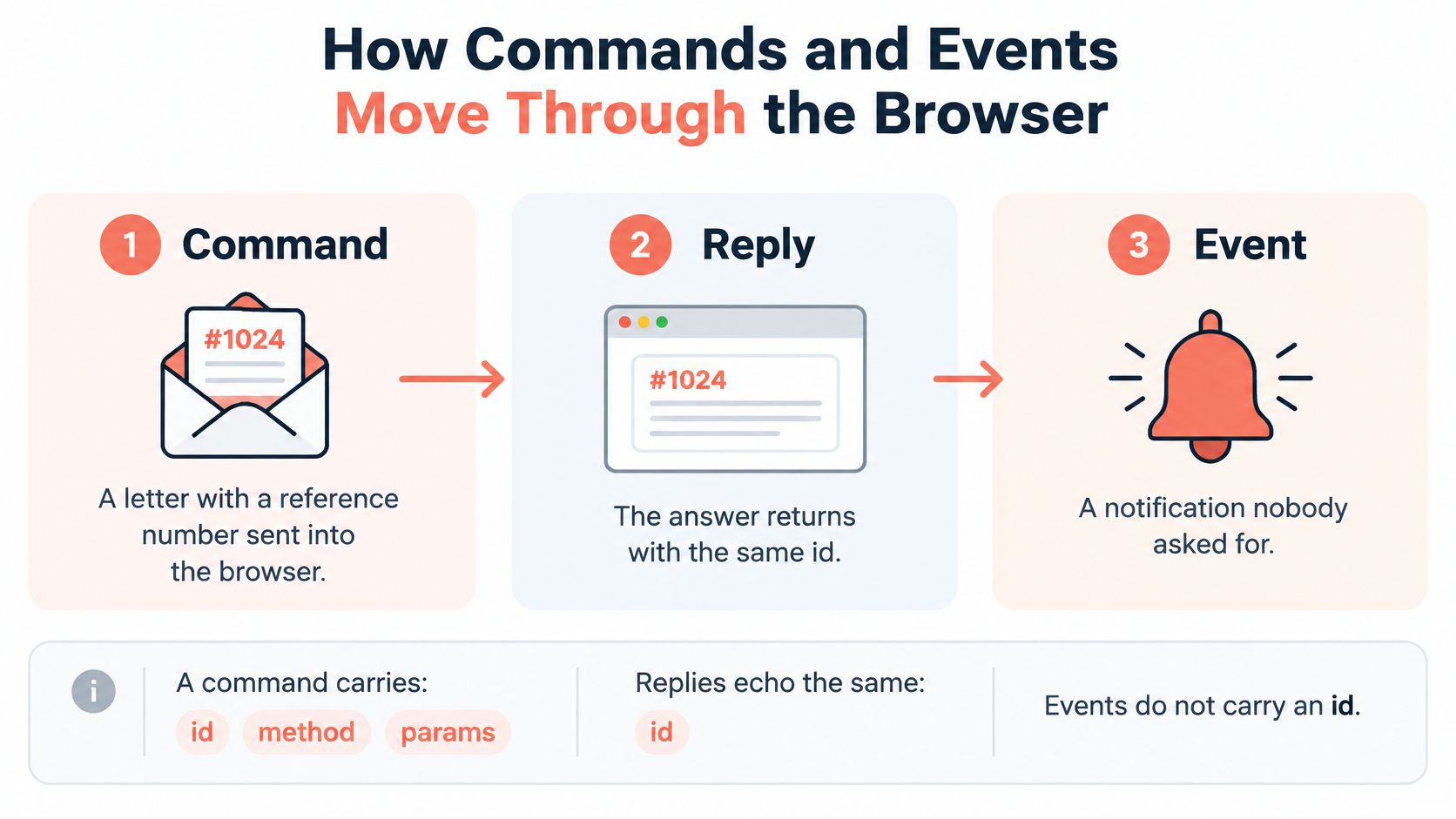
Follow one request through the protocol
A command doesn't necessarily stay inside one browser process. Its handler may involve the browser's embedder code, the content layer, Blink, and V8 before a response or event reaches the client. That's one reason a method name can remain recognizable while behavior changes across Chromium revisions.
For a test that needs network telemetry, keep the event stream focused:
- Enable Network before loading the page, so the client is listening when requests begin.
- Load the page with
Page.goTo. - Read the event stream, matching each request to its response using
requestId.
Enabling only the domains the test needs reduces event volume, serialization work, and client-side processing. If the test is measuring browser performance too, enable Performance for that run rather than subscribing to every available domain by default.
When the sequence is unclear, use Protocol Monitor in DevTools to inspect and send protocol messages. It shows the commands and responses DevTools uses, and its editor offers suggestions based on the protocol surface available to that browser. That gives you a concrete command sequence to test before you build a client around it.
Watch the video on YouTubeHow Playwright, Puppeteer and Clearcote Attach to CDP
Automation libraries generally connect in one of three ways. Launch means the library starts Chromium and manages its connection. Connect means the browser is already running and the library joins it through an endpoint. A raw attach means your own client discovers the endpoint and handles protocol targets, sessions, and cleanup.
Here's how those approaches map to common setups:
| Client | Attach Pattern | Typical Setup | Your Responsibility |
|---|---|---|---|
| Playwright | Launch or connect over CDP | chromium.launch() or chromium.connectOverCDP() |
Choose a compatible Chromium revision |
| Puppeteer | Launch or connect via WebSocket endpoint | puppeteer.launch() or puppeteer.connect() |
Match the browser version to the library |
| Raw CDP client | Discover endpoint and attach manually | Start Chromium with a remote debugging port, then read the version endpoint | Manage targets, sessions, and cleanup |
| Clearcote | Drop-in Chromium binary, Docker endpoint, or serve() attach |
Swap the binary in an existing Playwright or Puppeteer script, or run the Docker image | Pin the build and validate identity settings |
The table describes connection patterns, not a guarantee that all commands behave alike. Chromium describes CDP as not a public or supported Chrome API, so production clients should detect capabilities and handle unknown methods or events defensively. The Chromium CDP implementation documentation also makes the target boundary important: workers and worklets have their own targets, while multiple local frames can be grouped with a page.
Practical rule: Attach to the target you mean to control before enabling events or sending commands. A script that works on a page without workers can miss activity when that page starts one.
For an existing project, Playwright's browser automation guide is a useful starting point for choosing between a library-managed browser and an existing CDP endpoint. Clearcote provides a browser for AI agents with engine-level identity for browser-use and Stagehand, an MCP server that gives Claude, Cursor, or Cline a real browser, and a Docker image with a CDP endpoint.
Build a Minimal Client on a Pinned Browser
A raw CDP client gives you direct control over protocol messages, but its setup should be repeatable. Pin the browser first, then make each connection step explicit.
- Pin a Chromium build and record its browser version with the test results.
- Start it on a local interface only, using a separate profile. For example:
chromium --remote-debugging-port=9222 --user-data-dir=/tmp/cdp-profile. - Confirm the browser and targets by requesting the
/json/versionendpoint to read the browser version and the/json/listendpoint to see the available targets. - Choose the intended page target by its type and URL, rather than attaching to whichever target appears first.
- Open one session to that target before issuing page-level commands.
- Enable only the needed domains, such as Page for navigation and Network for request events.
- Record the run context with each test artifact: browser version, target identifier, enabled domains, and event timestamps.
Clearcote's documentation covers installation, Playwright and Puppeteer setup, examples, recommended settings, hosted browsers, and release verification.
Run the same script on the pinned build and a newer build. If the outcome changes, record a compatibility finding and investigate the browser version, target, and supported methods before labeling the test flaky.
Keeping Clients Working Across Chrome Versions
The hard part of CDP usually isn't opening a WebSocket. A client can connect successfully and still fail later because its chosen target lacks a method the client expects, or because a browser release changed a domain or experimental command. Chrome releases can add, remove, rename, or alter protocol features, so connection success alone doesn't prove that your workflow is compatible. Chrome's Protocol Monitor announcement highlights how inspecting the exact commands and responses helps when the active protocol surface differs from what a client expects.
Five practices for compatibility
Record what you run. Capture the browser version and the protocol features your workflow uses. Use the browser's reported version to identify the build, then probe for the method your operation needs rather than treating the version label as proof of support.
Probe before calling. Check whether the target supports a feature, and define a fallback or a clear failure message when it doesn't. This is safer than assuming every target and browser build offers the same methods.
Pin deployed browsers. Pin Chromium in CI, Docker images, and hosted fleets so browser upgrades don't happen independently of client changes. Treat browser and automation-library updates as separate changes that need separate validation.
Generate matching types. Where you use typed clients, generate them from the Chromium revision you're testing. That helps expose renamed or experimental methods during development instead of leaving every mismatch to runtime.
Test a build matrix. Run the same workflow against stable, beta, and custom Chromium builds. When a command behaves differently, inspect the exact requests in Protocol Monitor and compare the active protocol surface.
For guidance focused on maintaining a Puppeteer automation workflow, keep the browser build and library version visible in your test setup. The operational principle is broader: capability management is often harder than WebSocket transport when a fleet contains different browser builds.
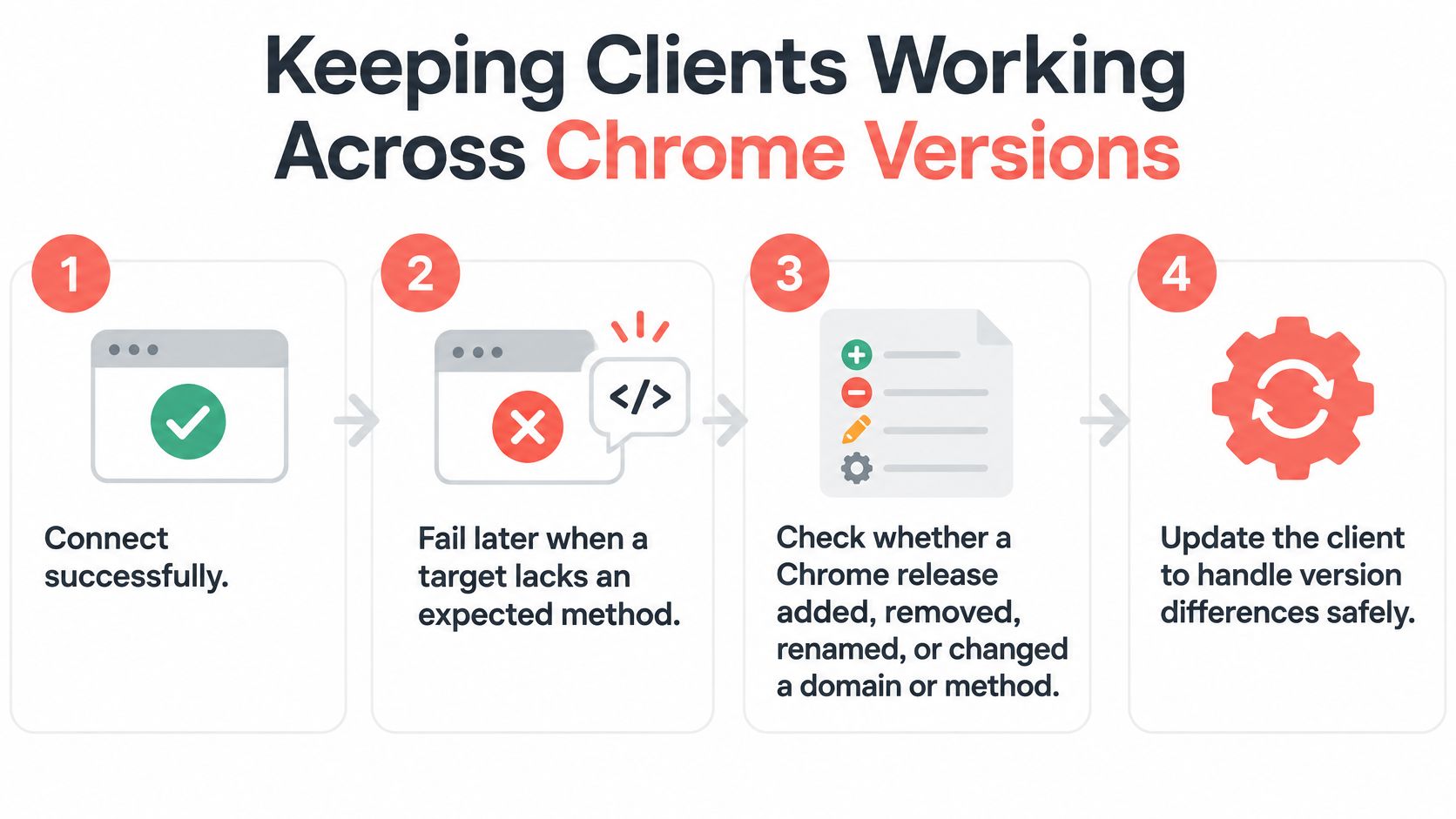
Before releasing a client update, use this checklist:
- Browser identity: Is the Chromium version recorded and pinned where needed?
- Feature support: Does the client probe for every method it relies on?
- Fallback behavior: Does it handle missing commands and unknown events safely?
- Upgrade coverage: Has the workflow run against the browser builds in your release matrix?
Security Boundaries for a Remote Debugging Endpoint
A CDP client can do far more than an ordinary page script. It can inspect and control targets, execute code, read network activity, and access browser contexts. A local WebSocket may seem harmless, but a remote debugging port exposed by a container, shared CI runner, or hosted fleet can give other users control over the browser.
Protect the control channel
For a local run, bind the endpoint to the local interface and use a dedicated browser profile. In Docker or a hosted environment, don't publish the debugging port to networks that don't need it. Where network access can't be tightly restricted, add an appropriate authentication or isolation layer rather than assuming the endpoint itself will protect the session.
Separate browser processes or isolated contexts can reduce the chance that one client attaches to another tenant's targets. Limit target discovery where your setup permits it, attach only to the intended target, and close sessions when the job ends. For shared systems, make cross-tenant attachment an explicit threat to prevent, not a cleanup detail to postpone.
Agent tooling raises the stakes because an MCP server can expose higher-level actions that inspect, move through, and interact with browser contexts. The Chrome DevTools release notes on agent-oriented tooling describe expanded browser tools, reinforcing the need to govern and audit the controls exposed to an agent. CDP transport security and website privacy are separate issues: protecting the control channel limits who can operate the browser, while privacy controls address what a website can observe.
Clearcote's MCP server accepts only http and https URLs. It refuses file:, view-source:, chrome:, devtools:, and every other scheme. For more on the trust questions involved in AI browser agents, make the browser's permitted actions and boundaries part of the deployment design.
Before opening a remote debugging endpoint, ask:
- Who can reach the port?
- Which targets and contexts can each session touch?
- When does each session close, and who verifies cleanup?
Common Misconceptions About CDP Automation
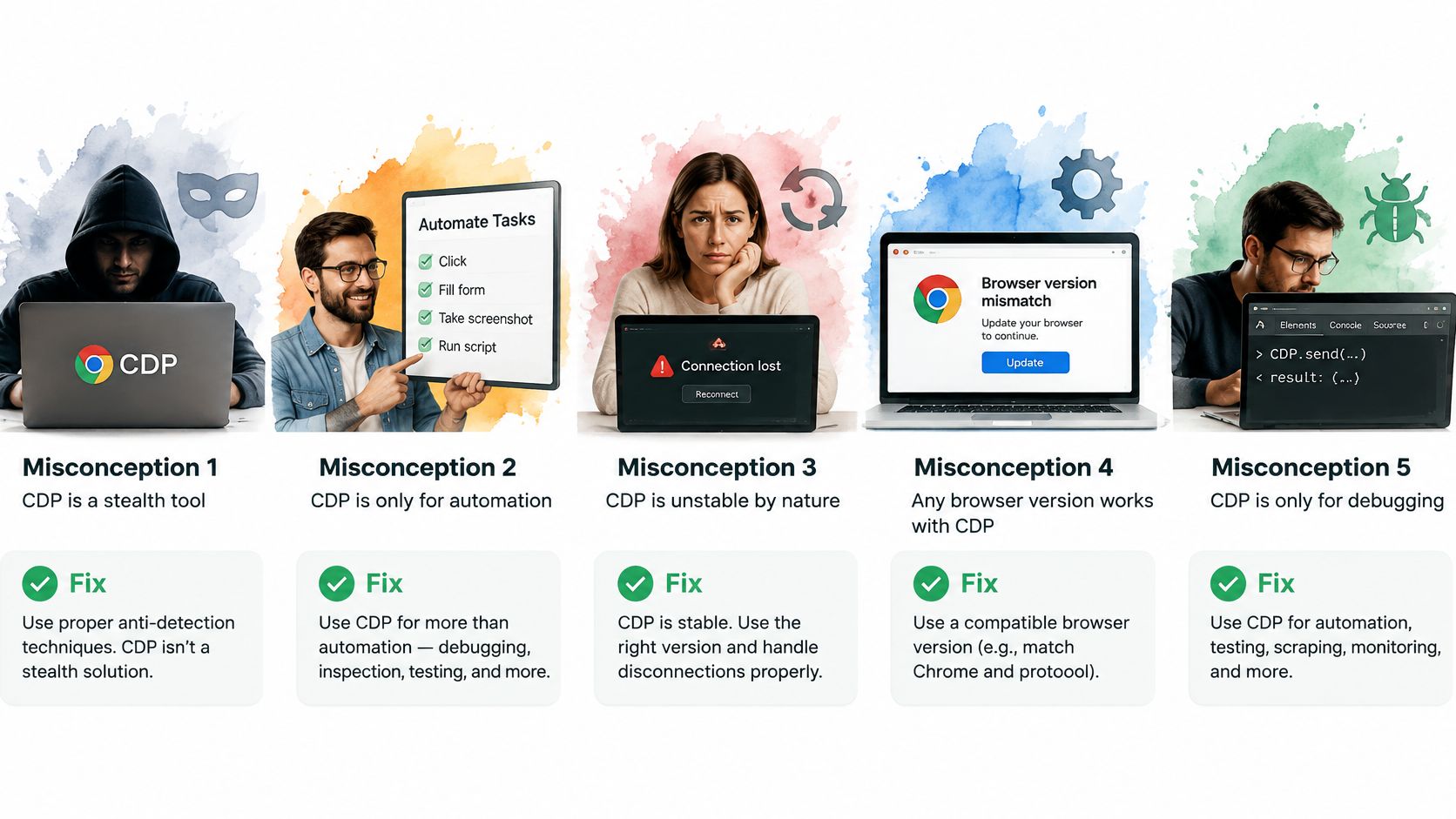
- “CDP is a stealth tool.” It's a browser control channel used for debugging, testing, and automation, including workflows that inspect rendered content. Check: log the commands your client sends and identify what each one does.
- “CDP is a stable public API.” Chromium doesn't describe it as a public or supported Chrome API, so verify the protocol surface you rely on. Check: run your client against the pinned browser build and a newer one.
- “A successful connection means the session works.” A client can connect and later fail when its target doesn't support a requested method. Check: probe the needed capability on the actual target before using it.
- “Enabling every domain gives you more useful information.” It can instead flood the client with events it doesn't need. Check: disable unrelated domains and confirm your test still captures the required signals.
- “A tool can be made undetectable.” Clearcote states that no tool is undetectable and recommends validating configurations against tools such as CreepJS, BrowserScan, and Pixelscan. Check: test your own configuration with those tools and review the results.
The useful test is the one you run in your own environment: verify browser identity, target capabilities, event handling, and observable behavior before relying on a CDP workflow in production.
If browser automation needs a repeatable Chromium build, CDP access, or an MCP connection, Clearcote Labs offers a Chromium-based browser and options for local, Docker, and hosted use. Visit Clearcote Labs to explore the setup that fits your automation stack.