A Playwright suite goes green on Monday. By Friday the same commit runs against a newer browser image, and the extension the tests depend on never appears. No stack trace, no crash dialog, just a missing toolbar and a timeout you spend two hours chasing in the wrong place.
That's the failure mode worth building a mental model around. Extension support in a Chromium browser isn't one feature you either have or don't. It's a stack of behaviours, and the parts that shift between builds are the parts that break your pipeline.
Table of Contents
- What Chrome Extension Support Actually Covers
- Manifest V2 and V3 Compared Side by Side
- How Service Workers Limit Extension Behavior
- Permissions and Host Access Without Overreach
- How to Verify Extensions Before a Browser Upgrade
- Fixing Common Extension Failures in Clearcote and Other Browsers
- Opt-In DRM and Where Clearcote Runs Extensions
- Choose a Browser Setup That Keeps Extensions Running
What Chrome Extension Support Actually Covers
Extension support isn't a checkbox that says the browser accepts a .crx file or an unpacked folder. It's a promise that the browser processes the manifest correctly, scopes permissions the way the platform defines them, injects content scripts on matching pages, runs background logic, routes messages between contexts, persists data to extension storage, and exposes tabs, cookies and web navigation with the behaviour extensions assume. Google's Chromium team reported in December 2020 that the Chrome Web Store held more than 250,000 extension items used by hundreds of millions of people. That scale is why a compatibility decision inside a browser engine turns into a distribution decision across productivity tools, accessibility add-ons, security agents and developer tooling at the same moment.
For a Chromium-derived browser or an automation runtime, the practical question is which of those behaviours the engine implements and how closely. Three variables answer it, and the rest of this guide keeps coming back to them:
- Manifest version. A package written for V2 assumes a persistent background page. A V3 package assumes an event-driven worker with its own shutdown rules. The same folder can't satisfy both.
- Browser version. APIs land at different milestones. A build that accepts the package may still lack the API the package calls on first load.
- Policy state. On managed machines, an administrator setting can keep an older manifest generation alive or switch it off, so two machines on the same Chrome build can behave differently.
Here's a test you can run before reading further. Load a single extension unpacked on the build you ship, open the extensions page, confirm the service worker exists, and check that its background logic ran once. If the worker never appears, you have a version or manifest problem, not an installation problem.
If you need a harmless package to practise with, a Chrome add-on for curating stories that reads pages and saves links is a decent subject, because its behaviour is easy to observe: a content script touches the page, the worker stores a record, and the popup reads it back.
Manifest V2 and V3 Compared Side by Side
The two generations look similar in a folder listing and behave nothing alike at runtime. Here's the comparison that matters when you're deciding what a browser build can run.
| Aspect | Manifest V2 | Manifest V3 | What It Means in Practice |
|---|---|---|---|
| Background code | Persistent background page | Event-driven service worker | Long-lived state must move to extension storage |
| Network request filtering | Blocking webRequest | declarativeNetRequest for many filtering cases | Filter rules need rewriting for the new API |
| Remote code | Permitted | Not permitted; code must ship in the package | Bundle every script before review |
| Chrome Web Store submissions | New V2 submissions stopped January 17, 2022 | Accepted | New extensions should target V3 |
| Default status | Disabled by default for all users from March 2025 | Supported | Confirm the manifest version of every installed extension |
| Enterprise policy exception | Final release with policy support was Chrome 138 | Not applicable | Managed fleets must migrate before Chrome 139 |
| Minimum browser support | Older Chrome builds | Generally supported from Chrome 88 | Check the target version before rollout |
Walk the rows in order of impact and the surprises sort themselves out.
Background code is the biggest behavioural break. A V2 extension could hold a WebSocket, a cache and a session token in a page that stayed alive for days. A V3 extension gets a worker that wakes, handles an event and goes back to sleep. Every one of those in-memory assumptions becomes a bug.
Network filtering is the second. Blocking webRequest handlers could inspect a request and decide in the moment. Many filtering jobs now go through declarativeNetRequest, where you declare rules ahead of time. Ad blockers and privacy tools had to rebuild their rule pipelines, and so did internal tooling that intercepted traffic for testing.
Remote code catches teams off guard because it isn't a runtime error. Google's published transition plan disallowed remotely hosted code, which means every executable line has to sit inside the reviewed package. If your extension fetched a script at startup, the fix is a build step, not a bug fix.
The rollout dates people misremember
The schedule moved more than once, which is why so many internal wikis are wrong. Google's plan originally set January 17, 2022 as the day the Chrome Web Store stopped accepting new V2 extensions. In January 2023, V3 was planned as a requirement for the Featured badge, and in June 2023 public V2 items were scheduled to become unlisted. The rollout was then adjusted again, with staged disabling beginning in pre-stable channels in June 2024 and enterprise policy granting extra migration time.
The takeaway from that history isn't the dates. It's that a browser can accept a package and still behave differently inside it, so treat the two manifest generations as two separate sets of assumptions rather than one compatibility flag.
How Service Workers Limit Extension Behavior
The single most useful shift in thinking is to stop picturing background code as something that runs and start picturing it as something that gets called. A V3 worker follows a loop: an event arrives, the worker starts, the handler runs under its limits, state is written somewhere durable, and the worker goes idle.
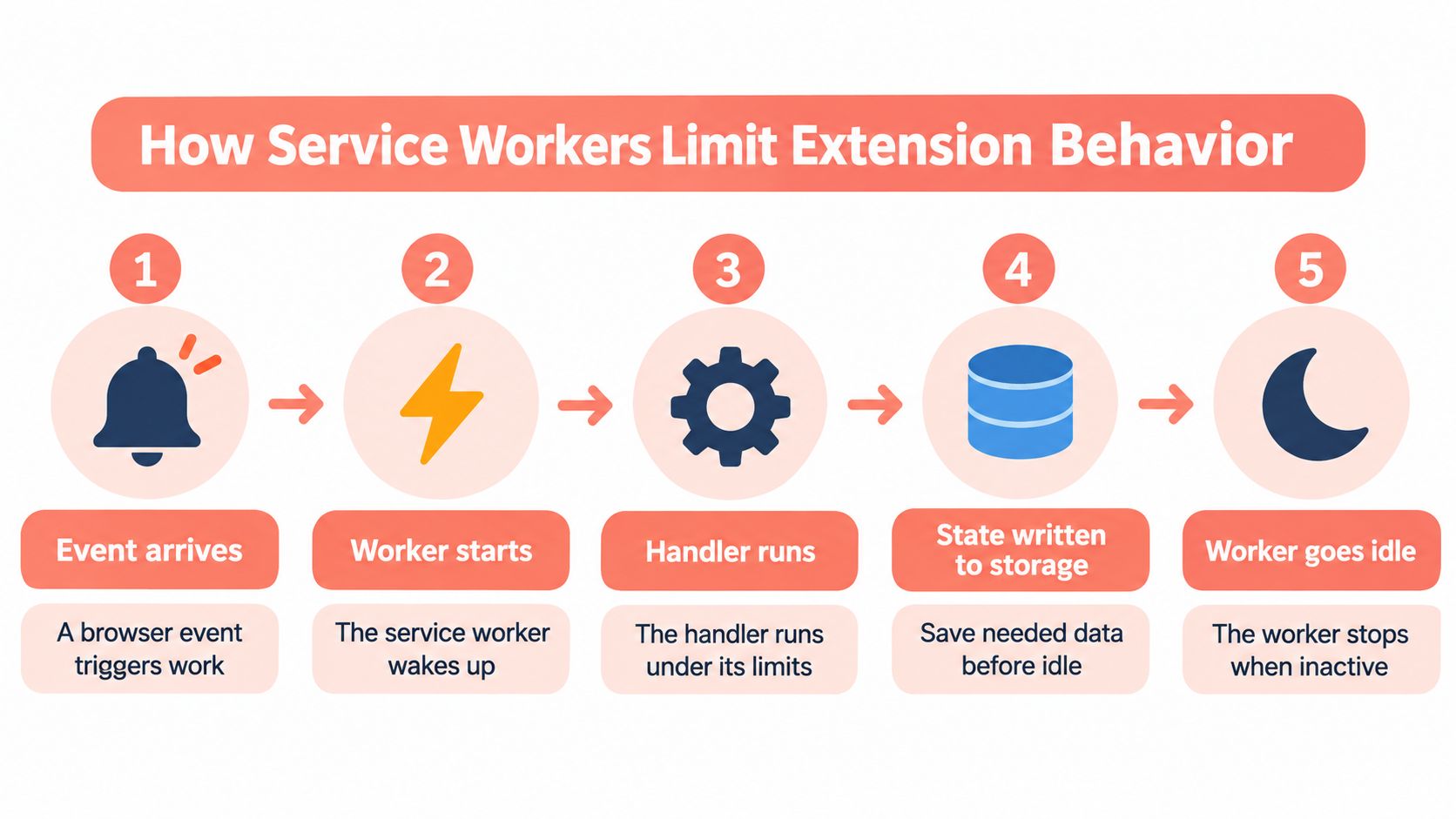
Each step has a timer attached, and those timers are the constraints your code has to live inside.
| Limit | Value | Design Response |
|---|---|---|
| Idle shutdown | Stops after 30 seconds of inactivity | Keep no required state in memory |
| Single event or API call | Ends if it runs longer than 5 minutes | Split long work and finish handlers within the limit |
| Fetch response | Stops if no response within 30 seconds | Set timeouts and resume from stored state |
| Alarm minimum interval | 30 seconds since Chrome 120 | Do not rely on alarms for sub-30-second timing |
Chrome normally terminates the worker after 30 seconds of inactivity, ends a single event or API call that runs longer than 5 minutes, and gives up on a fetch that takes more than 30 seconds to respond, as documented in the service worker lifecycle reference. Incoming events can revive it, but revival isn't restoration: your variables, sockets and maps are gone.
Design rules that follow from the limits
- Write state before you need it. Persist the token, the cursor and the queue position to extension storage as the handler finishes work, not at the end of a session, because sessions don't end cleanly.
- Split handlers by the five-minute line. If a batch job processes 400 records, checkpoint every 50 and hand off to the next event rather than looping.
- Reconnect on activation. Reopen the socket, re-read the token, re-register listeners. Every activation is a cold start whether you planned for it or not.
- Replace loops with events. Alarm schedules and message passing survive restarts; a
whileloop with a sleep doesn't.
Practical rule: if your background code depends on a variable staying warm between two user actions, it's already broken on V3, even if it hasn't failed yet.
The alarm floor is the limit people fight hardest. Chrome 120 reduced the minimum interval to 30 seconds, which lines scheduling up neatly with the idle lifecycle, but it still rules out anything that needs sub-30-second precision. If a workflow needs a check every five seconds, that check belongs in a content script or in a page-side timer, not in an alarm.
When a worker dies mid-task and you want to see exactly where, watching the browser over the Chrome DevTools Protocol gives you the worker target lifecycle as it happens. You'll see the target attach, detach, and reattach, which tells you whether you're looking at a bug or at normal eviction.
Permissions and Host Access Without Overreach
Permission design is where a working prototype becomes a deployable extension, and it's the part reviewers care about most. An extension declares API access in permissions or optional_permissions, and URL access in host_permissions or optional_host_permissions. Host permissions decide which matching sites the extension can touch, and they also gate fetch requests made from the extension worker or extension pages, according to Google's permission declaration guide.
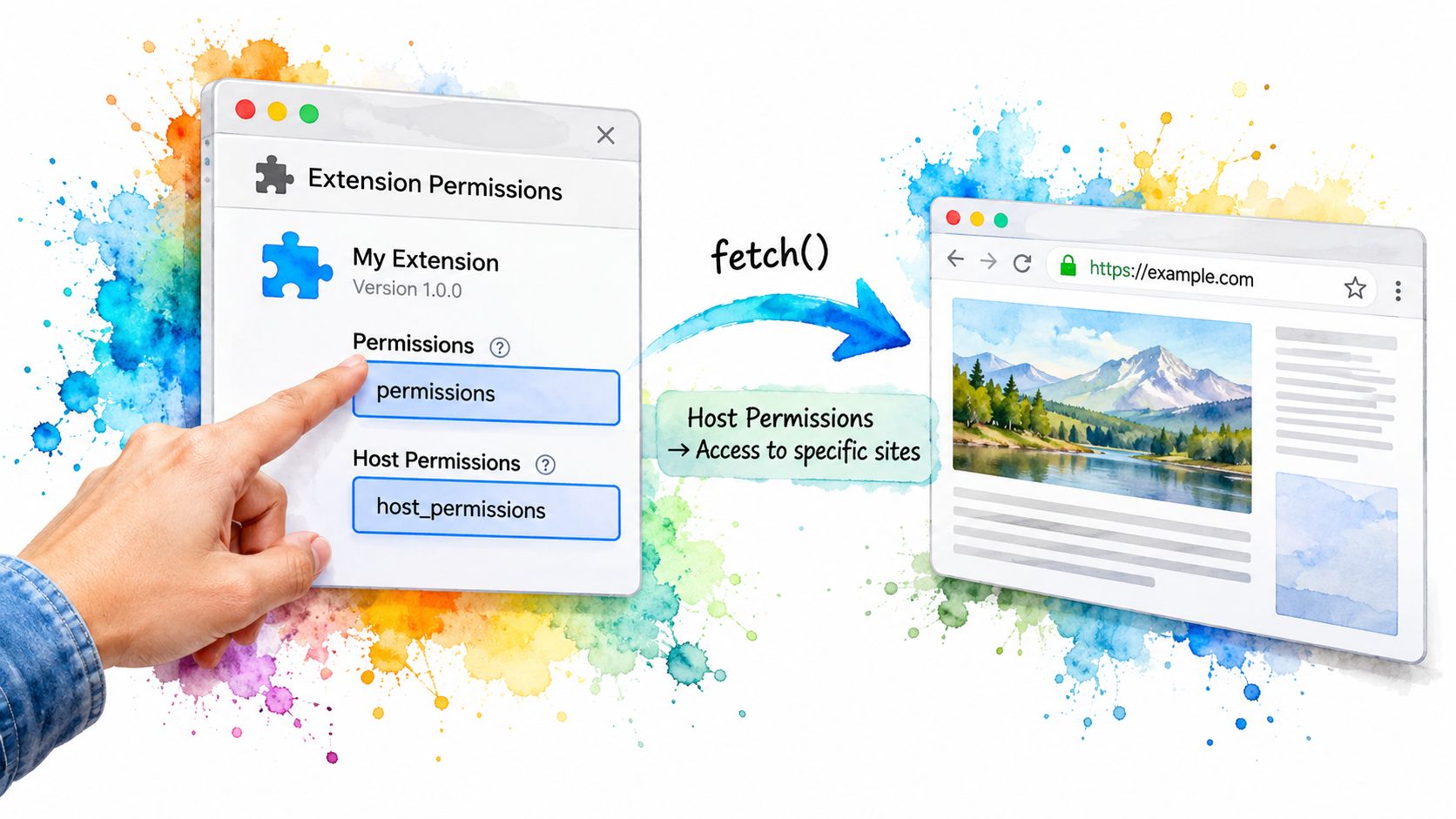
The distinction that confuses people is install-time versus runtime. A permission listed in permissions is requested before the extension is installed, so the user sees the whole ask up front. Move the same entry into optional_permissions and the extension calls chrome.permissions.request() when a feature needs it. The user then decides on a narrower question, such as access to one site instead of every site.
A permission audit you can run today
Four passes cover most overreach:
- Map every permission to a feature. Open the manifest, and for each entry write down the function that calls it. Any entry you can't name is dead weight that raises install friction.
- Demote sensitive APIs. Move clipboard, downloads, history and scripting access into optional fields unless a feature uses them on first run.
- Narrow the origins. Replace
<all_urls>with the specific hosts you support, then let users grant extra sites at runtime. - Handle refusal as a normal state. Wrap each optional request in a check, show the feature as unavailable, and offer a retry. A denied request isn't an exception.
Runtime host access is the underrated piece. In an automation environment that loads a dozen site-specific extensions, blanket origin access means every extension can read every page in the profile. Deferring host grants until the target site is open keeps each extension inside its own lane, which also makes an audit at the end of a run far easier.
The video below walks through the extension management screens where those grants live.
Watch the video on YouTubeCheck before you ship: if an extension asks for access to all sites but only reads one, that mismatch is a review finding, not a preference.
How to Verify Extensions Before a Browser Upgrade
Upgrades break extensions in ways that staging environments hide, because staging usually runs the same old image. Build the check into the promotion step itself, and make the check part of the release record.
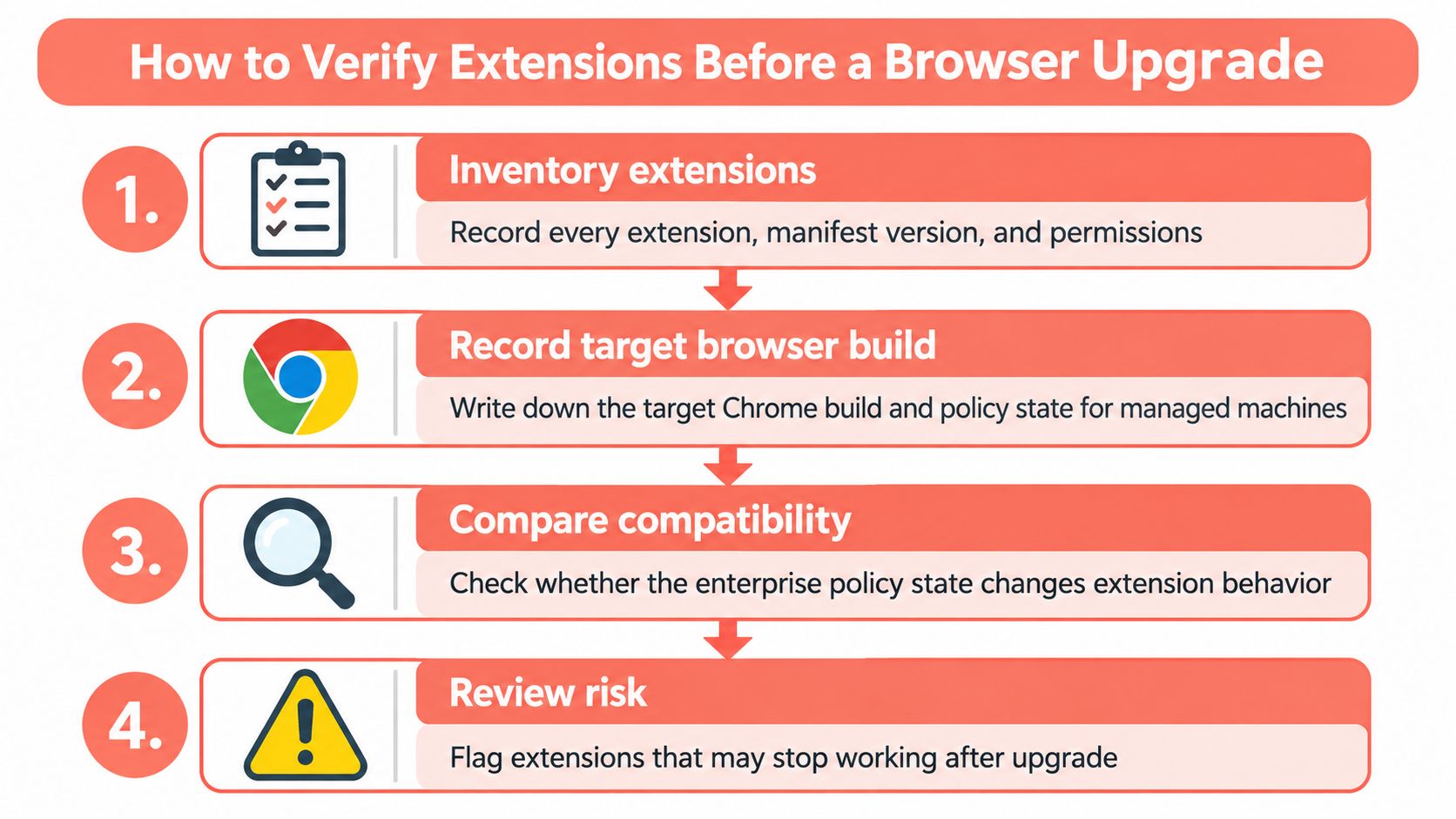
- Inventory every extension with its manifest version and permissions. Export the list from your fleet tooling or read each
manifest.jsondirectly. This step catches the V2 extension nobody remembered was in the image. - Record the target Chrome build and the policy state on managed machines. The enterprise exception ran through Chrome 138, per Google's Manifest V2 deprecation timeline, and it's removed with Chrome 139, so the same extension can live or die based on an admin template you didn't touch.
- Build a test profile on the target build and open it in both headed and headless mode. This step catches behaviour that depends on a visible window, which is exactly the class of bug that hides in CI until the job fails at 3 a.m.
- Load each extension unpacked and confirm three things. It appears in the extensions list, its service worker starts, and its handlers finish inside the documented limits. This step catches missing APIs and manifest parse errors.
- Run the key user flows through Playwright or Puppeteer, including a restart and a long idle gap. Wait past the idle window before asserting anything, because this step catches in-memory state that never survived the shutdown.
- Check host access on the sites you rely on, then test a denied optional permission. This step catches code paths that assume a grant and crash without one.
- Keep the previous image as a rollback and promote the new one only when every check passes. This step catches the case where you've already replaced the only browser build that worked.
Public documentation stops short of offering a runbook for CI images, Dockerized browsers, remote-debugging sessions or failing Playwright and Puppeteer suites. That gap is real: the deprecation applies across Chrome channels and major desktop platforms, and managed organizations only ever got a temporary exception. So the procedure above becomes your organisation's own document, versioned next to the image tag.
If your verification run spans more than one engine, the cross-browser testing tools comparison is worth reading before you buy anything, because extension loading behaviour varies more between runtimes than between browser versions.
What the seven checks catch
A passing run has a specific shape. Every extension in the inventory appears after launch. Every service worker starts on the event that should wake it. Every handler finishes under the timeout. Every flow completes with the permissions you granted and degrades gracefully with the ones you denied.
A failing run is easy to recognise too. An extension missing from the list points at manifest version. An extension present but inert points at worker registration. An extension that works until minute three points at the five-minute handler limit or at storage you never wrote.
Fixing Common Extension Failures in Clearcote and Other Browsers
Most extension failures arrive as one of five symptoms. The fix for each takes either a day or a release cycle, and knowing which you're in decides how you plan the week.
| Symptom | Likely Cause | Fix |
|---|---|---|
| Extension disappears after a browser update | Manifest V2 disabled by default | Check the manifest version, migrate to V3 or pin an older build for testing |
| Background logic stops mid-task | Service worker stopped after idle or a long handler | Persist state in storage and split long work |
| Timers fire late | Alarm minimum interval is 30 seconds | Redesign timing to 30-second granularity |
| Site features missing | Host permission not granted | Use optional host permissions and request them at runtime |
| DRM video will not play | Widevine not enabled | Opt in so the browser fetches and verifies the Widevine CDM |
Three of those are a day's work. Migrating a manifest takes longer, and so does reworking a scheduler built around one-second ticks. When you can't migrate before a release, how to pin Chrome extensions explains the mechanics of holding an extension at a known version while you do the surgery.
What Clearcote does at launch
Clearcote Labs maintains Clearcote, an open-source, de-Googled Chromium fork, and it's independent of Google and Chromium. The browser loads unpacked Manifest V2 and V3 Chrome extensions at launch, headed or headless, on Windows and Linux. That matters for the symptom in row one: you can keep testing a V2 extension on the build you control while the migration is in progress, rather than discovering the outage through a failing job.
The assumption worth challenging: a Web Store listing proves compatibility approval, not privacy safety. Those are different questions and only one of them is being answered for you.
That distinction has evidence behind it. A 2025 analysis of 238 AI-powered Chrome extensions reported that 67% collected user data and 41% collected personally identifiable information, while Google's guidance on managing extensions focuses on availability, telling users that Chrome may disable extensions that don't meet updated requirements and pointing them to alternatives. Neither source tells you whether a specific extension's requested access is proportionate to what it does for you. Read the permission list yourself, especially before you install something into a profile that stays logged in.
Opt-In DRM and Where Clearcote Runs Extensions
There's a sequence of failures worth separating. Someone reports that a streaming site throws a playback error in an automated profile, and the first instinct is to blame the extension that opens the page. It usually isn't. Widevine, the content decryption module some protected video needs, is a browser capability. Extensions sit alongside it, not inside it, so a missing CDM breaks playback whether or not an extension is loaded.
Clearcote handles this by opt-in. Widevine stays off until the user turns it on, and then the browser fetches Google's Widevine CDM the way stock Chrome does, verifies it and enables it, so protected video plays. The opt-in is the point: a browser that pulls a decryption module has made a licensing decision on your behalf.
Two places extensions run
In an engine-level fork, your team controls the build. You load unpacked V2 and V3 extensions at launch, in headed or headless mode, on Windows or Linux, and you can pin the exact build you tested.
In a hosted runtime, the provider sets the build. Manifest support and DRM options then follow their roadmap, so confirm in writing which manifest versions and whether Widevine is available before you depend on either.
When playback fails, work the checklist: confirm the site needs Widevine at all, check whether the profile opted in, verify the CDM loaded, then retest on the same build you started with.
Choose a Browser Setup That Keeps Extensions Running
The decision in front of you is narrower than it looks. Which setup will run your extensions through the next browser upgrade without a surprise on a Friday?
Three checks settle it. Manifest version: you know what every extension in the image declares. Service worker behaviour: you've watched the worker start and finish on the target build. Permission scope: you know what's granted at runtime, not what the manifest aspires to.
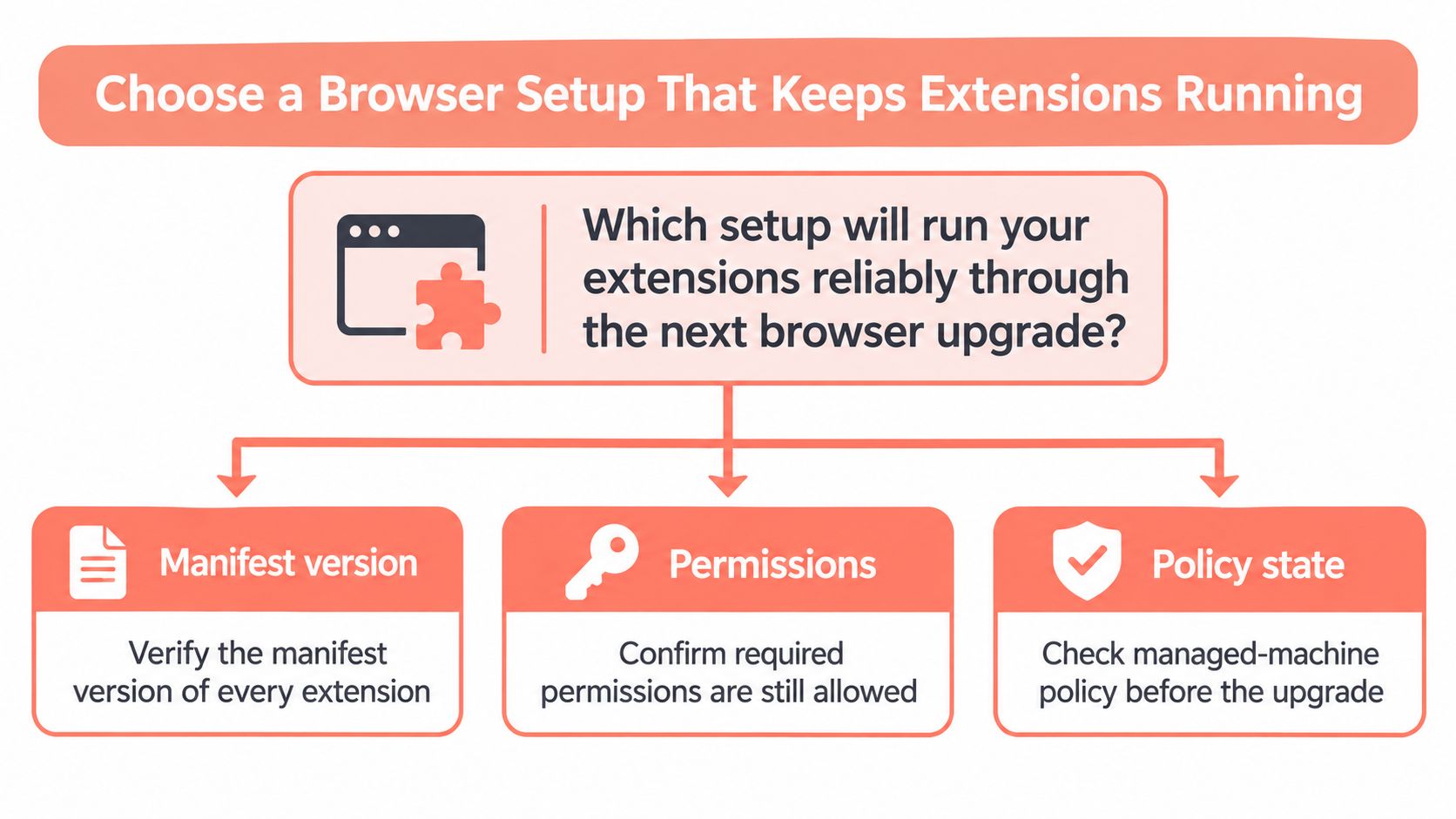
An engine-level fork gives you control over the build, its policy state and the APIs it implements. That suits a team that must pin and retest. A hosted runtime removes build maintenance but moves manifest support and DRM options under the provider's control, so get those answers in writing. Clearcote's free tier with GitHub runs one browser at a time on the latest build, and Personal or Pro add more browsers at once plus version pinning, which is the difference between "we upgraded and hoped" and "we upgraded and tested that exact tag."
Concurrency decides the rest. One team profile needs a single browser. A CI matrix running many browsers in parallel needs a setup that scales across machines rather than queuing behind one.
Recommendation: choose the path whose build you can pin and retest, and make pinning the default for every release instead of an emergency measure.
One action before your next browser release: run the seven-step verification on a test profile this week, then ask your provider in writing whether its runtime loads unpacked extensions with the same manifest versions you tested. If you hit install errors along the way, this guide on troubleshooting failed extension installs covers the common causes. If you're still weighing forks against other Chromium options, the comparison of a Chrome-based web browser build is a useful second opinion.
Clearcote Labs builds Clearcote, an open-source, de-Googled Chromium fork that loads unpacked Manifest V2 and V3 extensions at launch in headed and headless mode on Windows and Linux, with opt-in Widevine handled the way stock Chrome handles it. If your extension tests keep failing after a browser upgrade, run them against a build you can pin and retest instead of one that changes underneath you. Visit Clearcote Labs to check the SDKs, the Docker image and the plan options, then put the seven-step check into your next release.