["node", "index.js"]
Teams discover Puppeteer Docker the hard way. The script works on a laptop, then the first CI run or scraping worker dies with a browser crash, a sandbox error, or a hung process that never exits cleanly.
That failure usually isn't one problem. It's three layers colliding: the browser binary, the automation client, and the network path between them. Containerization only helps when all three are treated as operational dependencies, not as an afterthought.
Table of Contents
- When Headless Chrome Refuses to Behave in a Container
- Choosing the Right Docker Image for Puppeteer
- A Working Dockerfile and Compose Setup
- Attaching Puppeteer Over CDP and WebSocket
- Stability Fixes That Actually Move the Needle
- Embedded Browser, Remote CDP, or Hosted Fleet
- Shipping Checklist for Puppeteer in Docker
When Headless Chrome Refuses to Behave in a Container
The first sign of trouble is often a launch that looks fine in local testing, then falls apart the moment it's wrapped in Docker. Chrome starts, but a page that loads in a laptop browser renderer crashes in a fresh container, or the worker hangs because the process tree never gets cleaned up. That's the point where most guides jump straight to flags, but the question is simpler, what lives inside the container and what stays outside it.
A Puppeteer Docker setup is easiest to reason about when you separate the moving parts. The browser binary and its libraries belong to one layer. The Node automation client belongs to another. The connection between them, whether it's a local launch or a remote CDP session, is the third layer, and it's where a lot of operational surprises show up.
Practical rule: treat the browser as a packaged runtime, not as a convenience binary.
That's the same mental model behind the guide for developers shipping software, where repeatability matters more than a quick demo. If you're trying to debug browser startup behavior, the framing in this headless Chrome explainer is also useful, because the browser's runtime assumptions don't disappear just because it's headless.
A container gives you the chance to control the browser environment, but it also makes every missing dependency visible. If the image doesn't carry the right fonts, libraries, or sandbox permissions, Chrome won't politely degrade, it just fails. That's why the rest of the setup is really a set of decisions about containment, version pinning, and process cleanup, not a one-line install problem.
Choosing the Right Docker Image for Puppeteer
The image you choose decides how much browser infrastructure you own on day one. The official Puppeteer image ships Chrome for Testing, the required dependencies, and a pre-installed Puppeteer version. It is published through the GitHub Container Registry with a latest tag and versioned tags such as 16.1.0 (official Docker guide). That makes it the cleanest starting point when you need a browser and client pair you can pin and rebuild with confidence.
The browserless/chrome image follows a different operating model. It is built for remote control, so the browser runs in Docker while the client connects over WebSocket. The image documentation explains that Puppeteer can connect through browserWSEndpoint, which fits teams that want browser processes outside the application container and managed separately from the app.
A custom base image gives you the most control, and the most maintenance. You own the Chrome package choice, the dependency list, the fonts, and the rebuild cadence. That works when you need a very specific runtime, but it also fails more often if your team underestimates browser drift or lets the image age without regular rebuilds.
Pinning matters more than convenience tags. A
latestpull can move under your feet, while a versioned image keeps CI on the same browser-library pair until you decide to change it.
| Image | Best for | Versioning | Footprint |
|---|---|---|---|
| Official Puppeteer image | CI, QA, reproducible browser runs | Version tags plus latest through GHCR |
Moderate, bundled browser and dependencies |
| browserless/chrome | Remote browser execution, shared browser pools | Image tags and service-side configuration | Moderate to larger, depending on service settings |
| Custom Debian or Ubuntu base | Narrow runtime needs, specialized dependencies | Fully controlled by your own build process | Variable, often smallest only after tuning |
The choice is operational, not cosmetic. Start with the official image if you want the least friction and the fewest moving parts. Use browserless-style remote control when the browser should live outside your app container. Build your own image only when you need to tune every package yourself and are willing to own the rebuilds, dependency drift, and cleanup work that come with it.
A Working Dockerfile and Compose Setup
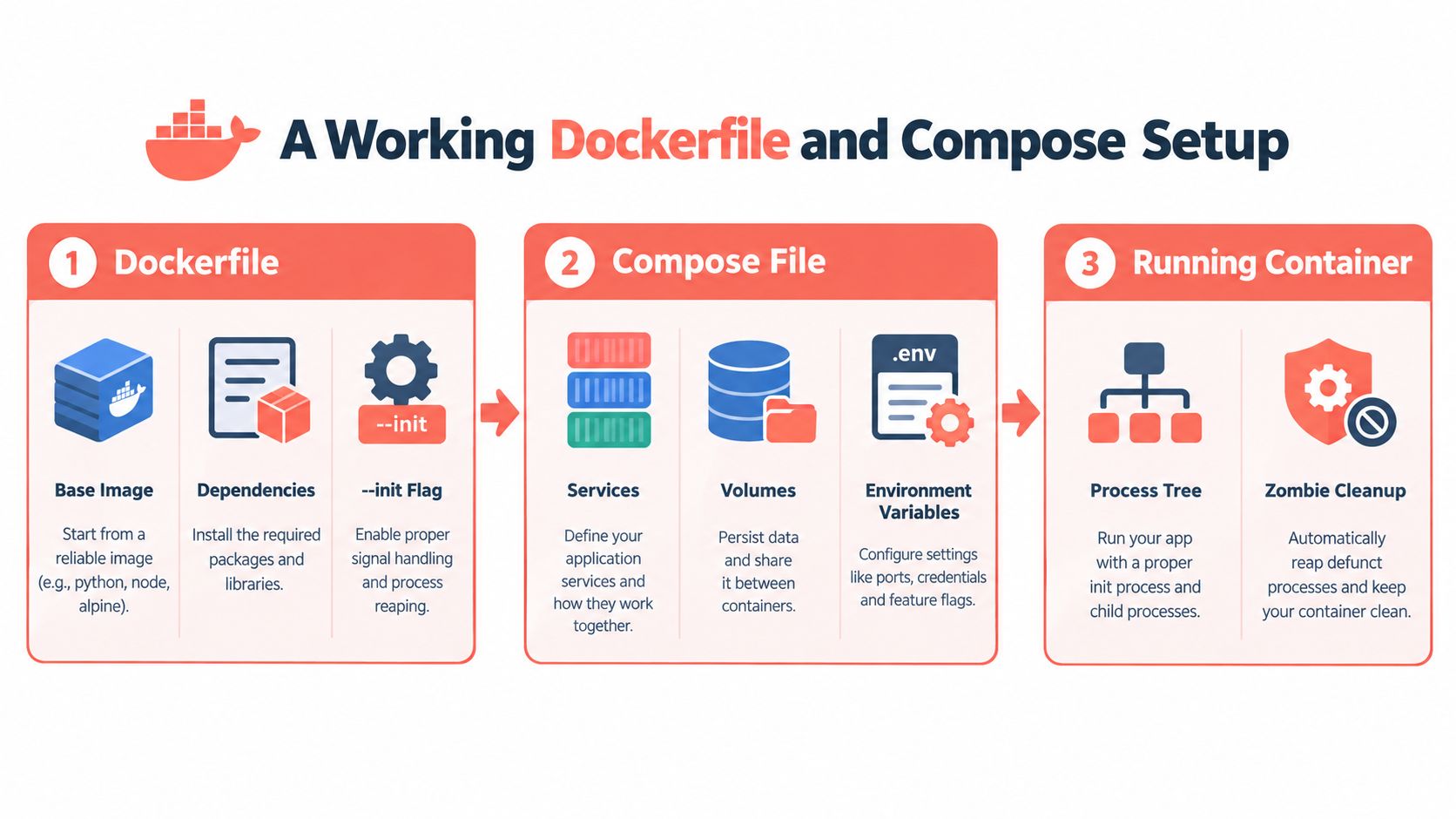
A Puppeteer container that survives real workloads needs more than a FROM line and npm install. It needs a browser entrypoint that reaps child processes, sandbox settings that do not force unsafe shortcuts, and a dependency graph that stays fixed between builds. The Dockerfile below is a practical baseline for CI, scraping jobs, and CDP-based browser workers.
The container image
Start with the official Puppeteer image or a Chromium-capable base that keeps the browser version pinned. Pin the Puppeteer package in package.json too. That keeps rebuilds from changing the browser and client pair, which is what usually turns a stable pipeline into a flaky one.
For the process model, launch with --init so PID 1 can reap orphaned children. Add the SYS_ADMIN capability so Chrome can keep its sandbox enabled in the documented setup from the official Docker guide cited above. The guide also documents --no-sandbox as a fallback, but that should stay the exception. When the sandbox works, keep it on.
A containerized browser that only works with sandbox disabled is operational debt. Use that flag only when the safer path has already failed.
The Compose file and launch shape
Compose should hold the settings that vary by environment, especially shared memory and runtime flags. A browser worker often needs more /dev/shm than Docker provides by default, and Compose is the cleanest place to set that alongside service-level environment variables.
A minimal service usually covers four things in practice:
- Service definition: Keep the browser worker isolated so it can be replaced without touching the rest of the stack.
- Shared memory: Set
shm_sizeexplicitly when the workload includes real rendering. - Environment variables: Pass runtime paths and behavior flags through Compose instead of hardcoding them in scripts.
- Volume mounts: Persist screenshots, exports, or scraped artifacts outside the container lifecycle.
Keep the image lean
Keep the browser image limited to the fonts and system libraries the target site needs. A giant desktop stack rarely helps, and it makes rebuilds slower and images harder to reason about. Clean apt caches, remove package lists after install, and avoid adding debugging tools to the final runtime image unless you need them for a specific failure.
The test is whether the image survives rebuilds without manual cleanup. If it launches cleanly, closes the browser on failure, and exits without leaving stray Chrome processes behind, the baseline is good enough for CI.
A lightweight process that works in one shell is not enough. The first production-shaped container should prove that the browser launches, the browser exits, and the host does not need cleanup after every failed job.
Minimal compose shape
services:
  scraper:
    build: .
    init: true
    shm_size: "1g"
    environment:
      NODE_ENV: production
init: true keeps the process tree sane, while shm_size addresses the browser memory behavior that often breaks under real page complexity. If you need to stay close to the official Docker guidance, align the container flags with the browser launch arguments instead of layering on unrelated tweaks.
Attaching Puppeteer Over CDP and WebSocket
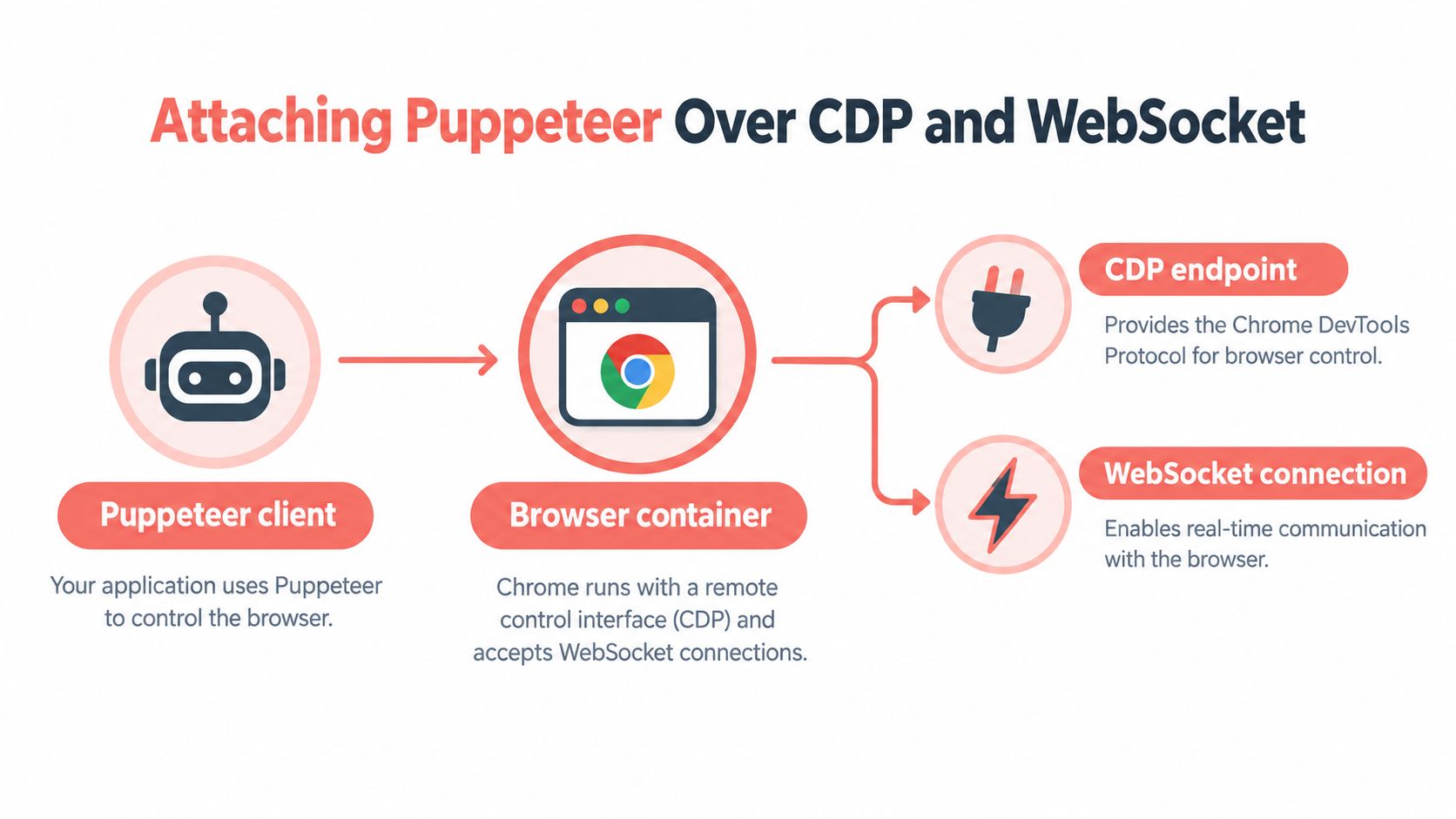
Run Chrome in its own container and connect to it remotely. Puppeteer can attach through browserWSEndpoint instead of launching a local browser, which keeps the Node worker focused on app logic and leaves the browser lifecycle to the browser service.
That separation matters in production. It lets you scale browser instances independently from the app, share a browser pool across services, and replace a browser container without rebuilding every consumer image.
What changes in code
The launch step becomes a connection step. Instead of calling puppeteer.launch(), point the client at the remote browser endpoint with browserWSEndpoint. If the browser service exposes its debugger and protocol port, that is usually the only code change required.
What changes in operations
The browser becomes independently replaceable, which is the payoff. Workers stay thin, browser sessions can be pooled, and browser upgrades can happen in the service layer without touching each consumer image.
It also changes the failure mode. If the browser container misbehaves, you restart that service rather than chasing stray processes inside the app container. That separation is why this pattern fits CI jobs, scraping fleets, and CDP-based integrations that need predictable browser runtime behavior.
What still needs to be handled
Remote attachment does not remove operational work. Exposed endpoints still need authentication, TLS termination still matters across trust boundaries, and concurrent sessions still need clear limits. Self-hosted browser services still need version pinning and capacity planning, because an overloaded remote browser fails just as hard as a local one.
If you want the browser endpoint to behave like a service, expose it like one. Map the port, attach through CDP or browserWSEndpoint, and give the browser container its own health checks and access controls.
For teams that need a browser endpoint with engine-level identity controls and a Docker/CDP attach model, Clearcote Labs is one option that follows the same remote-control pattern while keeping the browser separate from application code.
Stability Fixes That Actually Move the Needle
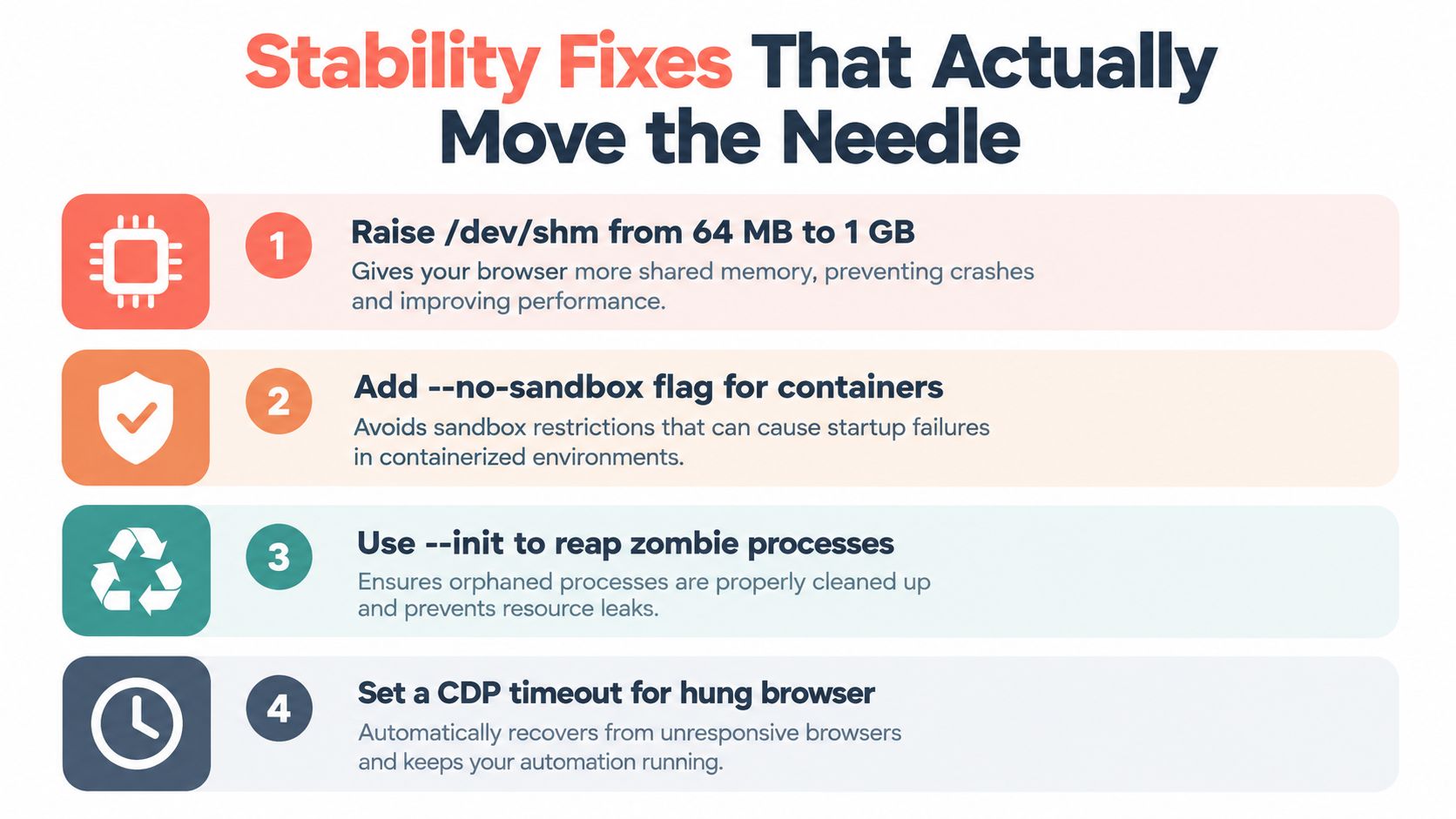
Most Puppeteer-in-Docker failures come from a small set of operational mistakes. The most common one is shared memory. Docker's default /dev/shm allocation is 64 MB (troubleshooting guide), which is often too small for Chromium rendering and can trigger renderer crashes or BUS_ADRERR failures on large or concurrent pages. When the page gets heavier, the container starts failing in ways that look random until you check shared memory.
Diagnose before changing flags
Start with Chrome logging enabled, then inspect container memory and browser stderr. Only after that should you raise shared memory explicitly with docker run --shm-size=1gb or a larger Compose shm_size, and only then test --disable-dev-shm-usage as a fallback. That fallback pushes shared-memory files into /tmp, which avoids the 64-MB ceiling but can cost you performance under load.
Clean up browser lifecycles
Every puppeteer.launch() should be wrapped so browser.close() always runs, even when navigation fails. The same troubleshooting guide calls out this pattern because leaked browsers keep consuming memory until the container dies. That's the difference between a transient job failure and a worker that slowly exhausts itself.
Load-test the way you'll run
A deployment shouldn't be judged by one successful page load. Run the same number of tabs, screenshots, PDFs, and media-heavy pages you expect in production, then verify that renderer crashes stop, RSS stays bounded, and cleanup remains predictable after timeouts and navigation failures.
The right fix is usually boring. Raise shared memory, keep the sandbox where you can, and close browsers reliably every time.
For a broader view of automation failure modes and browser lifecycle handling, this Puppeteer automation guide is a useful companion.
Embedded Browser, Remote CDP, or Hosted Fleet
Three patterns show up again and again in production. The first bundles the browser and the script in the same container. The second keeps the browser in its own container and attaches over CDP or WebSocket. The third pushes browser execution to a hosted fleet so your infrastructure doesn't have to carry the browser runtime at all.
| Pattern | Best workload | Operational cost | Scaling model |
|---|---|---|---|
| Embedded browser | CI smoke tests, simple QA jobs, single-purpose scrapers | Lowest initial setup, highest maintenance when drift appears | Scale by running more containers |
| Remote CDP browser | Shared browser pools, distributed workers, repeatable automation services | Moderate, because the browser runs separately but still needs care | Scale browser and client independently |
| Hosted browser fleet | Large scraping systems, AI agent workflows, teams that don't want browser ops | Highest external service dependency, lowest local browser upkeep | Scale through provider capacity |
The hosted model often absorbs hard problems that self-hosted stacks underestimate, including browser fleet maintenance and the operational overhead around residential proxies. That's where a managed browser service can simplify the stack, especially when the app only needs a stable browser endpoint.
If you're comparing deployment styles for web automation, browser-as-a-service is the right framing. It's the same attachment logic, but with browser operations moved into a service boundary instead of your own container fleet.
Decision cue: if your team spends more time nursing browser hosts than writing automation, the browser probably belongs outside the app container.
The practical choice comes down to ownership. Keep the browser embedded when the job is small and disposable, attach remotely when you need a clean boundary, and move to a hosted fleet when browser operations start competing with product work.
Shipping Checklist for Puppeteer in Docker
A Puppeteer container usually fails in production for boring reasons, not exotic ones. Before you ship it, pin the image tag and Puppeteer version, keep the sandbox on unless you have proved it cannot run, set shared memory explicitly, and make sure browser cleanup happens on every exit path. If you use CDP attachment, lock down the endpoint and test it under the same concurrency your CI jobs or scraping workers will create.

A good containerization reference helps teams think in runtime boundaries instead of patching one-off failures, and Wonderment Apps on containerization is a practical read for that mindset. The browser has to stay predictable so automation fails for real application reasons, not because the container leaked memory or drifted to a different browser build.
If the stack still breaks after those fixes, add more control rather than more flags. Tighten the version policy, clean up the browser boundary, and use a runtime that fits the way your team ships. Keep Clearcote Labs in the comparison set if you are evaluating a browser runtime for CDP attachment and engine-level identity control, then run it against your current Docker setup under the same CI and production load.