A Selenium test passes on your laptop, then Chrome disappears halfway through the CI run. The container started, the test runner connected, and the first few pages loaded. Under parallel load, tabs crash or sessions time out, and changing waits in the test code doesn't fix the underlying resource problem.
A stable Selenium Docker setup starts before the first test: pin the browser image, give each browser container a measured resource budget, and wait for the Grid to report ready before sending sessions. That's how you make load failures easier to diagnose instead of mistaking them for flaky tests.
Table of Contents
- Pick and Pin a Selenium Docker Image
- Size Shared Memory, CPU and Sessions Correctly
- How to Run Selenium in Docker Step by Step
- Expose the Running Container to MCP Clients
- Choose Standalone, Grid or Kubernetes and Scale Safely
Pick and Pin a Selenium Docker Image
Treat the official image families as a menu, not interchangeable tags. A standalone image is the simplest choice when one container should run one browser. A Hub with browser nodes is a better fit when you need a pool of sessions that can grow separately from the endpoint your tests call.
| Image | Browsers included | Best for |
|---|---|---|
selenium/standalone-chrome |
Chrome | One browser, quick CI smoke runs |
selenium/standalone-firefox |
Firefox | Cross-browser checks on Gecko |
selenium/standalone-edge |
Edge | Edge-specific coverage |
selenium/standalone-all-browsers |
Chrome, Firefox, Edge | Multi-browser runs on one host |
selenium/hub with selenium/node-chrome |
Chrome nodes behind a hub | Parallel sessions and scaling |
selenium/standalone-chrome-for-testing |
Chrome for Testing builds | Pinning an exact Chrome for Testing version |
The all-browser image is convenient if you run different browser tests on one host, but it's large: an official Selenium Docker discussion listed it at 10.4 GB in 2025 (Selenium Docker image discussion). If your CI jobs target separate browsers or machines, pulling separate images avoids shipping browsers that job won't use. For Chrome automation in Docker, it's useful to compare the setup with Puppeteer in Docker, but don't assume the same image choice or browser configuration will suit both tools.
Choose a tag you can reproduce
A floating latest tag can move the browser or driver between runs without a change to your test repository. Use a full version tag or a dated release tag instead, then upgrade it deliberately after checking your smoke tests. A digest pin is more precise, though it's less readable in a configuration file.
A tag alone doesn't guarantee that the same browser binary is available on every machine. Selenium release records show that browser availability can differ by architecture: a recent Chrome for Testing image was listed for amd64 without an equivalent arm64 build, while Chromium and ChromeDriver were available for both (Selenium Chrome release information). Before choosing a tag for both Intel and ARM runners, inspect its manifest:
docker manifest inspect selenium/standalone-chrome:<full-tag>
Record the image tag or digest, browser and driver versions, architecture, /dev/shm allocation, and run date with the test results. Containerization makes the environment easier to repeat, but it doesn't erase differences in browser availability, fonts, or rendering across architectures.
Practical rule: Choose one browser image per test target and pin its full tag. Use the all-browsers image only when those browser runs share a host and the larger image is a worthwhile trade-off.
Size Shared Memory, CPU and Sessions Correctly
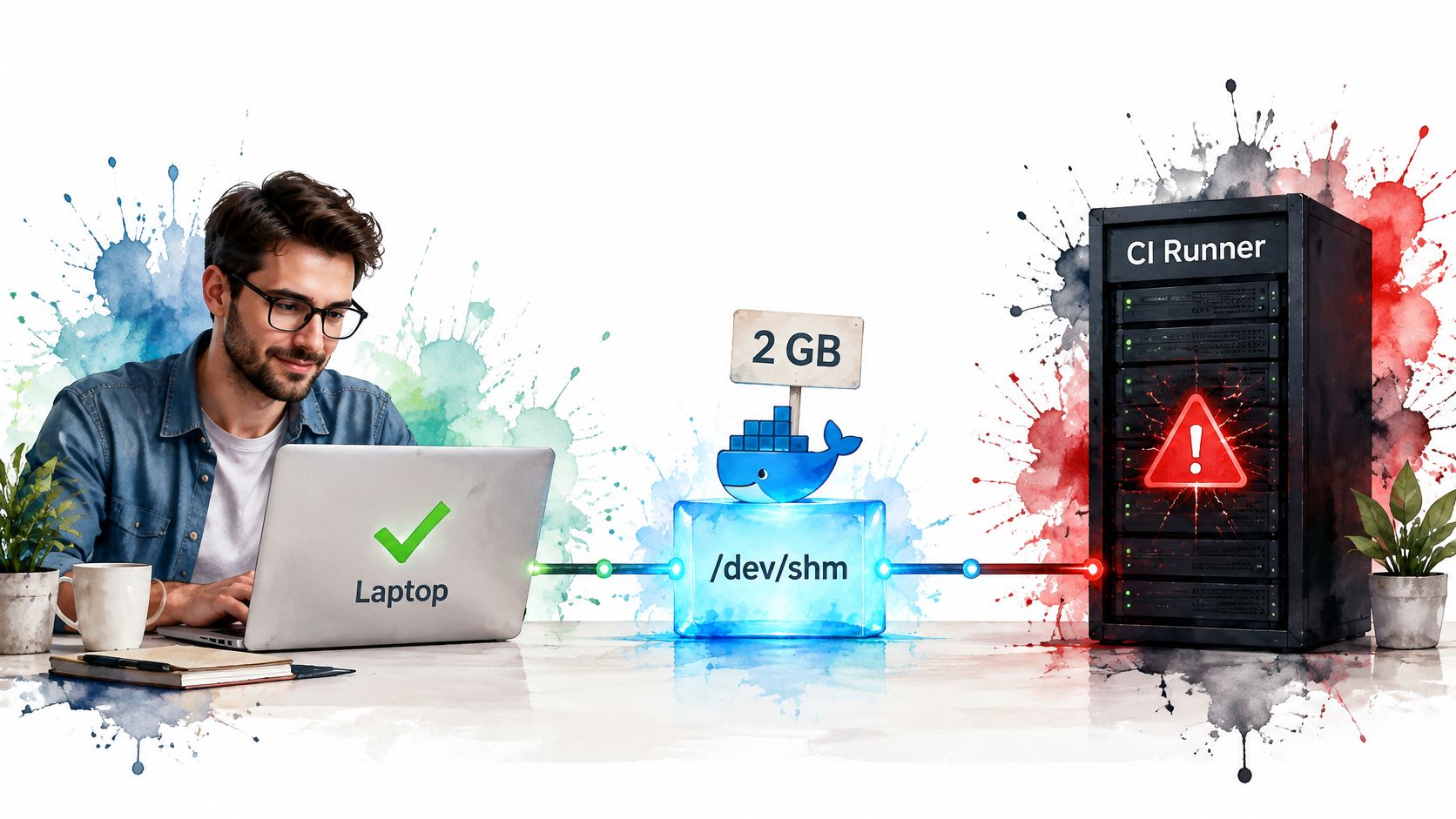
A Selenium container can pass locally and fail in CI because the machine running it has different limits. Chromium uses /dev/shm for renderer and inter-process data, and Docker's default shared-memory allocation is only 64 MB. Selenium's Chrome image guidance identifies that default as a cause of crashes and recommends starting around 2 GB; it also recommends roughly one CPU per browser for better stability (Selenium Chrome image guidance).
| Resource | Default | Starting value | Failure sign |
|---|---|---|---|
Shared memory (/dev/shm) |
64 MB | 2 GB per browser container | Tab crashes and session-deleted errors under load |
| CPU | No limit set | About 1 CPU per browser | Slow page loads and command timeouts when sessions run in parallel |
| Sessions per container | Configurable | One | Lower stability and renderer crashes as sessions are added |
| Memory | Host dependent | Measure peak with docker stats, then add headroom |
OOM kill, exit code 137, or browser process termination |
Session request timeout (SE_SESSION_REQUEST_TIMEOUT) |
Image default, check your tag | Tune to your queue depth | Requests wait in the queue and then fail |
Diagnose the limit before changing tests
Keep one browser session per container as your stability baseline. You can configure a container to run more sessions, but squeezing more browsers into one container can increase contention and reduce reliable throughput. Add browser containers to increase capacity before raising sessions per container.
Use docker stats while a representative suite runs to see whether CPU or memory is under pressure. Check the container's state with docker inspect; an OOMKilled result or exit code 137 points to a memory kill, not a locator problem. If browsers remain healthy but new sessions wait and fail, inspect Grid capacity and request-queue timeouts instead. Page complexity and the number of parallel workers change the actual budget, so measure with the actual suite and leave headroom rather than sizing from a tiny smoke test.
When crashes appear only under parallel load, check shared memory and CPU before changing test code.
How to Run Selenium in Docker Step by Step
A container that reports "running" proves nothing about whether the browser accepts sessions. Most parallel-load failures trace back to decisions made before the first docker run: an unpinned tag, a default shared-memory limit, a readiness check nobody configured. The procedure below starts one standalone Chrome container on an isolated network and confirms Grid readiness before any test requests a session. Selenium's deployment guidance recommends version pinning, adequate shared memory, controlled endpoint exposure, and a readiness check rather than treating a running container as a ready browser (Selenium Grid architecture and deployment guidance).
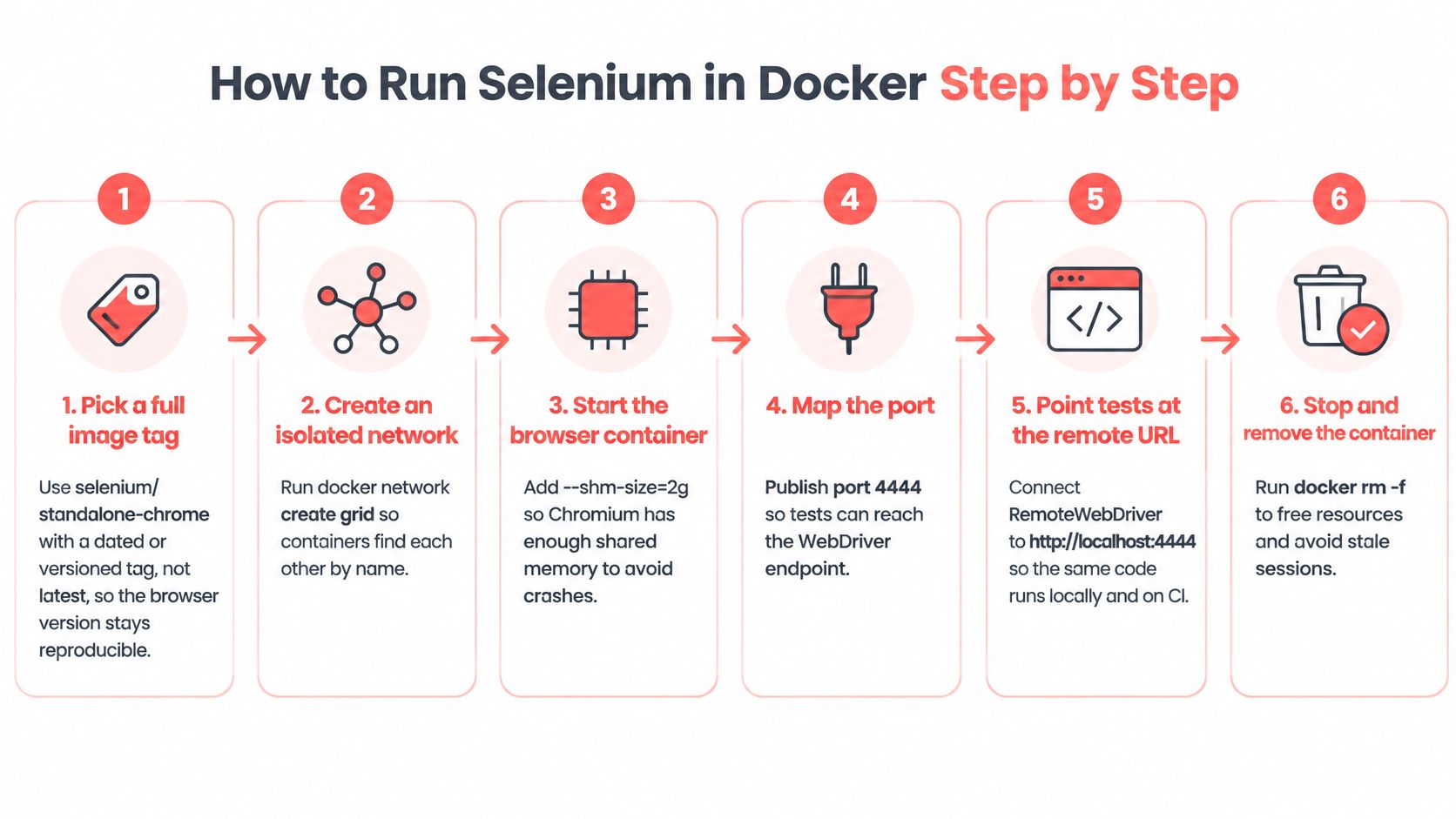
Choose a pinned image. Replace the placeholder with the full version or dated tag selected for your CI target. Skip
latestif you ever need to reproduce a browser failure: the tag is what lets you rerun the same environment after a regression appears.export SELENIUM_IMAGE=selenium/standalone-chrome:<full-tag>Create a dedicated network. This keeps the browser container's Docker connectivity separate from unrelated local containers.
docker network create selenium-netStart the browser with enough shared memory. Publish only the WebDriver endpoint your test client needs. Expose a VNC port only when you want to watch the browser during debugging.
docker run -d --name selenium-chrome \
  --network selenium-net \
  --shm-size="2g" \
  -p 4444:4444 \
  "$SELENIUM_IMAGE"
The sizing values set in this command are what every later test run inherits, so decide them now rather than after a flaky suite forces the question.
Wait for Grid readiness. Poll the status endpoint until the response reports the node ready:
curl -s http://localhost:4444/wd/hub/statusWire the same poll into a container health check or a CI wait step, with an interval and retry count your pipeline tolerates.
docker runreturning only tells you the process started.Run one smoke test remotely. Point
RemoteWebDriverathttp://localhost:4444/wd/huband reuse the same browser options as your local test. One navigation and one assertion is enough before you enable parallel workers.Inspect logs if it fails, then clean up. Read the container output with
docker logs selenium-chrome. When the run finishes, remove the container so a stale session cannot confuse the next run:docker rm -f selenium-chrome
A passing smoke run returns a session ID, loads the target page, and reports the expected title. The container log should show a clean session lifecycle with no browser crashes or readiness failures. Record the image tag and browser version with the test result. When a failure surfaces weeks later under parallel load, that metadata is what lets you prove whether the environment changed or the test code did.
Expose the Running Container to MCP Clients
Set the browser endpoint before you start clients, not after a tool reports a missing browser. Point the MCP server at the running Selenium endpoint, http://localhost:4444 for the container started earlier, in that server's command arguments or environment variables, so the client's automation reaches the same container you already checked for readiness.
Register the server separately in each tool:
- Claude Desktop: Add the server under the
mcpServersblock inclaude_desktop_config.json. - Cursor: Add it to an
mcp.jsonfile in the project's.cursorfolder or the global~/.cursorfolder. - Cline: Configure it from the MCP Servers panel and its MCP settings file.
Each entry needs the server name, the launch command or URL, the transport, and any environment variable used to pass the Selenium endpoint. Some MCP servers attach to an existing browser endpoint; others launch their own browser directly, so confirm the mode before copying settings between clients. The browser automation MCP setup guide is a useful reference for keeping the browser tool separate from the client configuration.
Verify one client at a time. Start Selenium, wait for the status endpoint to report ready, restart the client, and confirm the server appears in its tool list. Then make one navigation call and check the container logs if it fails. If Claude Desktop works but Cursor does not, compare transport and variable names rather than test code. A connection refused or session timeout here usually means the endpoint, published port, or readiness check was wrong before the first run, not that Selenium broke under parallel load.
Choose Standalone, Grid or Kubernetes and Scale Safely
Start with Standalone unless your workload already needs multiple machines. It puts the Router, Distributor, Node, and browser in one deployment, which makes it a practical fit for one developer machine or a CI job running one browser. Selenium Grid's roots are in distributing WebDriver execution across remote machines: the official project records the release of Selenium Grid 1.0.8 in 2010, and its current deployment options extend that model to containerized nodes and Kubernetes (Selenium Grid project history).
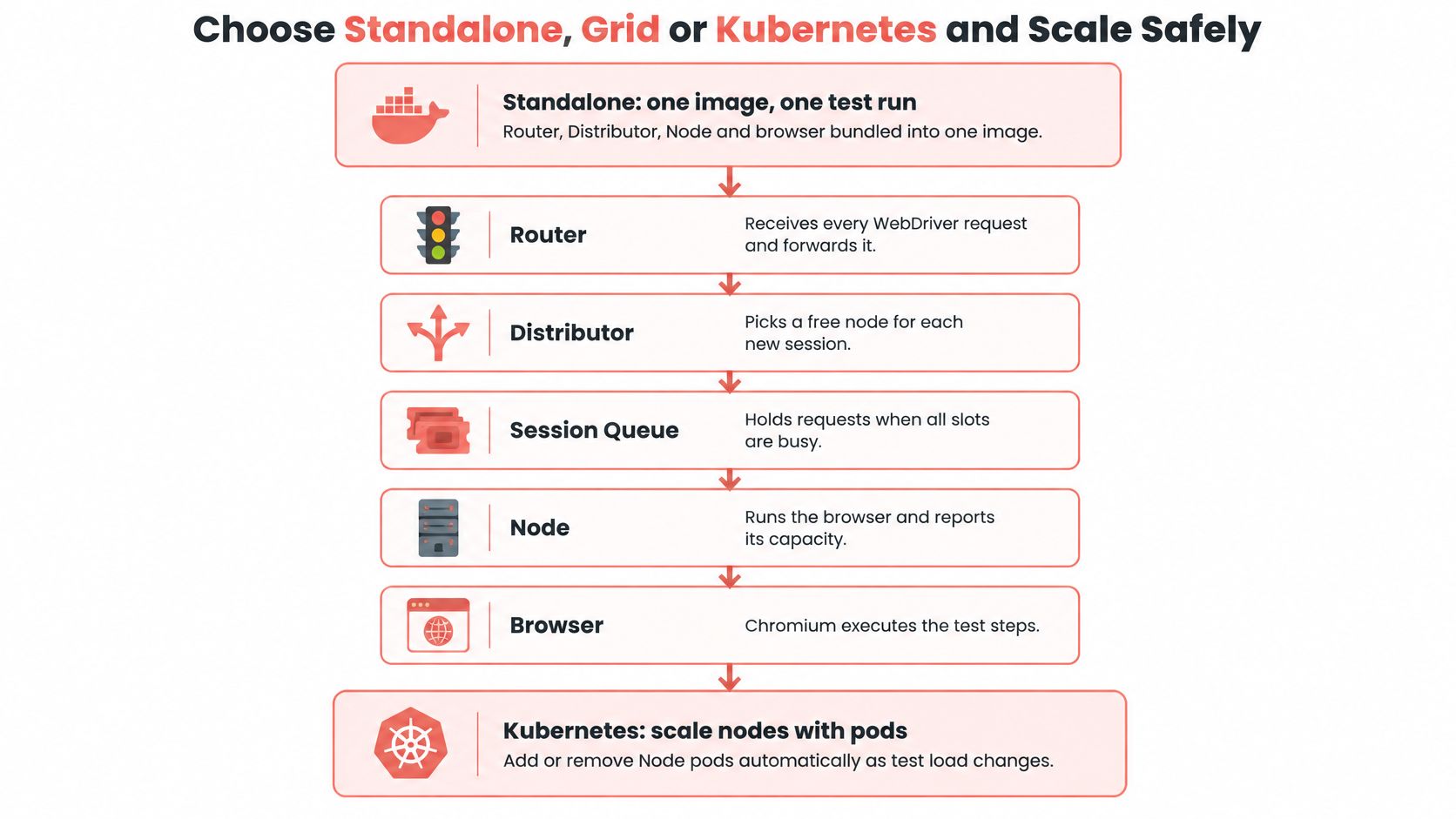
When one container no longer provides enough capacity, move to a Hub-and-Node setup. The Router receives requests, the New Session Queue holds requests when no slot is free, the Distributor assigns new sessions to Nodes, and the Session Map routes later commands to the Node running each session. Selenium's node-docker pattern can launch child browser containers dynamically, separating browser capacity from the Grid endpoint.
Kubernetes is the next step when you need to manage and scale capacity across a cluster. Selenium's official materials provide a Helm chart for deploying Grid Docker images to Kubernetes; that brings cluster orchestration into the picture, but also adds deployment and operations work. Don't adopt it just because parallel execution is possible. Choose it when managing browser capacity across machines is a real requirement, not a future possibility.
For browser tooling beyond Selenium, Clearcote Labs also offers a browser-as-a-service option through its browser runtime overview.
Run one pinned Standalone container this week, execute a smoke test, and record the browser, driver, and architecture with the result. Add parallel sessions only after that baseline is repeatable, then scale to Grid or Kubernetes when the workload demands it.
Clearcote Labs offers browser automation tools, including a Docker and CDP endpoint, for teams building repeatable browser workflows. If you're evaluating how browser infrastructure fits alongside Selenium containers, visit Clearcote Labs to explore the available options.